3D Systems, Inc.
3
30-0433 Rev. A
2 GETTING STARTED
2.1 Overview
Congratulations on your purchase of the 3D Systems Touch haptic device!
This guide covers information about the 3D Systems Touch haptic device. The information contained in this manual
was current at the time of publication. Visit https://softwaresupport.3dsystems.com for the latest information.
This chapter describes the following:
• About this guide
• What comes with your device
• The 3D Systems Touch haptic device features
• System requirements
2.2 About This Guide
The 3D Systems Touch Device Guide describes the process of installing the required device drivers for your new 3D
Systems haptic device and connecting the hardware device to your computer. You will also nd information on how to
use the device and other information about the device.
For the most current device information please visit the Geomagic website at https://softwaresupport.3dsystems.
com.
We’ve worked extensively to ensure that the 3D Systems haptic device and device drivers install and work smoothly. If
you experience any problems during the installation or use of your device, please contact Customer Support.
2.3 What Comes With Your Device
The following documentation and other materials are provided to assist you in learning about your haptic device:
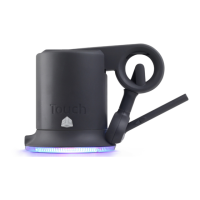
The 3D Systems Haptic Device: The haptic device uses high-delity force feedback to make it possible to touch and
manipulate virtual objects.
The Quick Start Guide: A quick start to attaching the haptic device, installing the drivers and using the device. For
detailed information, see the 3D Systems Touch and Touch X User Guide.
The User Guide: This guide (available online at https://softwaresupport.3dsystems.com), describes the process of
connecting the haptic device as well as how to work with the device including proper handling, troubleshooting, and
device specications. It also includes the process of installing the device drivers.
USB Type A to Type B Cable: This cable is used to connect the haptic device to the USB 2.0 or 3.0 port on the
computer.
Universal Power Supply: The power supply can be used on any standard circuit, using the supplied power cord.
Power Cord: The power cord connects the Universal Power Supply to the wall outlet.
Wrist Rest (TouchX Only): The wrist rest comes with the TouchX device and provides wirst support when using the
device


 To Next Page