3Dconnexion SpaceMouse Compact | 6
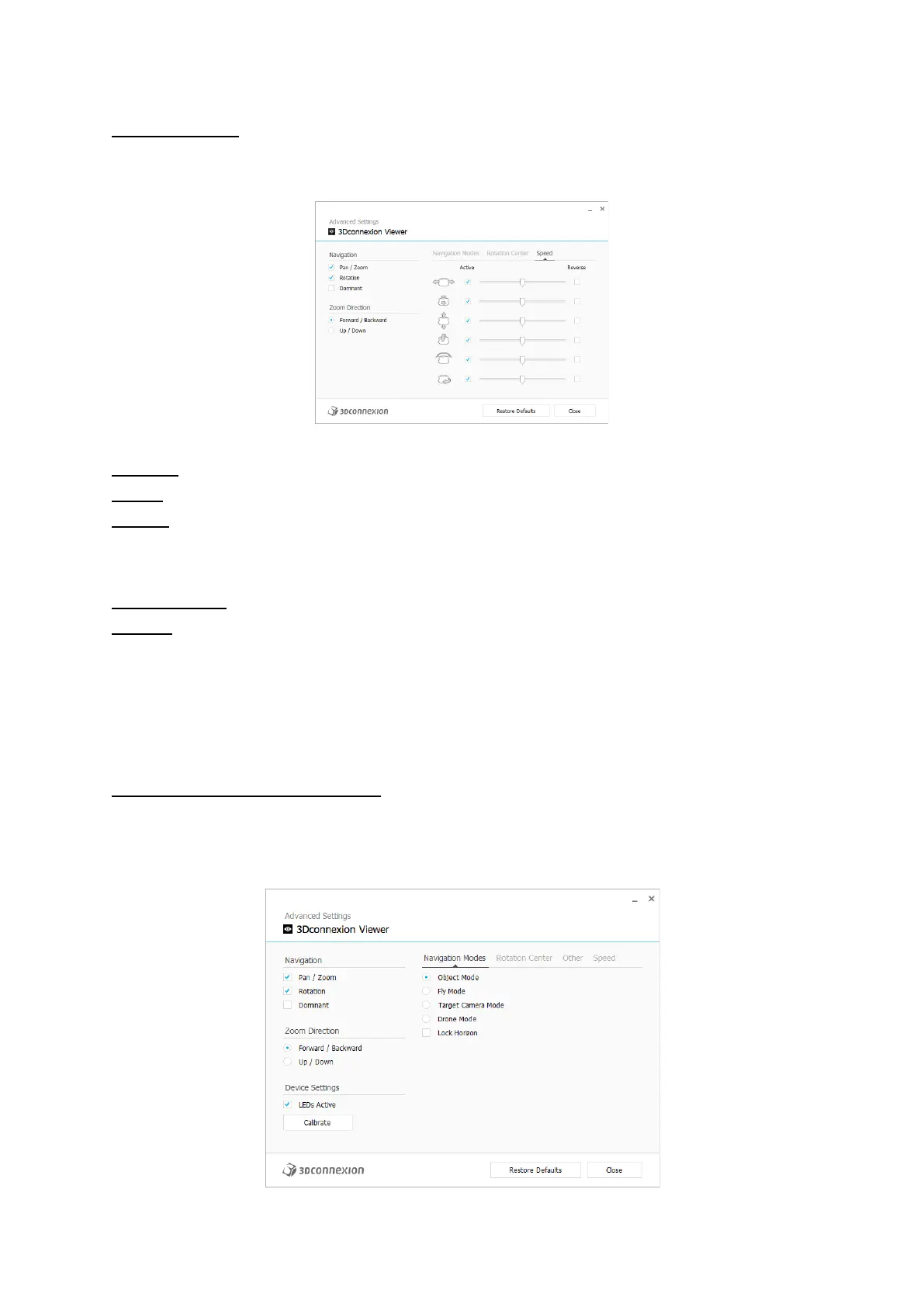
Advanced Settings
Settings you can configure in the Advanced Settings panel are application-specific. So, it's easy to configure your SpaceMouse
to work just how you prefer in each application.
Navigation
Pan / Zoom: Enables/disables panning of your part, assembly or drawing. Enabled by default.
Rotation: Enables/disables rotation of your part, assembly or drawing. Enabled by default.
Dominant: Turns on and off dominant filter axis, which when enabled restricts the pan, zoom or, rotations to a single axis.
Zoom Direction
Forward / Backward: Zoom by pushing the cap toward or away from you parallel to the desk.
Up / Down: Zoom by pulling the cap upwards or pushing the cap downwards parallel to the screen.
Speed
Use the slider to set the speed for each of the 6-Dimensions-of-Freedom individually. To reverse the direction of a movement,
check the Reverse box for that movement.
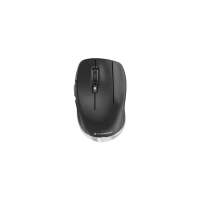
Application Specific Advanced Settings
Some applications feature additional SpaceMouse settings. For those applications you have additional options available in the
Advanced Settings Panel:




 To Next Page