LCD DISPLAY SCREENS
9
BACnet
®
General Controller Technical Guide
LCD Display & Navigation & Editing Keys
LCD Display Screen & Navigation &
Editing Keys
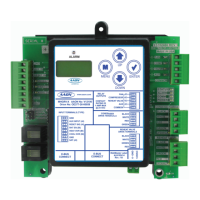
TheBGCallowsyoutomakecongurationchanges,viewstatus,
change setpoints, create force modes, and perform diagnostics using
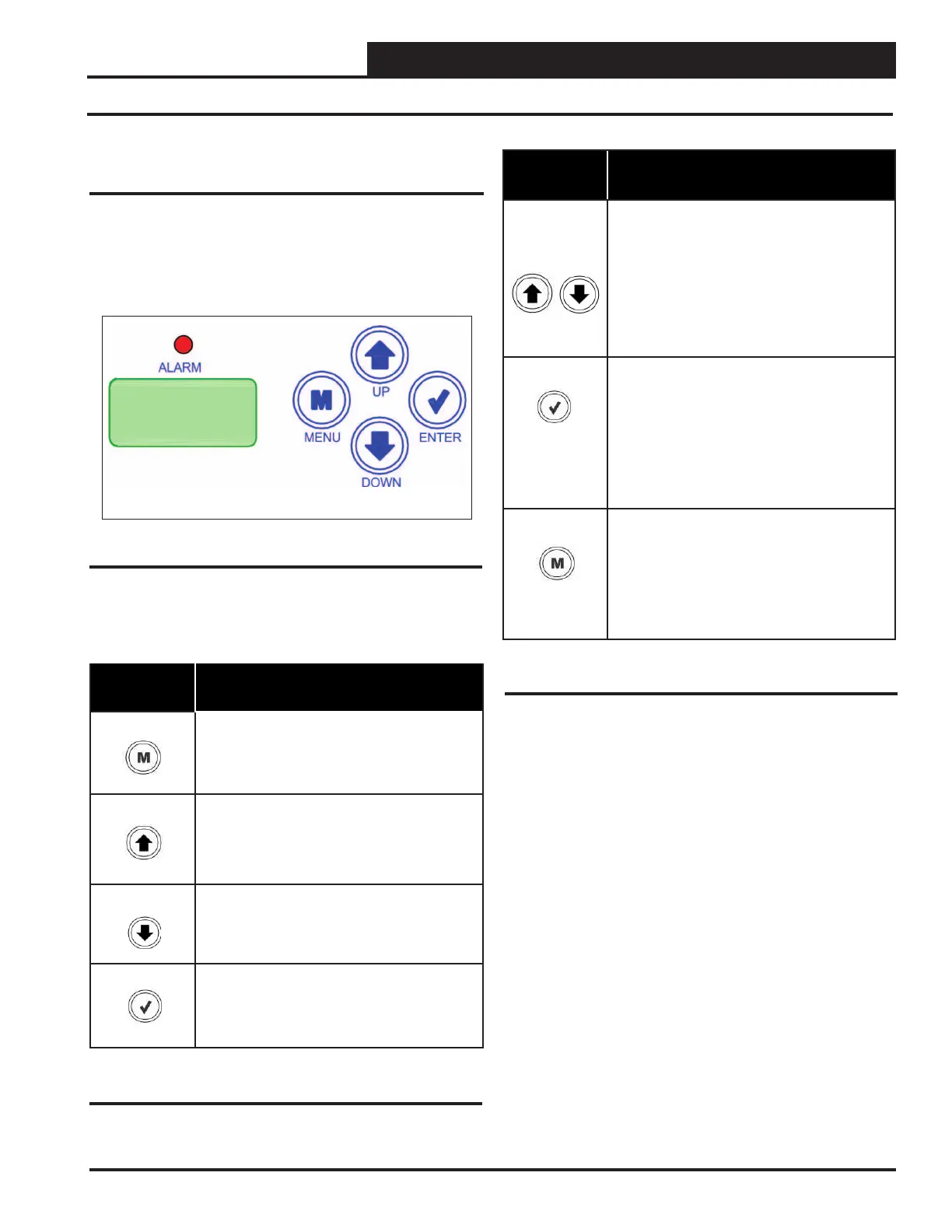
the keypad next to the LCD display. See Figure 3, below and refer
to Table 1 forNavigationKeyfunctions.Thekeysalsohaveediting
functions. Refer to Table 2forEditingfunctions.
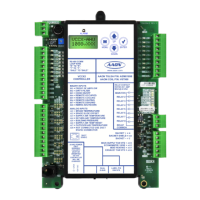
Figure 3: LCD Display and Navigation Keys
Table 1: Navigation Key Functions
NAVIGATION
KEY
KEY FUNCTION
MENU
Use the MENU key to return to a Main Menu
Screen.
UP
Use this key to move through Main Menu
Screens and adjust Settings.
DOWN
Use this key to move through Main Menu
Screens and adjust Settings.
ENTER
Use the Enter key to move through screens
within Main Menu categories.
Table 2: Editing Key Functions
EDITING
KEY
FUNCTION
UP
or
DOWN
Use the UP or DOWN key to enter editing
mode on a user-adjustable screen. Edit
Mode is indicated by the underscore
appearing on the screen.
NOTE: Entering Edit Mode will also adjust
the value up one (UP key) or down one
(DOWN key), so you may have to readjust
the value.
ENTER
Use the ENTER key to move through the
digits in the screen when editing a numeric
value. An extended press of the ENTER key
saves your edits no matter the location of
the editing cursor within the digits.
Press the ENTER key to save a non-
numeric value - such as Hi Speed Network.
MENU
The MENU key cancels editing when in
Edit Mode. The screen you were editing will
return to its original value and the under-
score will disappear.
A second press of the MENU key will
return you to the Main Menu.



 To Next Page