Contents
System displays/Systemoperation
Status displays
The following status displays provide information about
the operating status:
• LED on the front of the device
• Icons (display elements) on the monitor
Note
Note the remarks in the separate quickstart guide.
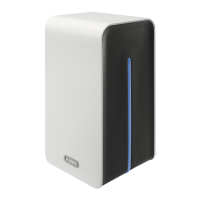
LED illumination
Note
Refer to the overview on page10.
Status Role
Lit blue continu-
ously
System status OK
Off
Device is switched off.
General
The device can be controlled using the following:
• USB mouse
• Web interface
• CMS software
Operating with a mouse
Note
The further descriptions contained in this user
guide involve using a mouse.
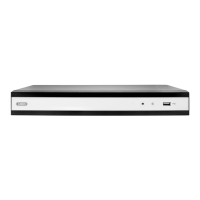
The device is suitable for use with a USB mouse.
Connect the mouse to the USB port.
But-
ton
Role
Left Single-click
Selection in the menu, activation of an input
field or a tab, display of the Quick Set menu.
Double-click
Switch between the screen display of single
and multiple images in the live view and dur-
ing playback.
Click and drag
Set up private masks or alarm zones
Right Single-click
Open the pop-up menu.
Return to the previous menu.
Scroll
wheel
In live view
display previous/next camera
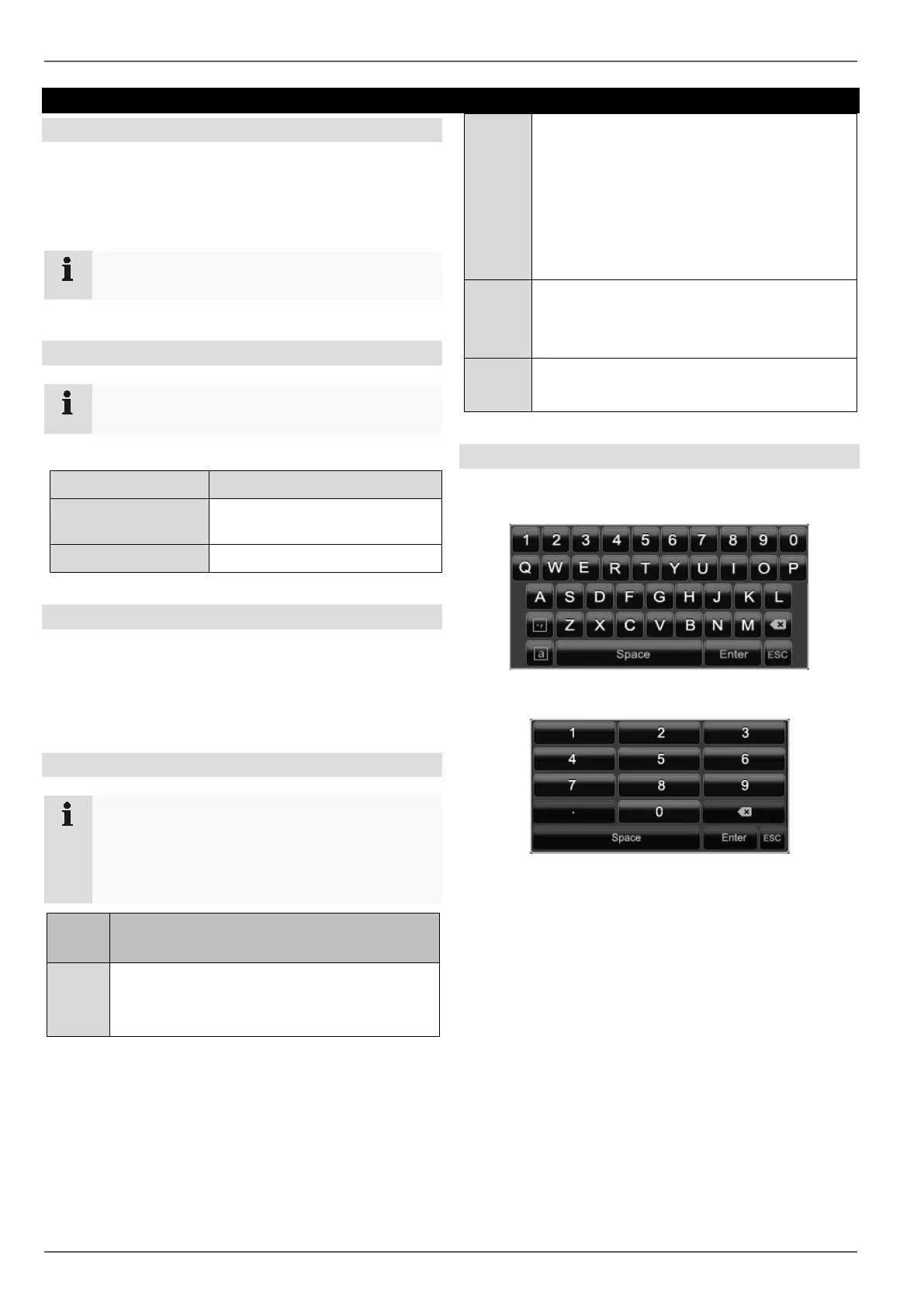
On-screen keyboard
If you click with the mouse in a text input field, the on-
screen keyboard appears:
For simple figure input, the following on-screen keyboard
appears:
The keys have exactly the same function as a computer
keyboard.
• To input a figure, click on it with the left mouse key.
• To finish the entry, click on Enter.
• To delete the figure in front of the cursor, click on .
• To switch between upper and lower case text, click
on the framed a. The active setting is indicated
above the keyboard.
• To cancel an entry, or to leave the field, click on
ESC.
11



 To Next Page