Setup wizard
114
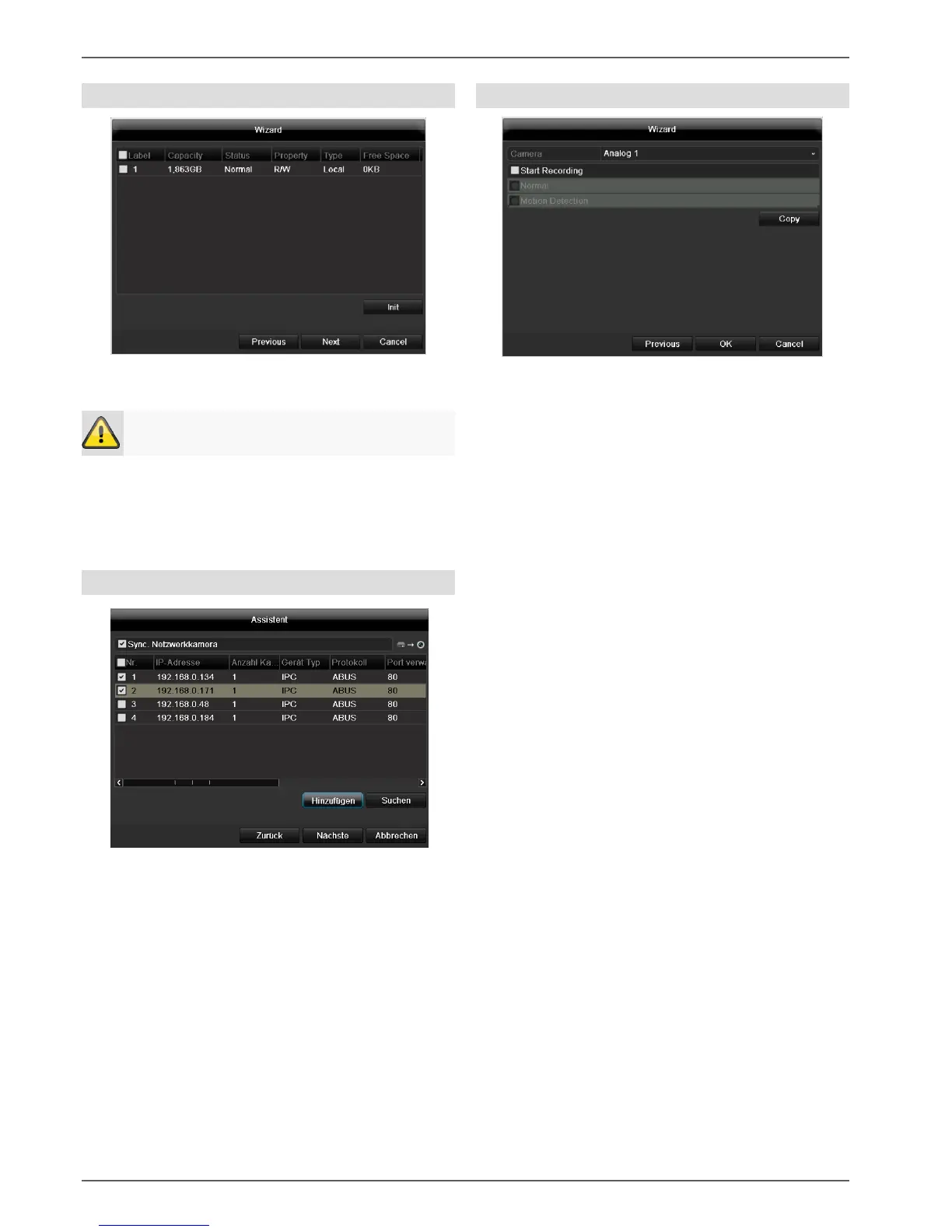
HDD Management
1. To set up a new hard disc, activate the “Check box”
with a left click and then click on Init.
2. Confirm the prompt by pressing OK. The HDD is
then set up for operation. The progress is displayed
on the status bar.
3. Exit the setting by pressing Next.
Setting up network cameras
1. To setup network cameras, click on Search.
2. You can find an overview of all the network cam-
eras found below.
3. Activate the “Checkbox” with a left-click to select
the network camera and then click on Add.
4. Click on Next
Camera recording
1. At “Camera” select a camera with which you would
like to record.
2. Activate the check box “Start recording”.
3. Select the type of recording. You can choose be-
tween “Time plan” and “Motion recognition”.
Arm the motion detection inside the camera for re-
cording motion.
4. Press Copy to take on the setting for other cameras.
For this, select the cameras that appear in the new
window. Activate the respective check box with a
mouse click.
5. Finalize the setting and end the installation assistant
with OK.


 To Next Page