Live view
115
Live view
Overview
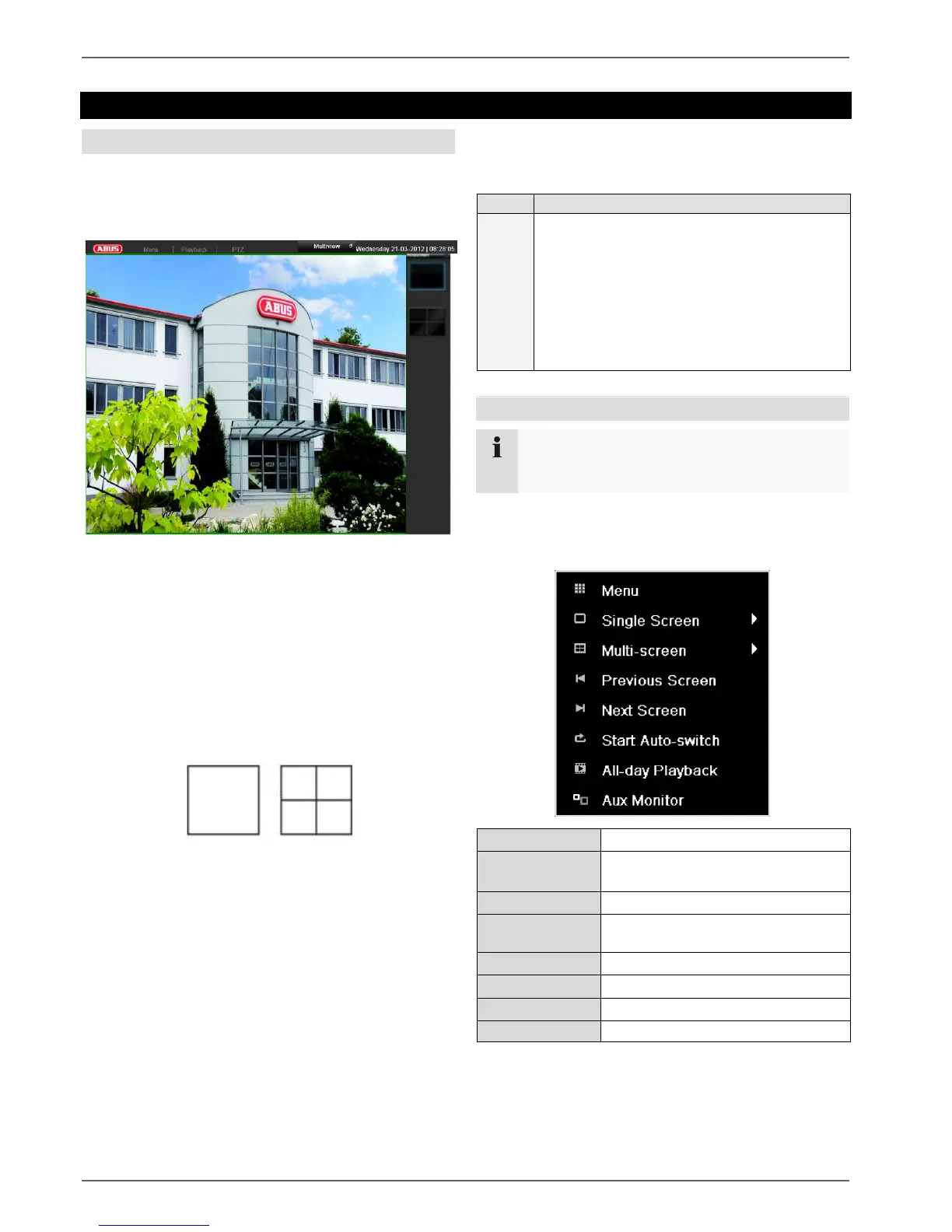
The live view starts automatically after the device is
switched on.
You can also go back to the live view by pressing the
Menu key repeatedly.
The following menus are found in the screen header:
Menu
Playback
PTZ
The view pop-up menu is found on the right. The time
and date are displayed on the right.
To open the view pop-up menu, click on the rectan-
gular symbol at the top-right of the menu bar.
Click on one of the symbols to switch between the dif-
ferent views.
The signals of the connected cameras are displayed on
the main screen.
By double-clicking the left mouse key, you can dis-
play the camera image as a full-screen view or switch
back to the original view.
Status symbols
The following symbols are displayed depending on
the operating status of the device:
The following settings can be made. The arrow pointing
to the right indicates that a sub-menu is opened for selec-
tion:


 To Next Page