EasyManua.ls Logo

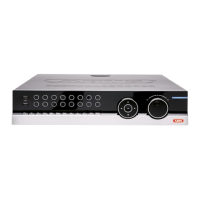
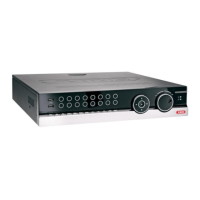
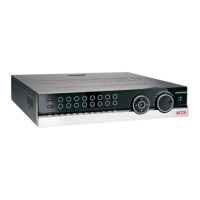
Abus TVVR45020 - User Manual

Abus TVVR45020
61 pages
Print Icon
To Next Page IconTo Next Page
Loading...
ABUS Digital Recorder
TVVR45020
User manual
Version 1.0

Table of Contents

Questions and Answers

  • A
    Angela TurnerAug 15, 2025
    What to do if my Abus TVVR45020 has no power?
    • K
      Kristin HurstAug 15, 2025
      If your Abus DVR has no power, first, ensure the mains cable is securely connected to the socket. Then, check that the power switch is turned to the 'ON' position. Finally, verify the power socket is working by testing it with another device.
  • G
    Grace BairdAug 18, 2025
    How to fix an Abus TVVR45020 DVR with no image?
    • N
      Nina HornAug 18, 2025
      If your Abus DVR displays no image, ensure the screen is set to receive input from the correct video input mode until an image from the recorder appears. Also, check that the video cable is securely connected and the connected monitor is switched on.
  • A
    albertrobertsAug 21, 2025
    Why is my Abus TVVR45020 remote control not working?
    • B
      Brandy HarrisonAug 21, 2025
      If your Abus DVR remote control isn't working, first, replace the batteries, ensuring they are inserted with the correct polarity. Point the remote control at the remote control sensor on the device within a 7-meter range, removing any obstructions. Also, switch off strong fluorescent lighting in the immediate vicinity.
  • D
    Danielle RojasAug 25, 2025
    What to do if there is no sound from my Abus DVR?
    • V
      Valerie ThompsonAug 25, 2025
      If there's no sound from your Abus DVR, check that the audio cables are securely connected. Ensure that any devices connected via the audio cables are switched on. If the problem persists, the audio connection cable may be damaged and require replacement.
  • S
    Shane NewmanAug 27, 2025
    How do I troubleshoot network access issues with my Abus DVR?
    • L
      Luis FloydAug 27, 2025
      If network access to your Abus DVR is not possible, first, check that the network cable is securely connected. If the connection is ok, check the network configuration and correct it, when necessary.
  • B
    barkerpaulAug 30, 2025
    Why is my Abus TVVR45020 HDD not working?
    • A
      Allison MackAug 30, 2025
      If the HDD in your Abus DVR isn't working, ensure the connection cables are securely connected. If the issue continues, the HDD may be defective or incompatible, requiring replacement with a recommended HDD.
  • A
    Alan MillerSep 2, 2025
    Why is recording not possible on my Abus TVVR45020 DVR?
    • K
      Kevin SellersSep 2, 2025
      If recording is not possible on your Abus DVR, it could be due to no HDD being installed or the HDD not being initialized. Install and initialize the HDD to resolve this issue.
  • C
    Corey SmithSep 5, 2025
    What should I do if the USB port on my Abus TVVR45020 is not working?
    • A
      Andrew DavisSep 5, 2025
      If the USB port on your Abus DVR isn't working, ensure you are connecting a compatible USB medium, such as USB 2.0. Also, if you're using a USB hub, connect the USB medium directly to the DVR instead.
  • G
    Grace LopezSep 8, 2025
    Why are my Abus TVVR45020 DVR camera images black and white and blurred?
    • F
      foxheatherSep 8, 2025
      To resolve the issue of black and white and blurred camera images on your Abus DVR, ensure that you connect the cameras before starting the recorder. You can also set the mode.
  • B
    Bryan LambertSep 12, 2025
    Why does my Abus DVR suddenly deactivate?
    • R
      Ruben LittleSep 12, 2025
      If your Abus DVR suddenly deactivates, it may be due to the internal temperature being too high. Clean the device and remove any obstructions from the ventilation area.

Summary

Device Overview and Hardware

Device Overview: Remote Control

Quick Guide to Initial Setup

Important Safety Information

Symbol and Label Explanations

Explanation of warning symbols and text labels used in the manual.

General Safety Guidelines

Important instructions for safe operation and handling of the device.

Proper Device Usage

Guidelines on the intended purpose and appropriate use of the recorder.

Power Supply Precautions

Safety measures related to the device's power source and connection.

Important Safety Information (Continued)

Overvoltage and Cable Safety

Warnings about overloading, overvoltage, and safe handling of cables.

Care, Maintenance, and Children Safety

Guidelines for device care, maintenance, and safety around children.

Installation Environment Requirements

Conditions for optimal and safe installation location and ambient environment.

Accessories Safety

Safety considerations when using compatible accessories with the device.

Remote Control Safety

Safety advice regarding the use and maintenance of the remote control.

Putting Device into Operation

Instructions and warnings for bringing the device into initial operation.

System Operation

System Operation: Connections and Controls

System Operation: Mouse Interface

System Operation: Device Management

Setup Wizard Configuration

Initial System Setup Steps

Guided process for initial language and system configuration.

Administrator Account Setup

Procedure for setting up the administrator username and password.

General Settings Configuration

Configuration of basic system parameters like date, time, and resolution.

Setup Wizard: HDD and Recording

Hard Disk Drive (HDD) Management

Steps for managing and initializing HDDs for recording.

Setup Wizard: Network Camera Integration

Adding a Network Camera

Procedure for adding and configuring IP cameras to the system.

System Settings: Camera Output

Configuring Camera Output Settings

Setting up video output modes, camera order, and dwell times.

Record Settings

Record Settings: Schedule and Manual

Playback Functionality

Playback: Live View and Advanced Search

PTZ Control Functions

PTZ Control: Settings and Presets

PTZ Control: Tours and Patterns

HDD Management

HDD Management (Continued)

System Settings: General Configuration

General Settings Overview

Main system settings including language, time, and basic configurations.

Detailed General Settings

Specific configurations for language, time zone, and display.

System Settings: Camera Management

Camera Settings Configuration

Settings related to camera properties, names, and IP addresses.

Camera Management Overview

Interface for managing connected cameras, including their status.

System Settings: Advanced Camera Options

Advanced Camera Settings Tab

Configuration for camera-specific settings like tamper and motion detection.

Zones, Schedule, and Notification Setup

Configuring surveillance zones, schedules, and notification types.

Notification Settings Configuration

Setting up how the system notifies users of events (pop-up, email, etc.).

System Settings: Core Features

Record Settings Configuration

Configuration for recording parameters and schedules.

Network Configuration Settings

Settings for network connectivity, IP addresses, and protocols.

Alarm Integration Settings

Configuration for alarm inputs, outputs, and detector assignments.

PTZ Control Settings

Settings related to PTZ camera control and configuration.

RS232 Port Information

Information regarding the RS232 serial port functionality.

Display Options Configuration

Configuration for display settings, OSD, and video output.

System Settings: Exception and User

System Settings: Exception Handling

Configuration for handling system exceptions like HDD full or disconnections.

System Settings: User Management

Adding, deleting, and modifying user accounts and their permissions.

System Settings: User Access Rights

Setting User Access Rights

Controlling user permissions for local, network, and camera operations.

Network Basics and Terms

General Network Information

Essential network settings for using IP cameras and remote access.

Network Terms and Definitions

Explanation of key network terminology like IP address, subnet mask, and gateway.

Network Configuration

Network Manual Setup Procedures

Network Email and Host Settings

Network Status Monitoring

Alarm System Configuration

Alarm Handling and Scheduling

Alarm Output and IP Modules

Troubleshooting Common Issues

Abus TVVR45020 Specifications

General IconGeneral
BrandAbus
ModelTVVR45020
CategoryDVR
LanguageEnglish

Related product manuals