Device menu
38
“DST Settings”
tab
Setting
DST Activated when box is checked
From / To Date of DST start / end
DST Bias
Daylight Saving Time Bias: Correc-
tion of the DST to the reference time
“More Set-
tings” tab
Setting
Device Name Unique specification of the device
Device Number
Used for unique identification when
using remote control
Monitor Bright-
ness
Scroll bar (left = darker;
right = brighter)
Transparent
1:1, 3:1, 1:3 or Non-transparent –
used for managing the display of the
OSD in front of the background im-
age
Menu Dwell
Time
1 to 30 minutes – regulates how long
the menu is shown
Main CVBS
Scaling
Video signal scaling on the MAIN
monitor
Box checked / not checked
Activate Event
Note
Displays a symbol at the bottom-left
of the live image when an event oc-
curs
System Settings: Camera
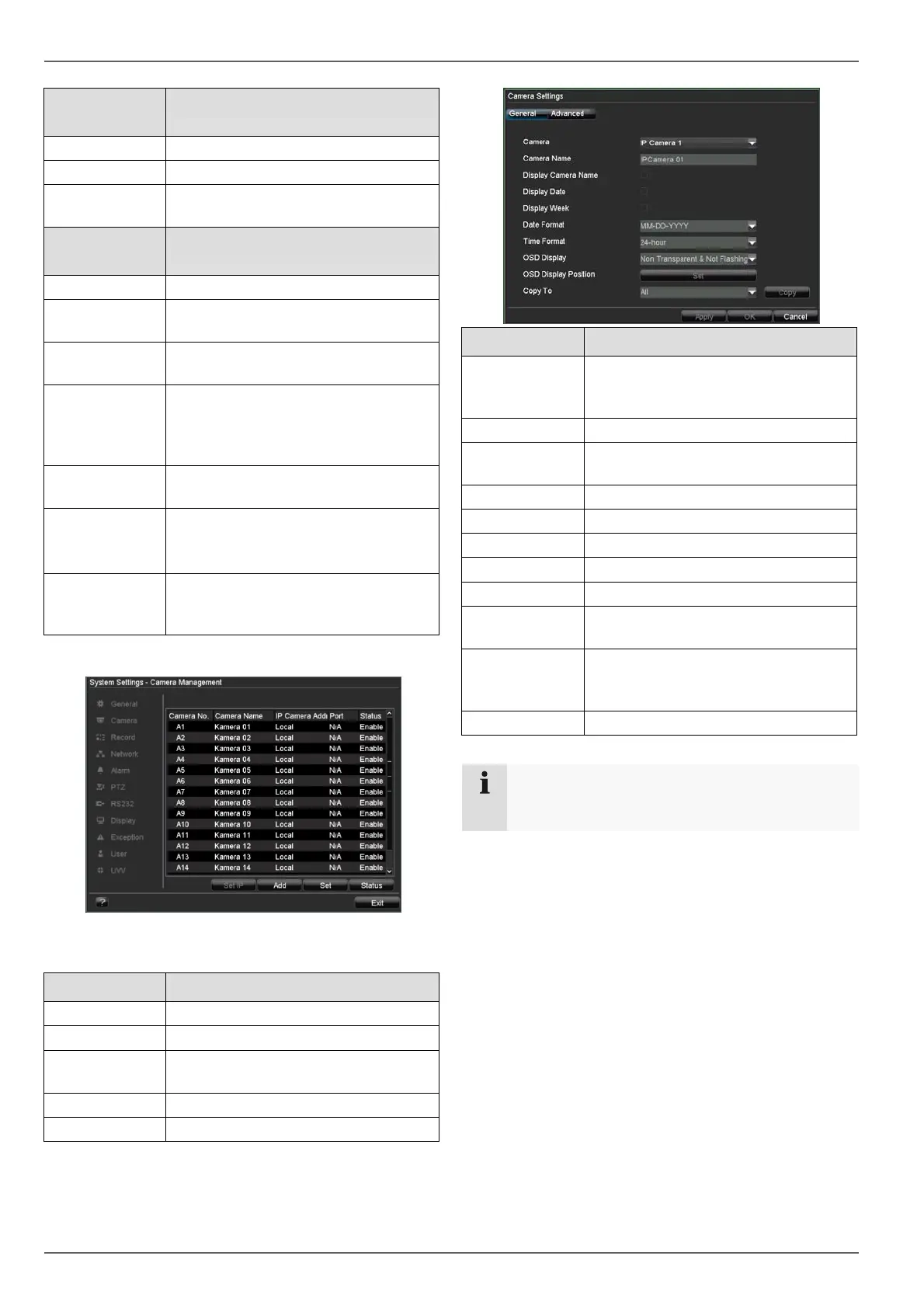
All cameras or signal inputs (see page 3) are displayed in
the “Camera Management” overview.
Name Meaning
Camera No. Signal input
Camera Name Specified camera name
IP Camera Ad-
dress
IP address of network cameras
Port Port number of network cameras
Status Connected / Disconnected
1. Select the camera by clicking the corresponding line.
2. Select Set to define a new camera connection.
22
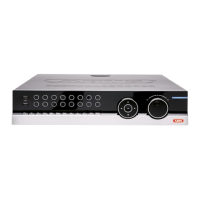
“General” tab Setting
Camera
Selection of the camera (only previ-
ously activated cameras can be se-
lected)
Camera Name
No settings possible
Display Cam-
era Name
No settings possible
Display Date
No settings possible
Display Week
No settings possible
Date Format
No settings possible
Time Format
No settings possible
OSD Display
No settings possible
OSD Display
Position
No settings possible
Copy To
Selection of whether the settings
should be copied to another camera
(and if so, to which camera)
Record See page 23
Note
If you want to display a name, date or time you
need to make these settings within the IP Camera.


 To Next Page