System operation
13
System operation
General information
The device can be controlled as follows:
• Using the operating elements on the front of the de-
vice
• Using the remote control
• Using the USB mouse
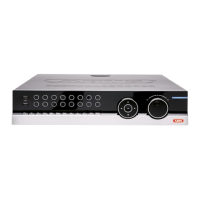
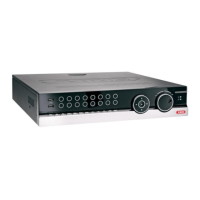
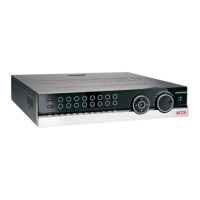
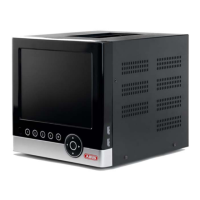
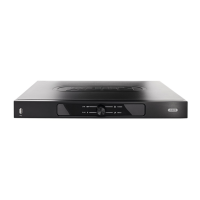
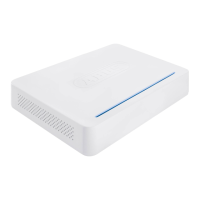
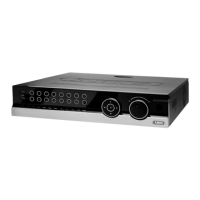
Operating elements on the device
Note
Pay attention to the overview on page 3.
No. Name
Function
1
Recorder operating keys:
MENU:
• Calls up the main menu
• Switches the key tones on and off (press and
hold down for 5 seconds)
REC:
• Calls up the menu for manual recording
PLAY:
• Opens the playback menu
ZOOM+:
• Zooms in on the image section in PTZ mode
ZOOM-:
• Zooms out of the image section in PTZ mode
• Switches the video output in live mode: Moni-
tor – Spot Monitor or Video Out – Video Spot
Out
FOCUS+:
• Sets the focus in PTZ mode
FOCUS-:
• Sets the focus in PTZ mode
IRIS+:
• Opens the iris
IRIS-:
• Closes the iris in PTZ mode
PTZ
• Activates the PTZ control
MODE:
• Switches the screen view
KEYLOCK:
• Locks the control keys
2
USB ports:
For external USB 2.0 devices (e.g. mouse, ex-
ternal disk drive or DVR writer)
No. Name
Function
3 Camera selection keys (1, 2, 3...):
Displays the camera status:
• White: Camera is connected
• Blue: Connected camera is recording
• Not lit: No camera connected
In the live view:
• Selects the camera and displays the full-
screen view
4 Directional keypad:
During playback:
• S, T Sets the speed
• W, X Previous / next day
In the live view:
• Selects the channel
In menus:
• Navigation
OK key:
• Press and hold for 5 seconds to switch the
device on and off
• Confirms the selection
• Checks / unchecks the boxes
During playback:
• PLAY/PAUSE
Increased/ decreased playback speed:
• Normal playback speed
5 Jog Shuttle:
During playback:
• Outer ring (shuttle ring) change playback
speed
• Inner ring to play single frames in single mode
In menus:
• Inner ring moves the cursor upwards / down-
wards
• Outer ring moves the cursor left / right
In the live view:
• Selects the channel
6 DVR status LED:
Displays the device status:
• White (constantly lit): System status is OK
• White (flashing): System status is OK, re-
cording settings are stored, surveillance
mode is active
• Blue (constantly lit): At least one camera is
currently recording
• Red (constantly lit): System maintenance re-
quired
7 IR receiver:
For the remote control


 To Next Page