Live view
21
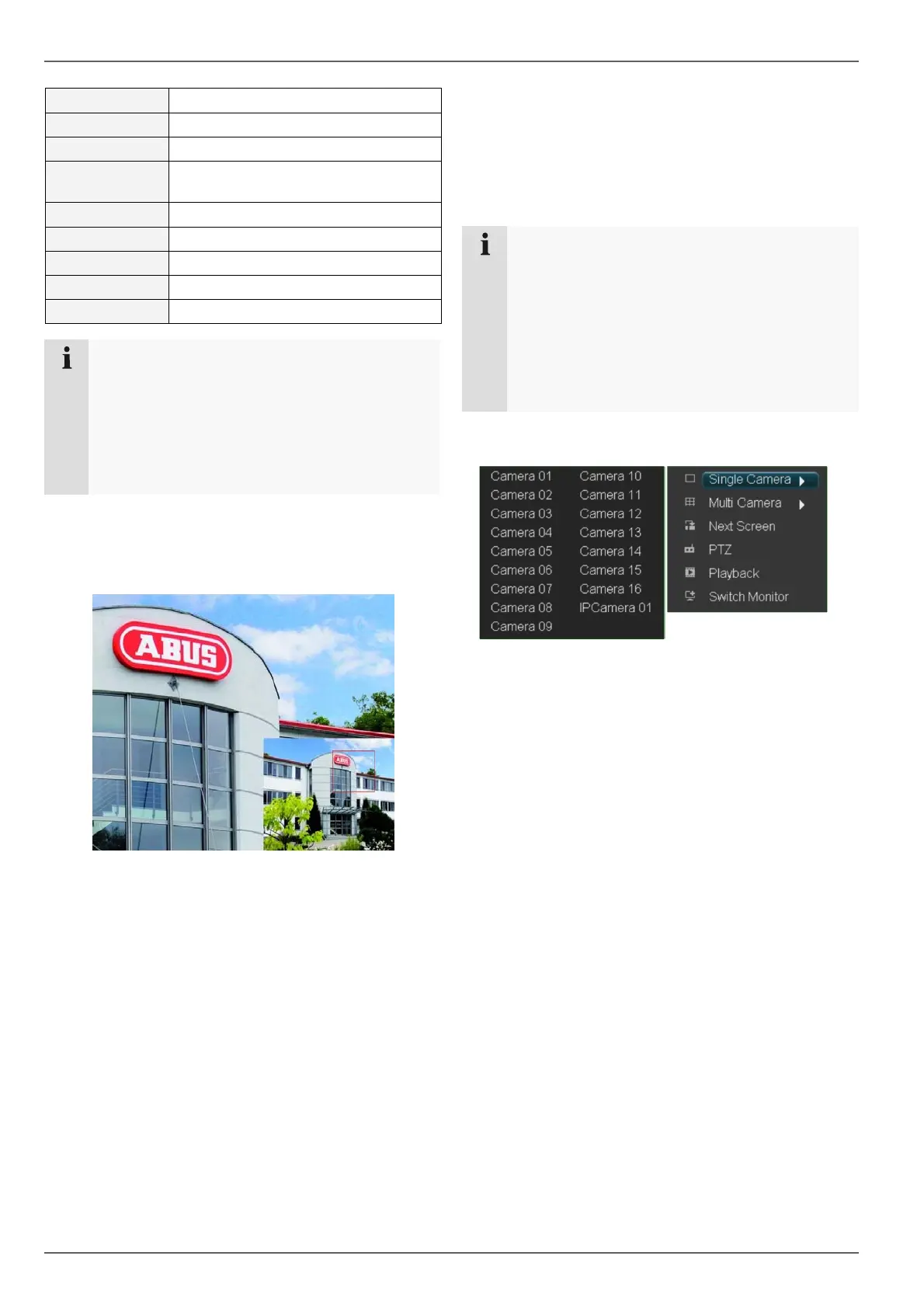
Single Camera Full-screen view for selected camera
Multi Camera Various camera layouts
Next Screen Displays the next camera(s)
Stop Auto-
switch
Starts the camera sequence
Digital Zoom Zooms in on the image section
PTZ Activates PTZ mode
Playback Switches to playback mode
Switch Monitor Switches to the next monitor
1
Menu Opens the main menu
Note
Stop Auto-switch:
Specify the delay in the image sequence in the
display settings.
Secondary monitor:
If no secondary monitor is connected, press the
ZOOM– key to return to the display.
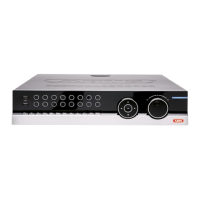
Digital Zoom
This function opens an image which has been enlarged
by four times.
• Left-click the mouse in the small image window and
pull a frame around the image section to be zoomed
in on whilst holding the button down.
• The selected section is then digitally zoomed.
• To exit the image, first right-click the mouse and then
left-click on “Exit”.
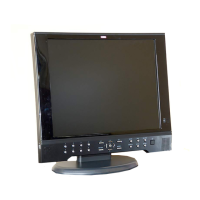
Secondary monitor
The secondary monitor is used to display a different view
to that on the main monitor. The Switch Monitor com-
mand is used to switch from the main monitor to the sec-
ondary monitor (e.g. to control PTZ cameras or set the
view on the secondary monitor).
Note
Pay attention to the connections on page 3.
• If the main monitor is connected via VGA, then
the secondary monitor can be connected to
VIDEO OUT.
• If the main monitor is connected via VIDEO
OUT, then SPOT OUT is used for connecting
the secondary monitor.
• Click on Switch Monitor to return to the previous
screen.


 To Next Page