Installation & Operation Manual - Model AVC5000
Contents of this Manual are Subject to Change Without Notification Page 24
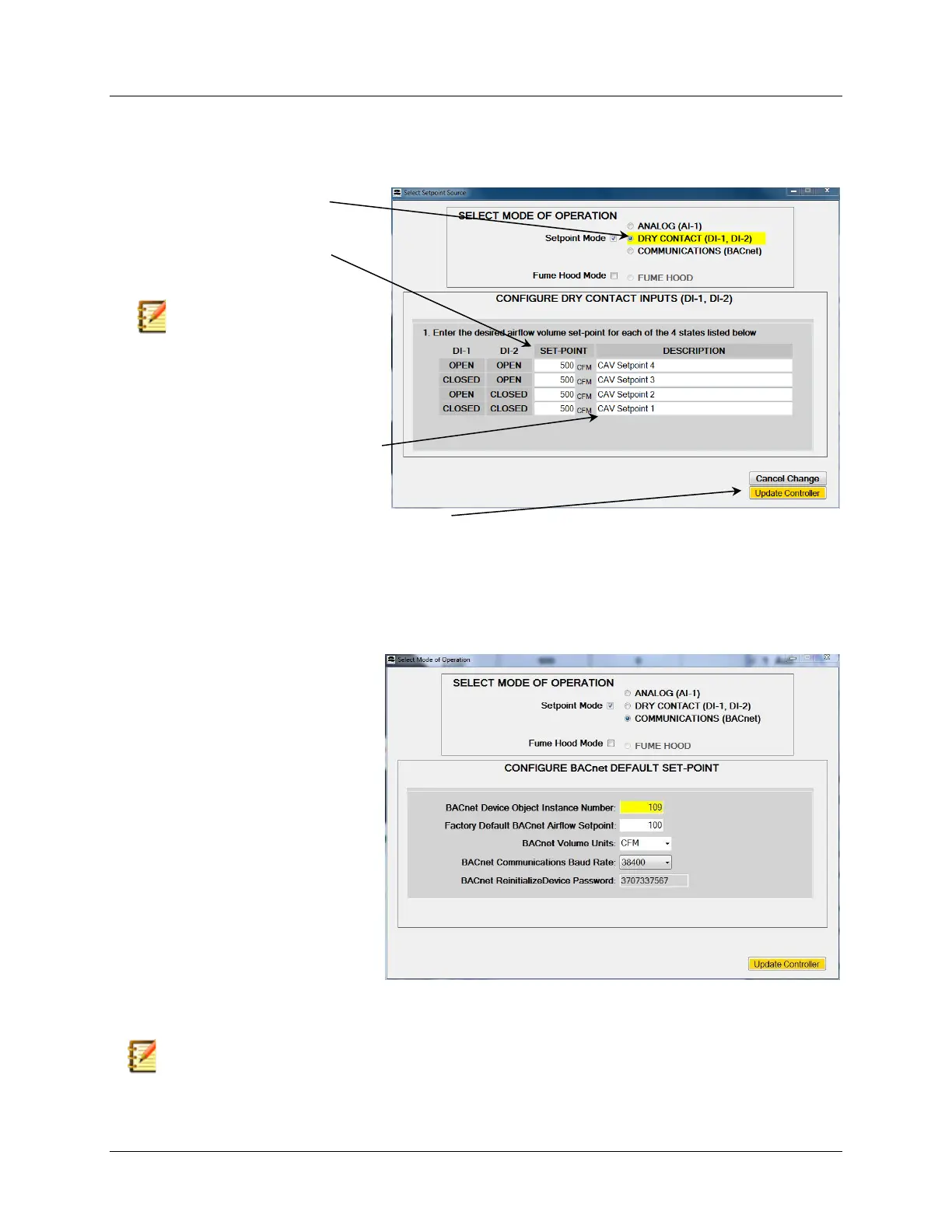
6.6.4.1.3 Setpoint Source = Dry Contact Inputs (DI-1, DI-2)
Selecting Dry Contact will configure the controller to receive the airflow setpoint based on the
dry contact input states.
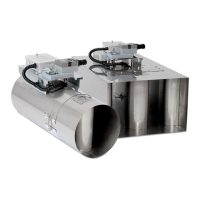
6.6.4.1.4 Setpoint Source = BACnet MS/TP Communications
Selecting BACnet Communications will configure the controller to receive the airflow setpoint
from the BACnet MS/TP network. The BACnet configuration parameters shown below can be
set at the factory if provided by the customer at the time of placing the order.
NOTE: Each AVC Control Module has a unique password which is stored in non-volatile memory. After
“BACnet Communications” Mode has been selected, this password will appear in the box located next to
“BACnet Reinitialize Device Password = “. This password is required when issuing a “controller
initialization command” over BACnet.
2. Enter the Setpoint Values
Corresponding with the
appropriate Digital Input States.
4. Select “Update Controller” to Save Changes.
3. If Desired, Enter a Brief
Description Corresponding to each
Setpoint Value for identification
purposes.
NOTE: The example shown to the
right is a “set-it-&-forget-it”
constant volume (CV) application.
Programmed as shown, the AVC
Setpoint will be 500 CFM for all
possible Dry Contact Input States.
1. Select “COMMUNICATIONS”
3. Enter the BACnet Default Airflow
Setpoint.
NOTE: This value is used as the initial
BACnet setpoint prior to being connected to
the MS/TP network. Once a new setpoint
has been received through BACnet, this
value is no longer valid, unless “restore
factory defaults” has been initiated.
5. Select the BACnet MS/TP
Network Communications Data
Rate from the dropdown list.
6. Select “Update Controller” to Save Changes.
2. Enter the unique Device Object
Instance Number.
4. Select BACnet Units from the
dropdown list.



 To Next Page