2
English
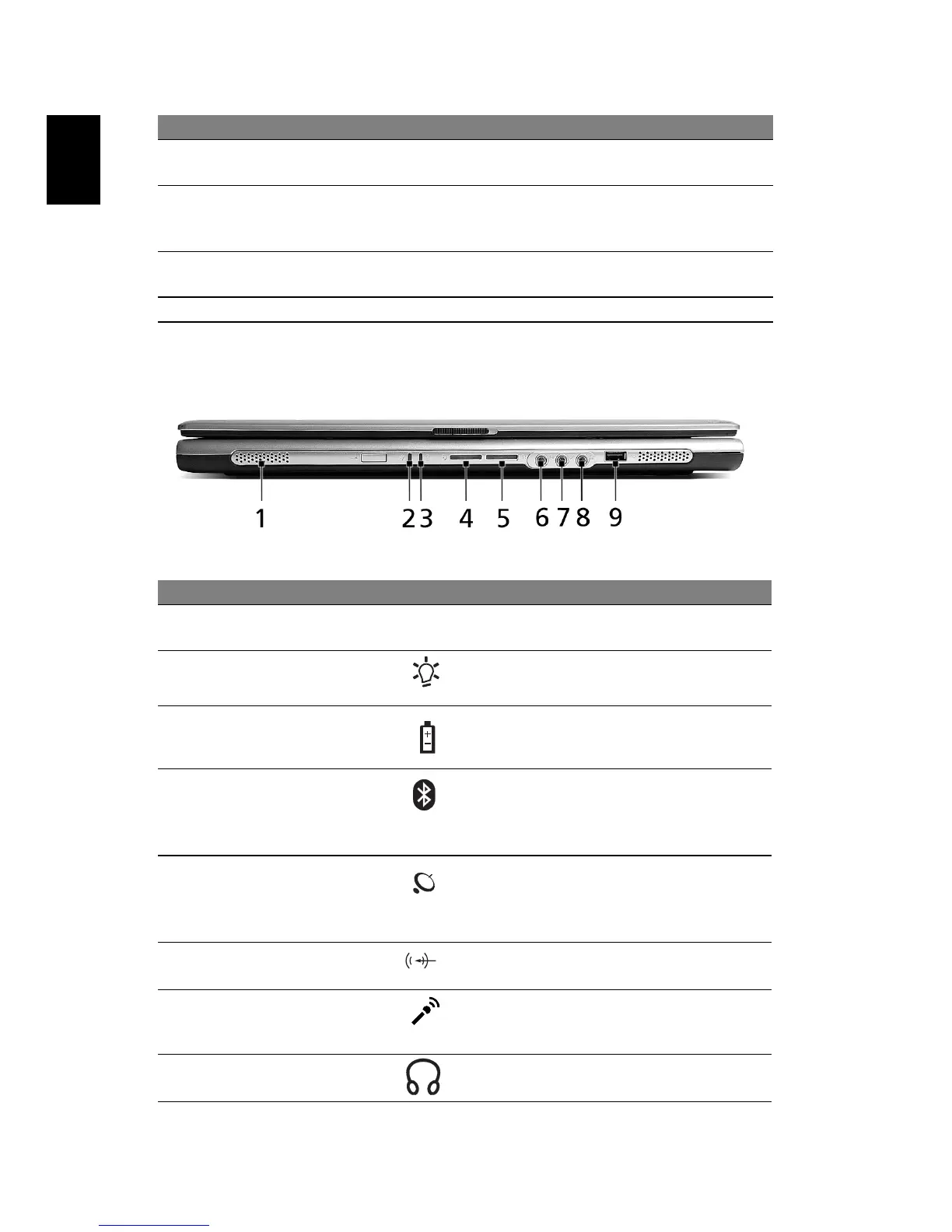
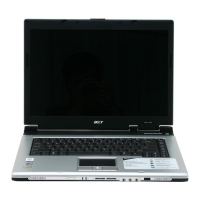
Closed front view
6 Touchpad Touch-sensitive pointing device which functions like a
computer mouse.
7 Status
indicators
Light-Emitting Diodes (LEDs) that turn on and off to
show the status of the computer’s functions and
components.
8 Launch keys Buttons for launching frequently used programs. See
“Launch keys” on page 14 for more details.
9 Power button Turns the computer on and off.
# Item Description
1 Speakers Left and right speakers deliver stereo
audio output.
2 Power indicator Lights up when the computer is on.
3 Battery indicator Lights up when the battery is being
charged.
4Bluetooth
communication
button/indicator (for
selected models)
Press to enable/disable the Bluetooth
function. Indicates the status of
Bluetooth communication (optional).
5Wireless
communication
button/indicator
Press to enable/disable the wireless
function. Indicates the status of
wireless LAN communication
(optional).
6 Line-in jack Accepts audio line-in devices (e.g.,
audio CD player, stereo walkman).
7 Mic-in jack Accepts inputs from external
microphones.
8 Speaker/Line-Out/
Headphone jack
Connects to audio line-out devices
(e.g., speakers, headphones).
# Item Description


 To Next Page