EasyManua.ls Logo

Acer 486 - User Manual

Acer 486
26 pages
Print Icon
To Next Page IconTo Next Page
Loading...
& K DSWHU

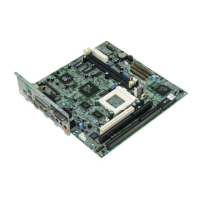
System Board
System Board 1-1
This high-performance, 32-bit personal computer system is based on
the 486 series microprocessor. It features the single-chip upgrade
technology which allows maximum ease and flexibility for upgrading
the system. It is fully compatible with the IBM PC/AT and is suitable
for use as a Windows workstation, CAD/CAE/CAM workstation, UNIX
personal workstation or desktop PC.
The system board accommodates an ISA riser card slot and two 72-
pin SIMM sockets that can hold a maximum memory of 36 MB. The
system architecture is based on the VESA local bus featuring an
onboard VGA. The VGA memory is expandable to 1 MB or 2 MB.
In a LAN environment, the system supports 16-bit Arcnet cards,
Ethernet cards and Token Ring cards. It is fully compatible with Novell
NetWare and Microsoft LAN Manager and also with SCO UNIX,
XENIX and OS/2 operating systems.
The system has a number of software-controlled security features.
These include power-on password, disk drive read/write control,
diskette boot control, serial- and parallel-port control, and a system
setup control.
Installing options such as memory modules, expansion boards and an
upgrade CPU enhance system performance. This chapter gives step-
by-step instructions on how to install these options.
Question and Answer IconNeed help?

Do you have a question about the Acer 486 and is the answer not in the manual?

Summary

System Board

System Board Layout

Details the major components of the system board.

ESD Precautions

Essential safety guidelines to prevent damage from electrostatic discharge.

Pre-installation Instructions

Steps to follow before installing system components, including safety.

Jumper Settings

Explains jumper locations and functions for system configuration.

Installing Memory

Guide to installing and configuring memory modules (SIMMs) on the system board.

Installing a SIMM

Step-by-step instructions for correctly inserting a SIMM module into its socket.

Removing a SIMM

Procedure for safely removing SIMM memory modules from the system board sockets.

Reconfiguring the System

How the system detects installed memory and how to verify it.

Upgrading the CPU

Instructions for upgrading the Central Processing Unit (CPU) on the system board.

Unpacking the Upgrade CPU

Guidance on unpacking and inspecting the new CPU and its accompanying components.

Installing an Upgrade CPU

Detailed steps for safely installing a new CPU into the system board socket.

Power Daughter Board

Explains the purpose and installation of the power daughter board for 3.3V microprocessors.

Upgrading VGA Memory

Instructions on how to increase the Video Graphics Array (VGA) memory capacity.

Upgrading Cache Memory

Guide on how to install additional cache memory chips to improve system performance.

Post-installation Instructions

Final checks and steps to ensure system stability after component installation.

Power-Management Feature

Overview of the system's power-saving features and supported modes.

Advanced Power Management (APM)

Details on using the Advanced Power Management (APM) standard for power reduction.

Intel SL-Enhanced CPU

Information about Intel SL-Enhanced CPUs and their support for System Management Mode.

VESA DPMS

Explanation of the VESA Display Power-Management Signaling (DPMS) standard for monitors.

Error Messages

Information on identifying and understanding various software and system error messages.

Software Error Messages

Describes software error messages and how to resolve them using application manuals.

System Error Messages

Lists system error messages during power-on self-test and their corrective actions.

Correcting Error Conditions

Provides corrective measures for common system errors and configuration issues.

Summary

System Board

System Board Layout

Details the major components of the system board.

ESD Precautions

Essential safety guidelines to prevent damage from electrostatic discharge.

Pre-installation Instructions

Steps to follow before installing system components, including safety.

Jumper Settings

Explains jumper locations and functions for system configuration.

Installing Memory

Guide to installing and configuring memory modules (SIMMs) on the system board.

Installing a SIMM

Step-by-step instructions for correctly inserting a SIMM module into its socket.

Removing a SIMM

Procedure for safely removing SIMM memory modules from the system board sockets.

Reconfiguring the System

How the system detects installed memory and how to verify it.

Upgrading the CPU

Instructions for upgrading the Central Processing Unit (CPU) on the system board.

Unpacking the Upgrade CPU

Guidance on unpacking and inspecting the new CPU and its accompanying components.

Installing an Upgrade CPU

Detailed steps for safely installing a new CPU into the system board socket.

Power Daughter Board

Explains the purpose and installation of the power daughter board for 3.3V microprocessors.

Upgrading VGA Memory

Instructions on how to increase the Video Graphics Array (VGA) memory capacity.

Upgrading Cache Memory

Guide on how to install additional cache memory chips to improve system performance.

Post-installation Instructions

Final checks and steps to ensure system stability after component installation.

Power-Management Feature

Overview of the system's power-saving features and supported modes.

Advanced Power Management (APM)

Details on using the Advanced Power Management (APM) standard for power reduction.

Intel SL-Enhanced CPU

Information about Intel SL-Enhanced CPUs and their support for System Management Mode.

VESA DPMS

Explanation of the VESA Display Power-Management Signaling (DPMS) standard for monitors.

Error Messages

Information on identifying and understanding various software and system error messages.

Software Error Messages

Describes software error messages and how to resolve them using application manuals.

System Error Messages

Lists system error messages during power-on self-test and their corrective actions.

Correcting Error Conditions

Provides corrective measures for common system errors and configuration issues.

Overview

This document describes a system board, focusing on its features, installation procedures for various components, and troubleshooting.

Function Description

The system board is a high-performance, 32-bit personal computer system based on the 486 series microprocessor. It incorporates single-chip upgrade technology for easy and flexible system upgrades. It is fully compatible with the IBM PC/AT and is suitable for use as a Windows workstation, CAD/CAE/CAM workstation, UNIX personal workstation, or desktop PC.

The system board supports a LAN environment with 16-bit Arcnet, Ethernet, and Token Ring cards. It is fully compatible with Novell NetWare, Microsoft LAN Manager, SCO UNIX, XENIX, and OS/2 operating systems.

It includes several software-controlled security features such as power-on password, disk drive read/write control, diskette boot control, serial- and parallel-port control, and a system setup control.

The mainboard also integrates power-conservation technology, requiring an Intel SL-Enhanced or power-saving CPU to utilize its energy-saving capabilities. The Power-Management feature monitors system activity (keyboard, mouse, diskette drives, fixed disk drives, connected peripherals, or video memory) and switches to power-saving modes after a specified inactivity time-out.

Important Technical Specifications

CPU:

  • Supports 486SX, SX2, DX2, or DX4 series CPU.
  • Features a 486 CPU socket.
  • An optional power daughter board enables support for 3.3V microprocessors; without it, only 5V CPUs are supported.

Memory:

  • Accommodates two 72-pin SIMM sockets for memory upgrades.
  • 4-MB onboard RAM, expandable to a maximum of 36 MB.
  • SIMM sockets accept 1-MB, 2-MB, 4-MB, 8-MB, or 16-MB memory modules with 80 ns (or less) DRAM speed.
  • 128-KB ROM for system BIOS and VGA BIOS.

Cache Memory:

  • Upgradable cache memory (128-KB or 256-KB).
  • SRAM chips for cache must have an access speed of 15 nanoseconds.
  • 128 KB cache requires 5 pieces of 32 Kb x 8 SRAM (TAG, U56, U58, U60, U62).
  • 256 KB cache requires 9 pieces of 32 Kb x 8 SRAM (TAG, U56 to U63).

VGA:

  • System architecture based on the VESA local bus with onboard VGA.
  • VGA memory is expandable to 1 MB or 2 MB.
  • Uses 512-KB or 1-MB DRAM for onboard local bus VGA interface.
  • Expandable to 1 MB (for GD-5424 chip) or 2 MB (for GD5429 chip).
  • VGA RAM upgrade to 1 MB requires 44256 DRAM (256 Kb x 4, 70 ns DIP) chips in sockets U12, U13, U15, U16.
  • VGA RAM upgrade to 2 MB requires 512460 (256 Kb x 16, 70 ns ZIP) DRAM chips in sockets U9, U10.

Ports and Interfaces:

  • One 120-pin connector for ISA riser card.
  • Two 9-pin serial ports (COM1, COM2).
  • One 25-pin Centronics parallel port.
  • PS/2-compatible keyboard and mouse interface.
  • Embedded fixed disk interface.
  • Optional enhanced IDE interface.
  • IDE fixed disk connectors (#1 and #2).
  • Diskette drive connector.

Chips:

  • Keyboard controller.
  • M5105 super I/O controller.
  • M1429G system chip.
  • M1431 system chip.
  • RTC Battery.
  • VGA chip.
  • Optional local bus IDE controller.
  • Optional second-level cache.

Power Management Modes:

  • Monitor Power-Saving Mode: Quick-resume for VESA DPMS-compliant VGA monitors. Inactivity time-out 1-15 minutes. Any video or I/O action returns to full power.
  • IDE Fixed Disk Standby Mode: Quick-resume for ATA-compliant IDE fixed disks. Inactivity time-out 1-15 minutes. Fixed disk spin motor shuts off. Any fixed disk activity returns to normal speed within 3-5 seconds.
  • System Standby Mode: Fast-on power-saving mode with quick-resume response. Inactivity time-out 2-120 minutes. Turbo LED blinks. Mouse/keyboard or I/O action exits Standby mode quickly.
  • Suspend Mode: Lowest power-consumption mode for CPU and peripherals. Inactivity time-out 2-120 minutes, or activated by Suspend/Resume button. Turbo LED blinks slower. Takes longer to resume normal operation. CPU clock stopped in Suspend mode, so it must be disabled for LAN workstations.

Advanced Power Management (APM):

  • Supports APM standard (Microsoft and Intel) for further power reduction.
  • Requires MS-DOS System with APM selected in Windows Setup or POWER.EXE command in CONFIG.SYS for DOS environment.
  • If Power-Saving mode is enabled in Setup without APM installed, system time and date will not display correctly after resuming from Standby or Suspend; requires reboot.

VESA DPMS Modes:

  • Off: H-Sync Off, V-Sync Off (No operation).
  • Suspend: H-Sync On, V-Sync Off (Power-saving).
  • Standby: H-Sync Off, V-Sync On (Screen-saving).
  • On: H-Sync On, V-Sync On (Normal operation).

Usage Features

System Upgrade Flexibility:

  • Single-chip upgrade technology allows CPU upgrades without replacing the entire system board.
  • Memory and cache are upgradable to enhance system performance.

Jumper Settings:

  • Jumpers control various functions including password check, onboard VGA, local bus IDE, super I/O chip, onboard memory, Reset/Suspend/Resume buttons, CPU clock selection (33 MHz or 25 MHz), CPU type selection (Intel 486, 486 WB, Pentium OverDrive, AMD 486/DX2, AMD 486/DX4, Cyrix IBM, TI), and cache RAM size selection (128 KB or 256 KB).

Power Management:

  • Allows configuration of inactivity time-outs for different power-saving modes via the Setup utility.
  • Supports Intel SL-Enhanced CPUs with System Management Mode (SMM) for significant power reduction (from 10 watts to 0.02 watts).

Error Messages:

  • Provides system error messages during power-on self-test with suggested corrective actions.
  • Software error messages require consulting the operating system or application manual.

Maintenance Features

Installation Procedures:

  • Detailed step-by-step instructions for installing memory modules (SIMMs), upgrade CPUs, power daughter boards, VGA memory, and cache memory.
  • Emphasizes ESD precautions for all component installations.
  • Requires checking for damaged or missing items upon unpacking upgrade components.

Troubleshooting:

  • Provides a comprehensive list of system error messages (e.g., Bad CMOS Battery, Diskette Drive Error, DRAM Configuration Error, Fixed Disk Controller Error, I/O Parity Error, Keyboard Error, Memory Error, Serial/Parallel Conflict, Pointing Device Error, RAM BIOS Error, Real Time Clock Error) and their corresponding corrective actions.
  • Corrective actions include replacing batteries, running Setup, checking cable connections, replacing components, disabling onboard devices, and contacting the dealer.
  • Suggests running Setup, checking system board and expansion board settings, physically formatting new disks, and securing connectors as general corrective measures for error conditions.
  • Advises contacting an authorized service center if issues persist after following corrective steps.

Post-installation Instructions:

  • Ensures components are installed correctly, all required jumpers are set, expansion boards and peripherals are replaced, the system cover is replaced, and necessary cables are connected before powering on the system.

Acer 486 Specifications

General IconGeneral
BrandAcer
Model486
CategoryMotherboard
LanguageEnglish

Related product manuals