18CG48 User Guide English
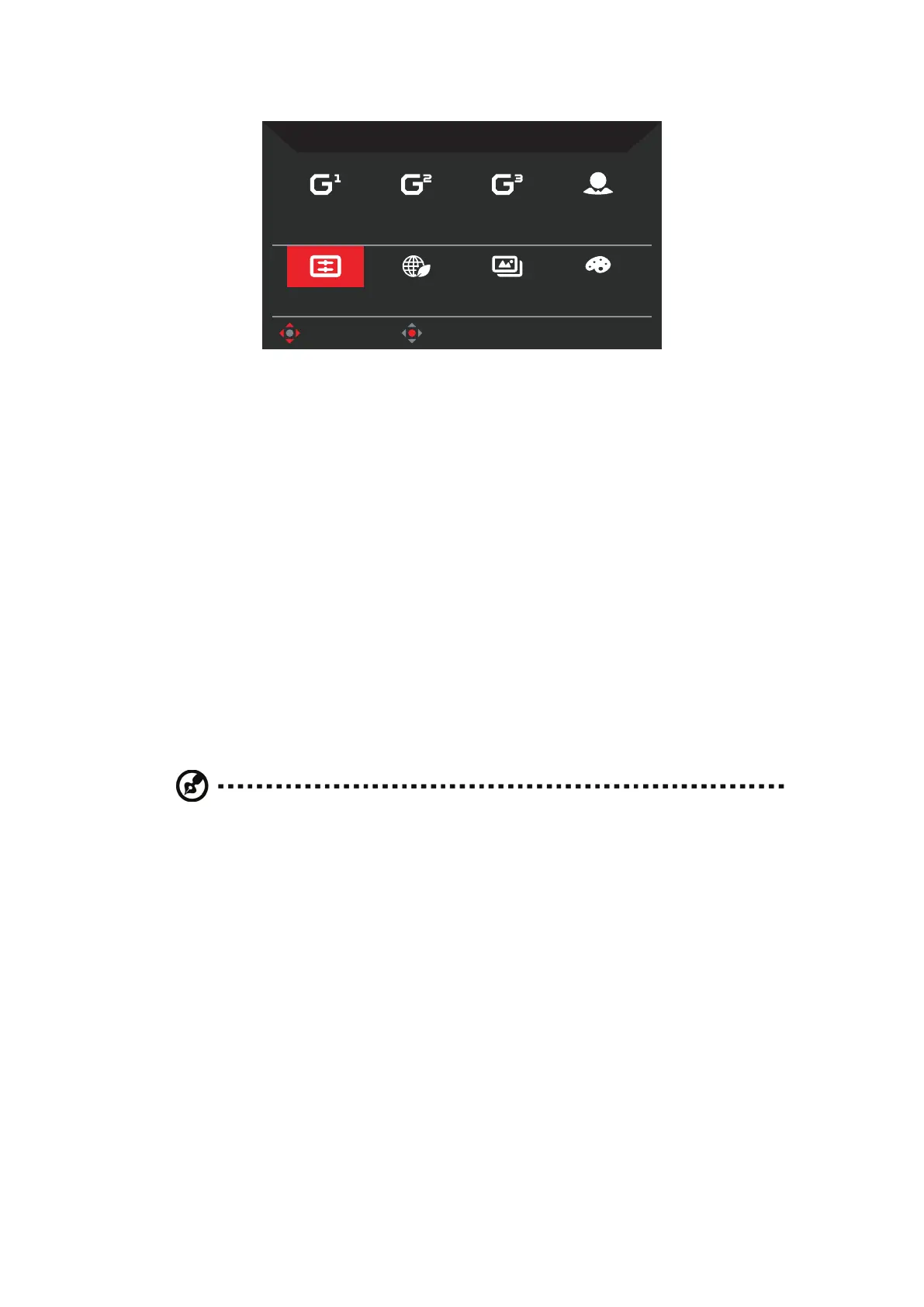
• Modes: Open Modes Hot Key 1 menu.
Modes
Racing
ECO
Sports
Graphics
User
HDR
Acon
Standard
Move OK
Select the desired mode from:
- Action: For better color matching representation with the action game or
movie, users can modify some parameters and save them by themselves.
- Racing: For better color matching representation with the racing game or
movie, users can modify some parameters and save them by themselves.
- Sports: For better color matching representation with the sports game or
movie, users can modify some parameters and save them by themselves.
- User: Applies a combination of picture settings defined by users.
- Standard: For basic PC application.
- ECO: For saving electricity with low power consumption by providing minimum
brightness for all running programs.
- Graphics: For better color matching representation with the graphics.
- HDR: For better color matching representation with the high dynamic lighting
rendering (HDR). For more information on HDR features, refer to page 15.
• Color Space: Select your desired color space from General, sRGB, Rec.709,
HDR, EBU, DCI and SMPTE-C.
Note:
If the Mode is set to HDR, the Color Space is automatically set to HDR. In other
modes, the Color Space is set to General by default.
• Grayscale Mode: Select On to switch to grayscale mode or Off to disable this
function.
• 6-axis Hue: Adjust the red, green, blue, yellow, magenta and cyan hue. Select
Reset to reset all 6-axis hue values to their factory defaults.
• 6-axis Saturate: Adjust the red, green, blue, yellow, magenta and cyan
saturation. Select Reset to reset all 6-axis saturation values to their factory
defaults.


 To Next Page