8
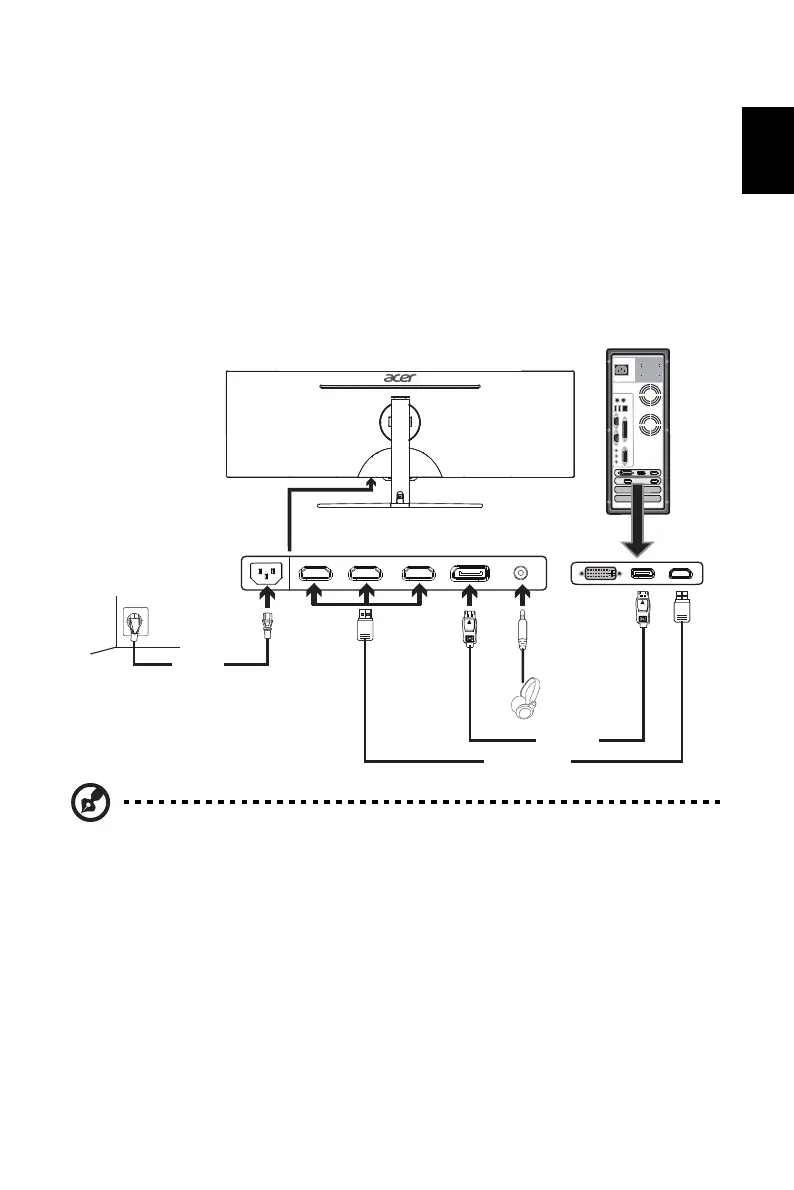
Connecting Your Monitor to a Computer
1. Make sure both the monitor and computer are powered-OFF.
2. Connect DP Cable (Only DP-input model)
a. Make sure both the monitor and computer are powered-OFF.
b. Connect the DP cable to the computer.
3. Connect HDMI Cable (Only HDMI-input model)
a. Make sure both the monitor and computer are powered-OFF.
b. Connect the HDMI cable to the computer.
4. Plug the power cords of your computer and your monitor into a nearby electrical outlet.
Note: 1. The audio output function depends on models. Please refer to User's Guide
for more information.
2. DP (1.2): 3840x1080 supports 120Hz (also support overclock to 144Hz, but
there is no guarantee for normal operation under Overclocking and
FreeSync "Extreme" mode).
HDMI (2.0): 3840x1080, supports up to 120Hz.
HDMI (1.4): 3840x1080, supports up to 60Hz.
3. When Overclocking is enabled, Over Drive will be automatically set to Off.
Meanwhile, Overclocking may result in flicker or other adverse effects that
may derive from the total configuration of the system connected to the
display, and possibly, in addition, the display’s panel specifications. It may
be possible to resolve or reduce such effects by setting a lower refresh rate.
AC
Power
Cord
DP Cable
HDMI Cable
AC IN AUDIOHDMI3
(HDMI1.4)
HDMI2
(HDMI1.4)
HDMI1
(HDMI2.0)
DP
(DP1.2)


 To Next Page