15The home screen
Tap the ?123 button to see numbers and special characters, and then tap the
Alt key to see even more. Tap and hold a key to select alternative characters,
such as letters with accents.
Additional keys vary depending on the type of text
you enter. E.g. a key to add
a smiley is available when typing a message. Like other keys, tap and hold for
additional options.
Tap and hold the ?123 key and se
lect Android keyboard settings, or from the
Home screen tap Menu > Settings > Language & keyboard > Android keyboard,
to enable or disable the following:
Multilingual input
Switch between multiple input languages by swiping
across the space bar. The keyboard layout will change
accordingly. To select your preferred languages, tap
Menu > Settings > Language & keyboard > Android
keyboard > Input languages.
The home screen
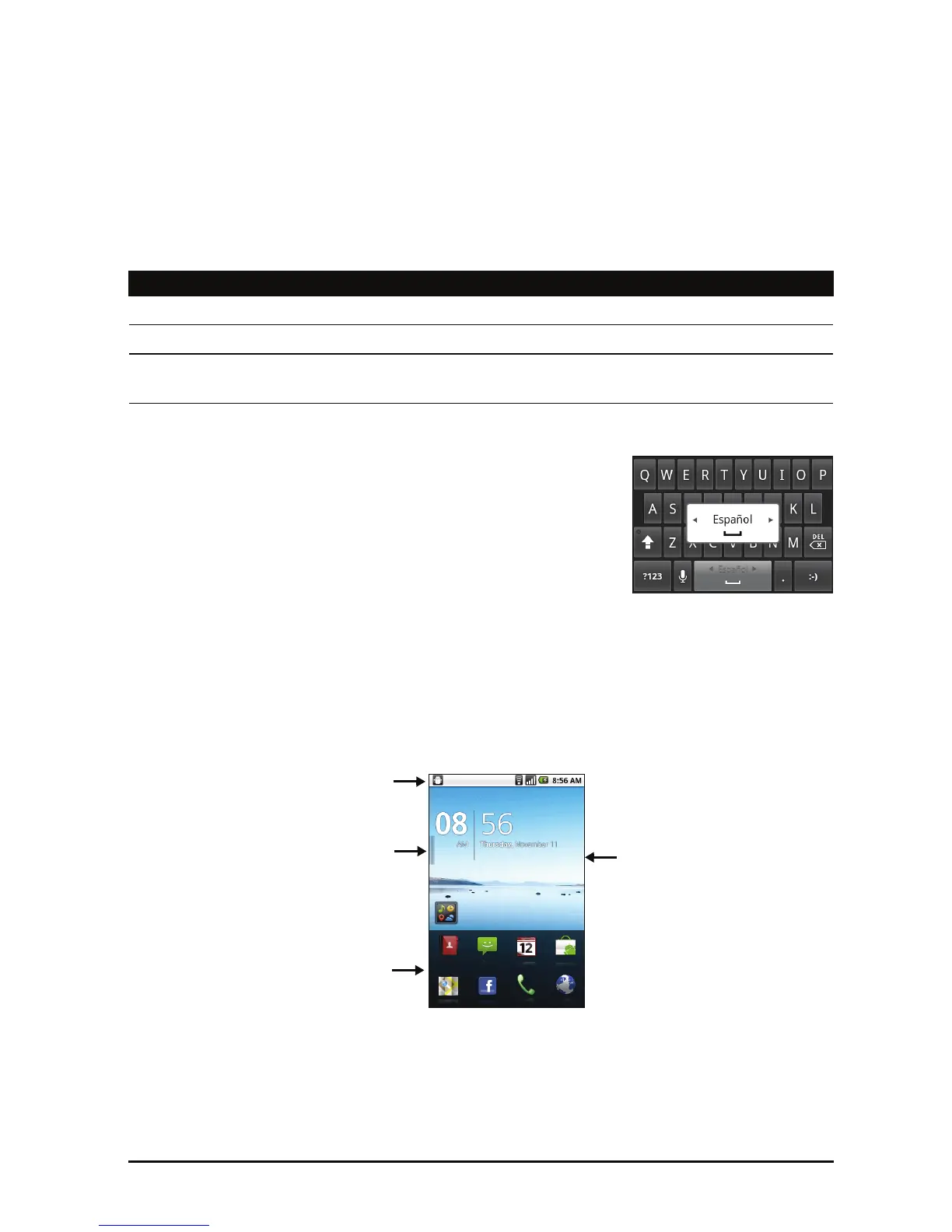
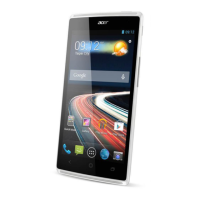
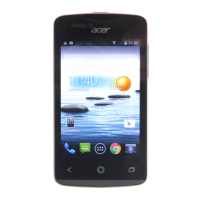
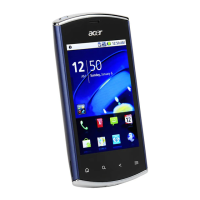
When you unlock your smartphone it will display the home screen. This screen
gives you quick, icon-based access to many of the frequently-used features of
your smartphone.
The Home screen already features some u
seful icons, application history and
media panel.
The top of the screen is empty when you first start using your smartphone.
Later it shows the application history, allowing you to access applications you
have recently used, and a media panel, allowing you access to your pictures,
music and videos from your microSD card.
Function Description
Quick fixes Corrects commonly typed mistakes.
Show suggestions Shows suggested words while you are typing.
Auto-complete Inserts the suggested word whenever you tap space or a
punctuation mark.


 To Next Page