28Creating a new message
Messaging
This chapter shows you how to set up and use the SMS and MMS functions of
your smartphone.
All SMS and MMS messages are accessed via Messaging. Messaging
aut
omatically arranges received and sent messages into threads.
To access Messaging tap Me
ssaging on the Home screen.
Creating a new message
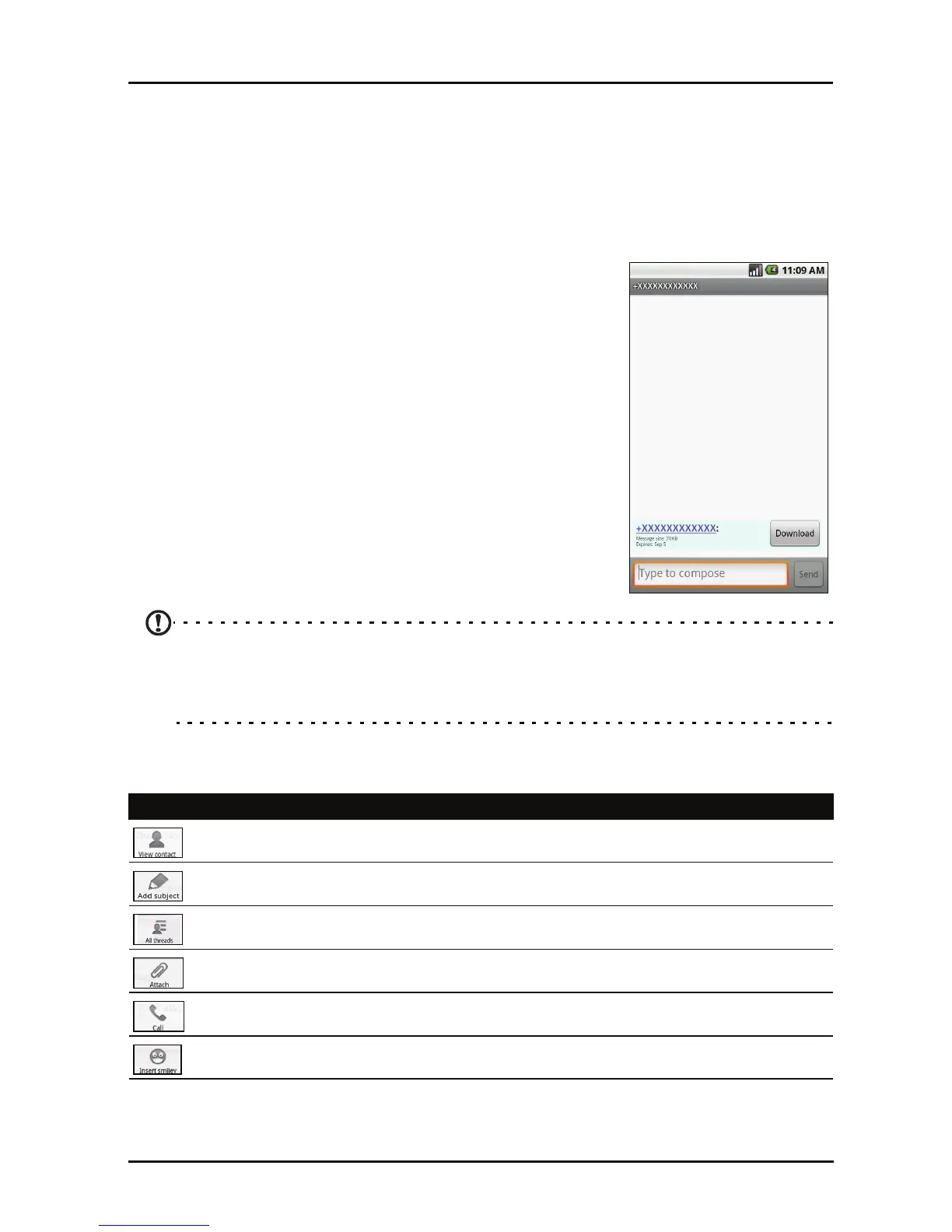
You can use your phone to compose SMS or MMS
messages.
Tap N
ew message to compose a new message.
Enter the recipient’s phone nu
mber or name in the To
field. Suggested contacts will be displayed in a drop-
down list below the text field. To select a suggested
contact, tap the contact’s name.
Once you have entered the recipient, enter your
mess
age in the text box labeled Type to compose.
Note: SMS messages may be up to 160 characters long. If your message is longer than
160 characters, it will be sent as multiple linked messages. Most phones will
automatically join the linked messages to present the recipient with a single long
message, however, some older phones do not have this ability.
Press the Menu button to see what options are available when creating a new
message. The options change depending on the status of the message.
Icon Description
Select receiver from contacts.
Convert the SMS to an MMS, allowing you to add a subject to the message.
View all the threads currently on your phone.
Convert the SMS to an MMS, allowing you to attach a file to the message.
Call the current contact.
Insert a smiley/emoticon into your message text.


 To Next Page