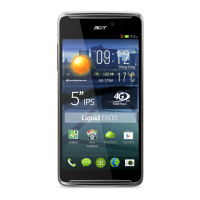
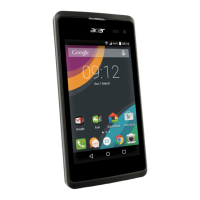
16The home screen
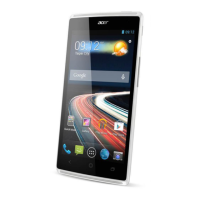
At the bottom of the screen is the application dock which shows favorite or
recommended applications. Tap an icon to open the application. Tap the menu
button or drag the application dock towards the top of the screen to see the
application menu.
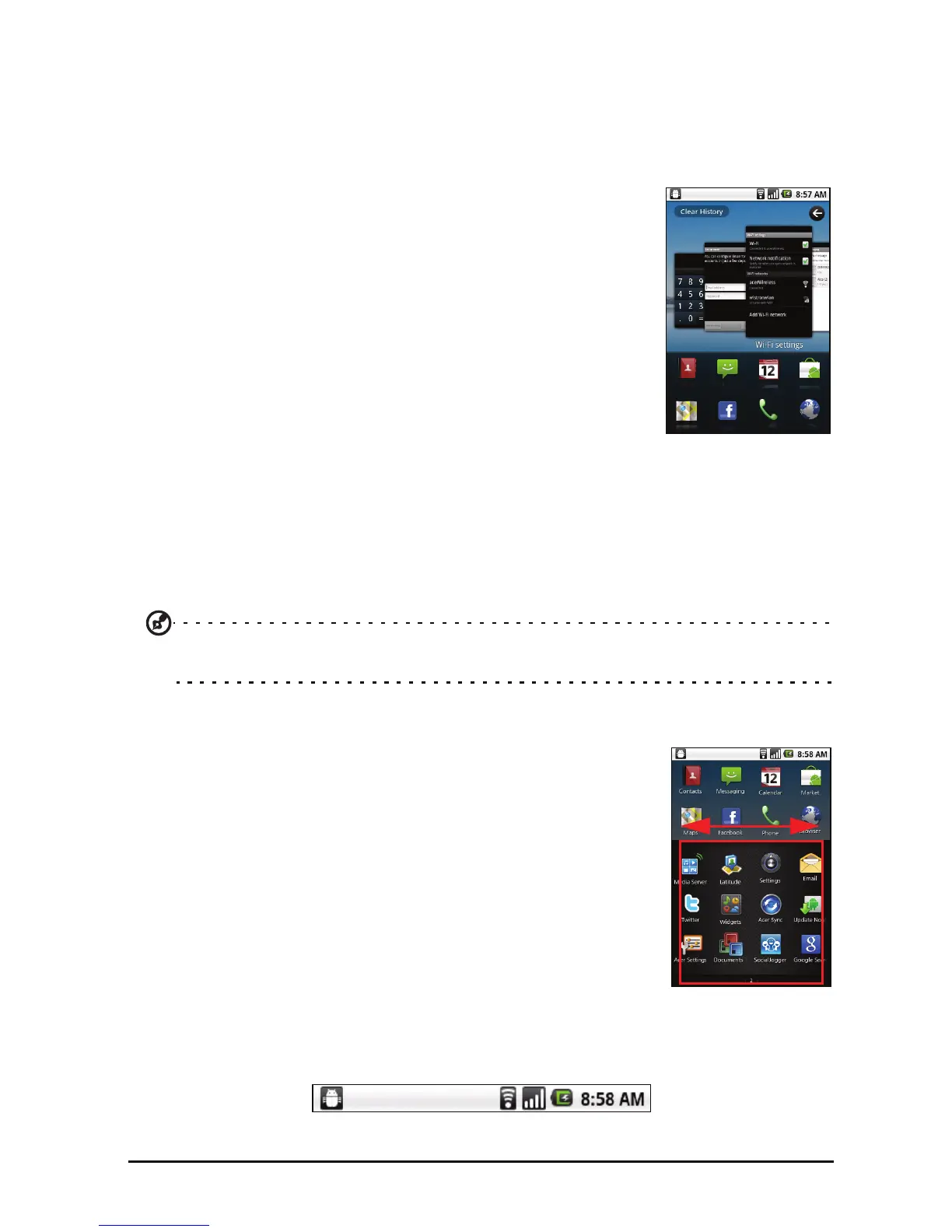
Application history
The application history shows recently opened
applications.
If the history thumbnails are not displayed, drag the tab
on
the left of the screen towards the right. Scroll through
the thumbnails of applications until you find the
application you want to open, then tap the thumbnail to
open the application.
Tap the Cl
ear History button to remove all the history
thumbnails. Tap and hold a thumbnail, then drag it to the
trash to remove a single entry.
Multitasking
You can have multiple applications open at the same time. To open a new
application, press the Home button to return to the Home screen, then start the
new application.
To view your recent applications, acc
ess the application history and tap a
thumbnail to open the application.
Tip: To prolong battery life, it is better to close an application when you’ve finished
using it. Do this by either pressing the Menu button and selecting Exit (if available).
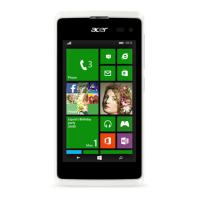
The application menu
The application menu displays groups of applications in a
series of pages. Up to sixteen applications may be displayed
p
er page.
The number of pages is displayed at the bottom of the
scr
een. Drag the menu to the left or right to switch pages.
You may also tap and hold the page numbers at the
bottom of the screen to go directly to any page.
Tap and hold an icon to move or delete it; you may change
th
e order of icons or reorganize the pages to suit your
needs. Drag an icon to the edge of the screen, or one of
the page numbers, to change the page.
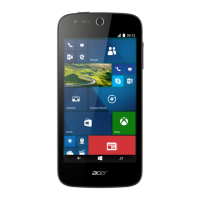
Notification area
The Notification area is between the application history and application dock.


 To Next Page