EN-14
The Function page
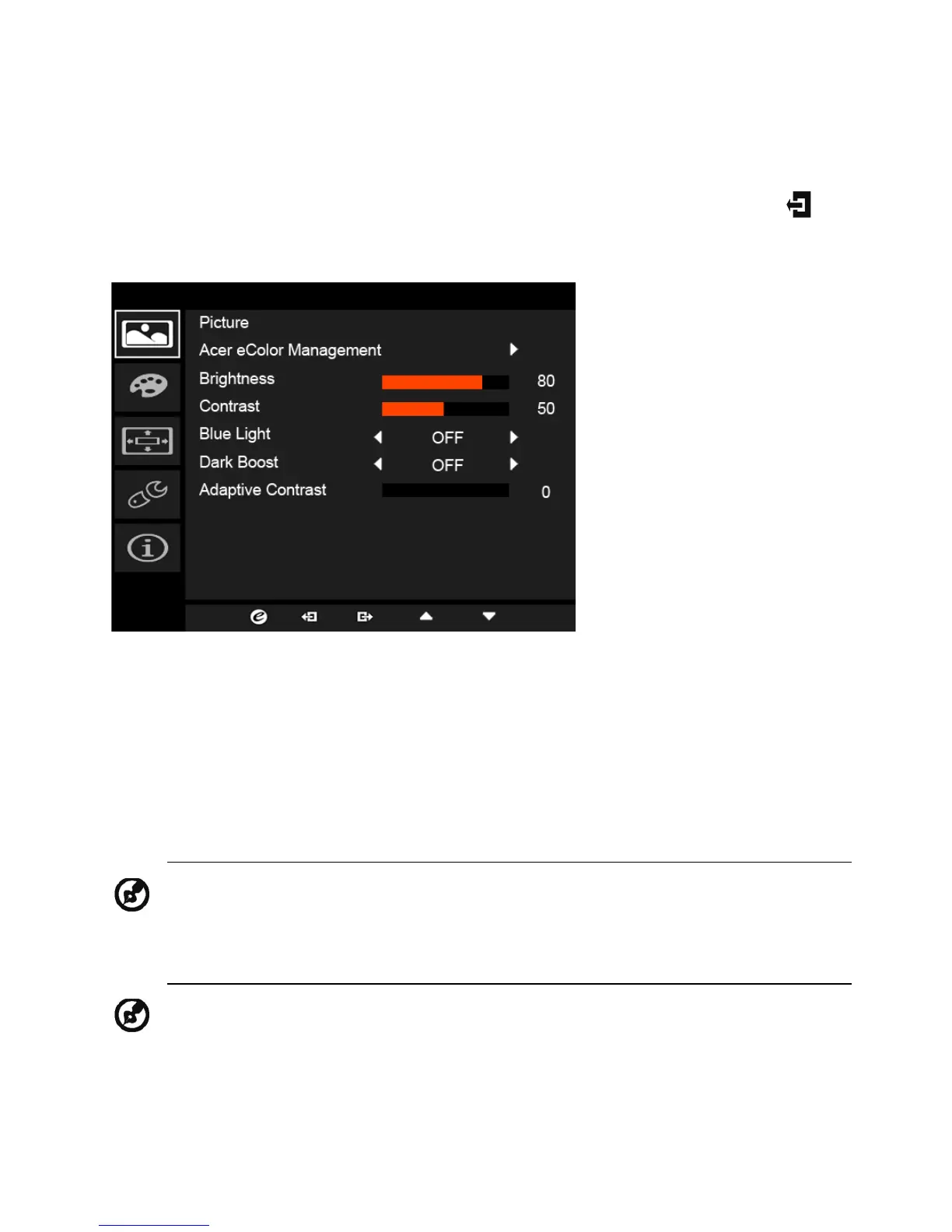
Open the Function page to select Picture, Color, OSD or Setting functions, and
adjust the settings which you want using the arrows. You can also view your
monitor’s system information from this page. When you are done, use to
go back one level.
Adjusting the Picture
1. Press the MENU key to bring up the OSD.
2. Using the
/ keys, select Picture from the OSD. Then navigate to the
picture element you wish to adjust.
3. Use the / keys to adjust the sliding scales.
4. The Picture menu can be used to adjust the Acer eColor, Blue Light,
Brightness, Adaptive contrast, Contrast, and Dark boost.
5. Brightness: Adjust the brightness from 0 to 100.
6. Contrast: adjust the contrast from 0 to 100.
Note: Adjusts the balance between light and dark shades.
Note: Sets the degree of difference between light and dark areas.


 To Next Page