EasyManua.ls Logo

Acer Z5700 Series - User Manual

Acer Z5700 Series
206 pages
Print Icon
To Next Page IconTo Next Page
Loading...
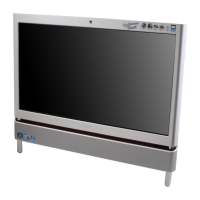
Aspire Z5700/Z5710 Series
Service Guide
PRINTED IN TAIWAN
Service guide files and updates are available
on the ACER/CSD web; for more information,
please refer to http://csd.acer.com.tw

Table of Contents

Questions and Answers

  • J
    jamiemurrayAug 19, 2025
    Why does my Acer Laptop shut down intermittently?
    • R
      roger22Aug 19, 2025
      An Acer laptop may shut down intermittently if the power cable is not properly connected. Try these steps to resolve the issue: * Check that the power cable is properly connected to the computer. * Remove any extension cables or surge protectors. * Disconnect the power and open the casing to check the Thermal Unit and fan airways. * Remove all external and non-essential hardware. * Remove any recently installed software.
  • A
    Amber NicholsAug 21, 2025
    How to fix sound problems on Acer Z5700 Laptop?
    • B
      becknicholasAug 21, 2025
      To resolve sound issues on your Acer Laptop, try the following: * Reboot the computer. * Check the Device Manager. * Roll back or reinstall the audio driver. * Ensure volume controls are at mid-range and speakers are the default audio device. Configure the speakers. * Remove recently installed hardware or software. * Restore system settings using System Restore or reinstall the operating system.
  • C
    cartergarrettAug 25, 2025
    How to fix wireless function failure on Acer Z5700?
    • G
      gdavisAug 25, 2025
      To fix wireless function failure on your Acer Laptop: * Check the WLAN cable connection and reconnect it correctly. * If the problem persists, consider replacing the WLAN module or the mainboard.
  • J
    joshuawilliamsAug 26, 2025
    What to do if my Acer Z5700 drive is not detected?
    • J
      Jesus VazquezAug 26, 2025
      If your Acer Laptop's drive is not being detected, try these steps: 1. Restart the computer and press F2 to enter the BIOS Utility. 2. Turn off the power and remove the cover to inspect the connections to the ODD. 3. Reseat the drive ensuring all cables are connected correctly.
  • B
    Brandon HaleAug 27, 2025
    How to fix an external mouse failure on Acer Z5700 Laptop?
    • M
      Mary DunnAug 28, 2025
      If you're experiencing external mouse failure on your Acer Laptop, consider these solutions: * Try an alternative mouse or USB port. * Insert new batteries. * Reinstall the program experiencing the failure. * Remove recently added hardware or software. * Check the events log for errors, roll back, or reinstall the mouse driver.
  • L
    Louis WheelerAug 29, 2025
    What to do if Acer Z5700 Laptop discs do not play?
    • D
      davieslisaAug 29, 2025
      If discs do not play on your Acer Laptop, ensure the disc is correctly seated in the drive tray, and that the media is clean and scratch-free. Try an alternate disc. Also, enable AutoPlay and select the desired player and the region suitable for the media inserted in the drive.
  • S
    Sara VegaAug 31, 2025
    How to resolve HDD not operating correctly on Acer Laptop?
    • G
      greenaaronAug 31, 2025
      To resolve issues with your Acer Laptop's HDD, try these steps: * Disconnect external devices. * Run a virus scan and the Windows 7 Startup Repair Utility. * Run the Windows Memory Diagnostic Tool and check BIOS settings. * Ensure all cables and jumpers on the HDD and ODD are correctly set. * Remove recently added hardware. * Run Disk Defragmenter and Check Disk. * Restore system settings using System Restore.
  • S
    Steven ArnoldSep 3, 2025
    How to fix Acer Z5700 Laptop ODD not operating correctly?
    • C
      Christopher WarnerSep 3, 2025
      If the ODD on your Acer Laptop isn't operating correctly, try rebooting the computer and retrying the operation. Also, try an alternate disc, and check that the ODD device is displayed in the Devices with Removable Storage panel. If the device displays a down arrow, right-click on the device and click Enable. You can also try uninstalling and reinstalling the driver, and removing any recently installed software.
  • K
    Kenneth WatsonSep 4, 2025
    How to fix Acer Z5700 microphone problems?
    • V
      vjonesSep 4, 2025
      To fix microphone problems on your Acer Laptop, ensure that the microphone is enabled. Select 'Show Disabled Devices', right-click on the microphone, and select 'Enable'. Increase the volume to the maximum setting and test the microphone hardware.
  • J
    Jason WarnerSep 6, 2025
    What causes random loss of BIOS settings on Acer Z5700?
    • G
      gbakerSep 7, 2025
      If your Acer Laptop is experiencing random loss of BIOS settings, consider these solutions: * Replace the CMOS battery. * Run a complete virus scan. * Disconnect and reconnect the power and data cables between devices, or replace the cables. * As a last resort, replace the motherboard.

Summary

Chapter 1 System Specifications

System Features and Components Overview

Details on system components, features, and specifications.

Detailed Hardware Specifications

Comprehensive technical specifications for hardware components.

Chapter 2 System Utilities

BIOS Setup Utility Introduction

Introduction to the BIOS Setup Utility and its functions.

Navigating BIOS and CMOS Setup

Instructions on how to navigate through BIOS menus and CMOS setup.

Chapter 3 Machine Disassembly and Replacement

Disassembly Preparation and Safety

Tools, precautions, and initial steps before disassembling the computer.

Removing Major Assemblies

Steps for removing CPU, mainboard, and LCD panel.

Chapter 4 Troubleshooting

Common Problems and Diagnosis

General guide for diagnosing and resolving common computer issues.

Chapter 5 Jumper and Connector Locations

BIOS Recovery Procedure

Instructions for recovering the BIOS using a USB drive.

Chapter 6 FRU (Field Replaceable Unit) List

Acer Z5700 Series Specifications

General IconGeneral
Screen Size23 inches
Operating SystemWindows 7 Home Premium
CPUIntel Core i5
Memory4GB DDR3
Storage1TB HDD
GraphicsNVIDIA GeForce GT
Display1920 x 1080
WeightNot applicable (All-in-One Desktop)
Battery LifeNot applicable (All-in-One Desktop)

Related product manuals