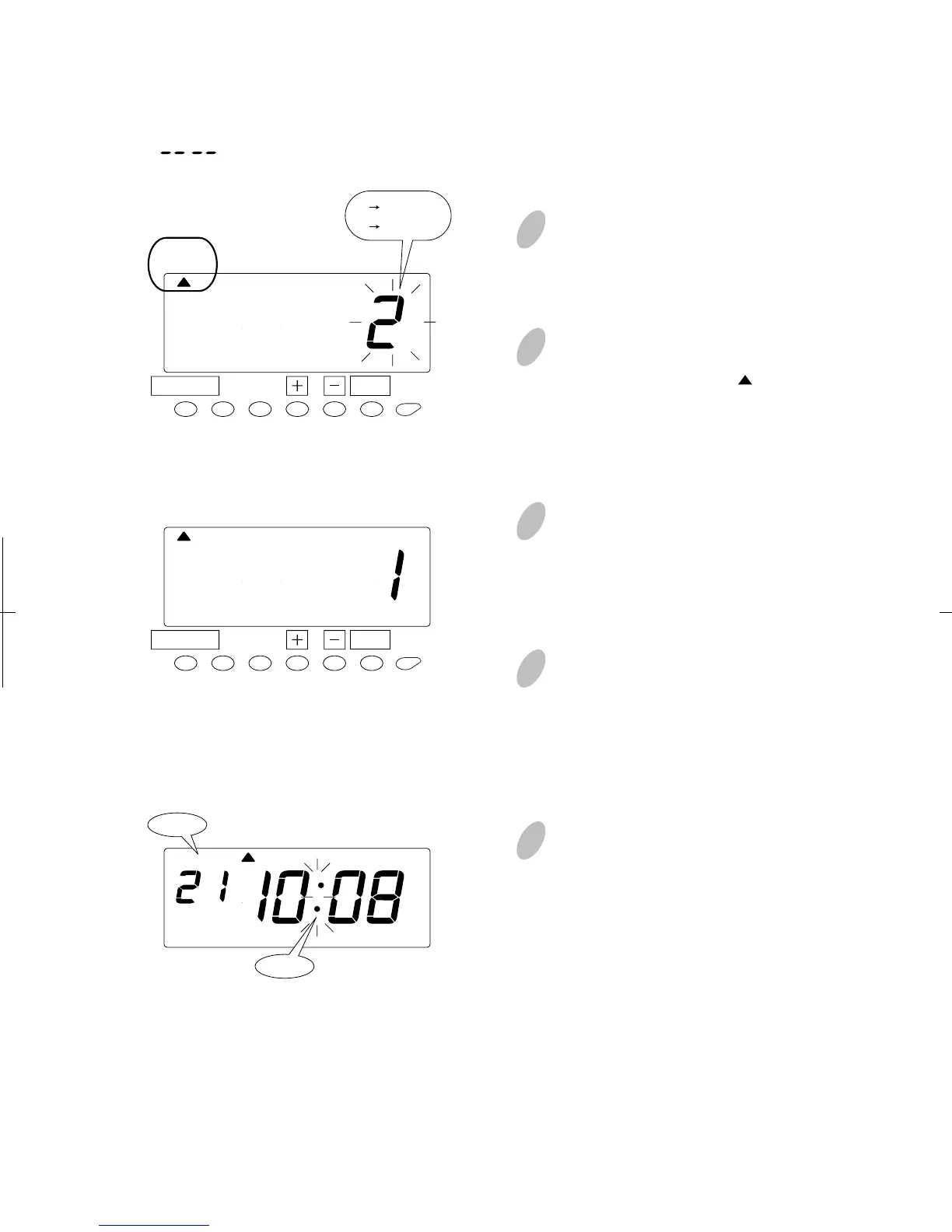
Push the [SETTING START/END] button before you start setting. At that moment,
" " is shown on a display and you go into setting mode.
Setting the Hour Display Format
1
Push the [DATE/TIME] button for 2
seconds.
3
Push the [+] or [-] button to select
either "AM/PM" or "24 hour". For
example, set 1 if "AM/PM" is desired.
4
Push the [SET] button to finish the
setting. At that moment, the display
will change from flashing to steady,
and the setting is now completed.
5
Push the [SETTING START/END]
button to get out of setting mode. Or
press the [DATE/TIME] function
button to set the time.
Make sure "date" and "time" are
indicated on the display and the
colon is flashing. Then replace the
cover and lock.
2
Once a number on the display starts
flashing, make sure the " " mark
is located under the "DISPLAY
HOURS" mark.
DISPLAY
HOURS
19
13
SET
DATE/TIME
1 AM/PM
2 24hour
DISPLAY
HOURS
SET
DATE/TIME
AM
Colon
Date


 To Next Page