USER MANUAL - DUAL ZONE AUDIO MEDIA PLAYER EQUIPMENT ACT553 - ACT553/DAB+
480305-3.0 11/12/2019 Page 18 / 33
© ACTIA “Any reproduction of this document, even partial, is strictly forbidden without written authorisation”.
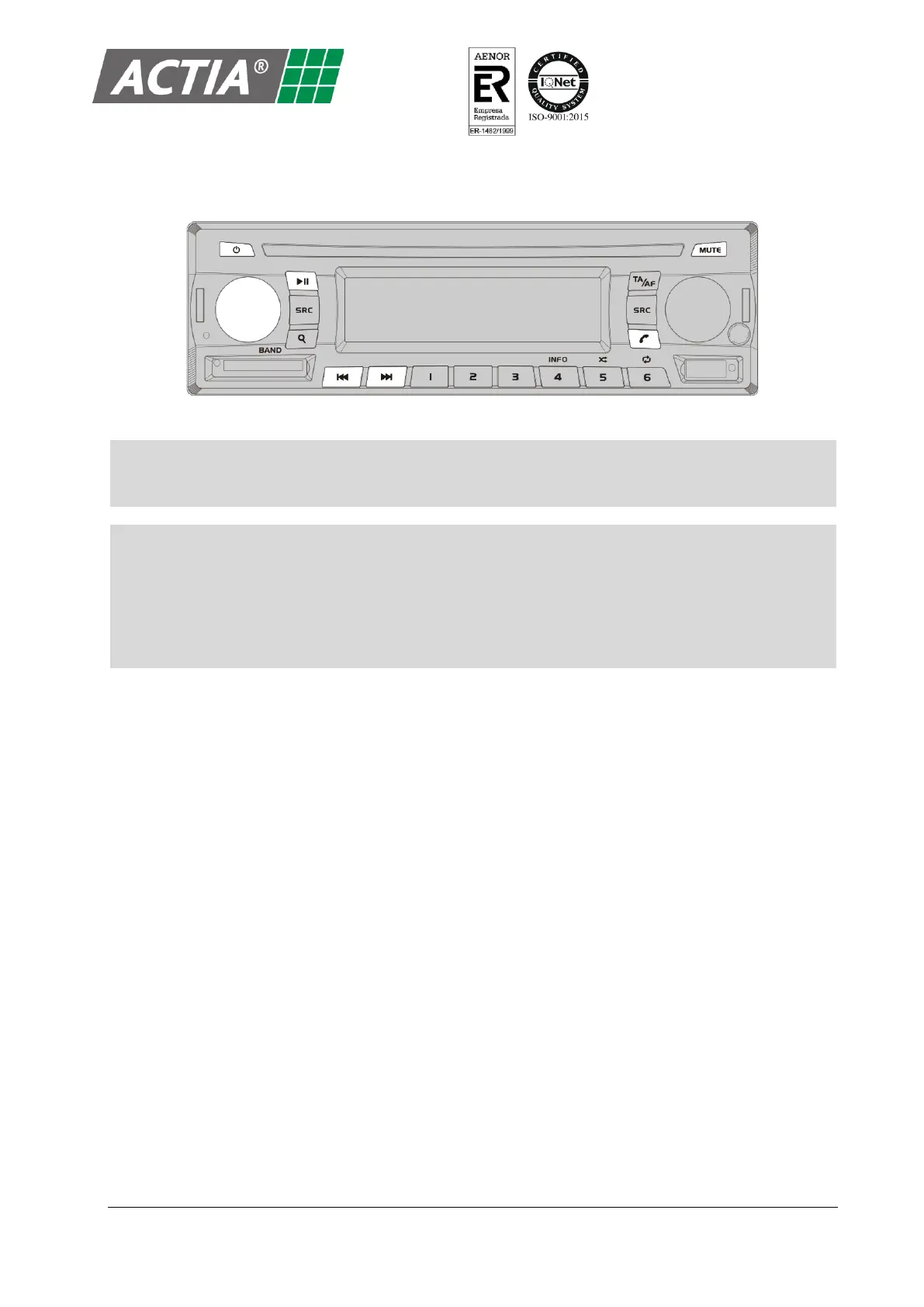
6. Hands-Free and Remote Audio
Figure 10 – Hands-Free and Remote Audio Controls
Note!
The Hands-Free and Remote Audio service is only available for the driver zone.
Note!
The source Driver/Guide Microphone overrides the Hands-Free service. If an incoming or
outgoing call takes place, the driver zone will not switch to Hands-Free mode while any
microphone is active.
During a call, it is not possible to switch to another source in the driver zone.
6.1. Pair a Device
With the equipment powered on:
1. Activate the Bluetooth function of the device to pair (for instance a smartphone).
2. From the menu of the device to pair, search for devices.
3. Select “ACTIA BT”.
4. The icon “i” on the LCD screen indicates that pairing has been sucessful.
6.2. Unpair a Device
To remove pairing with a device:
1. From any source, press and hold [
f
] for 3 seconds.
2. Two seconds later, the icon “i” on the LCD screen will turn off indicating that there is no paired
device.


 To Next Page