problem resolution
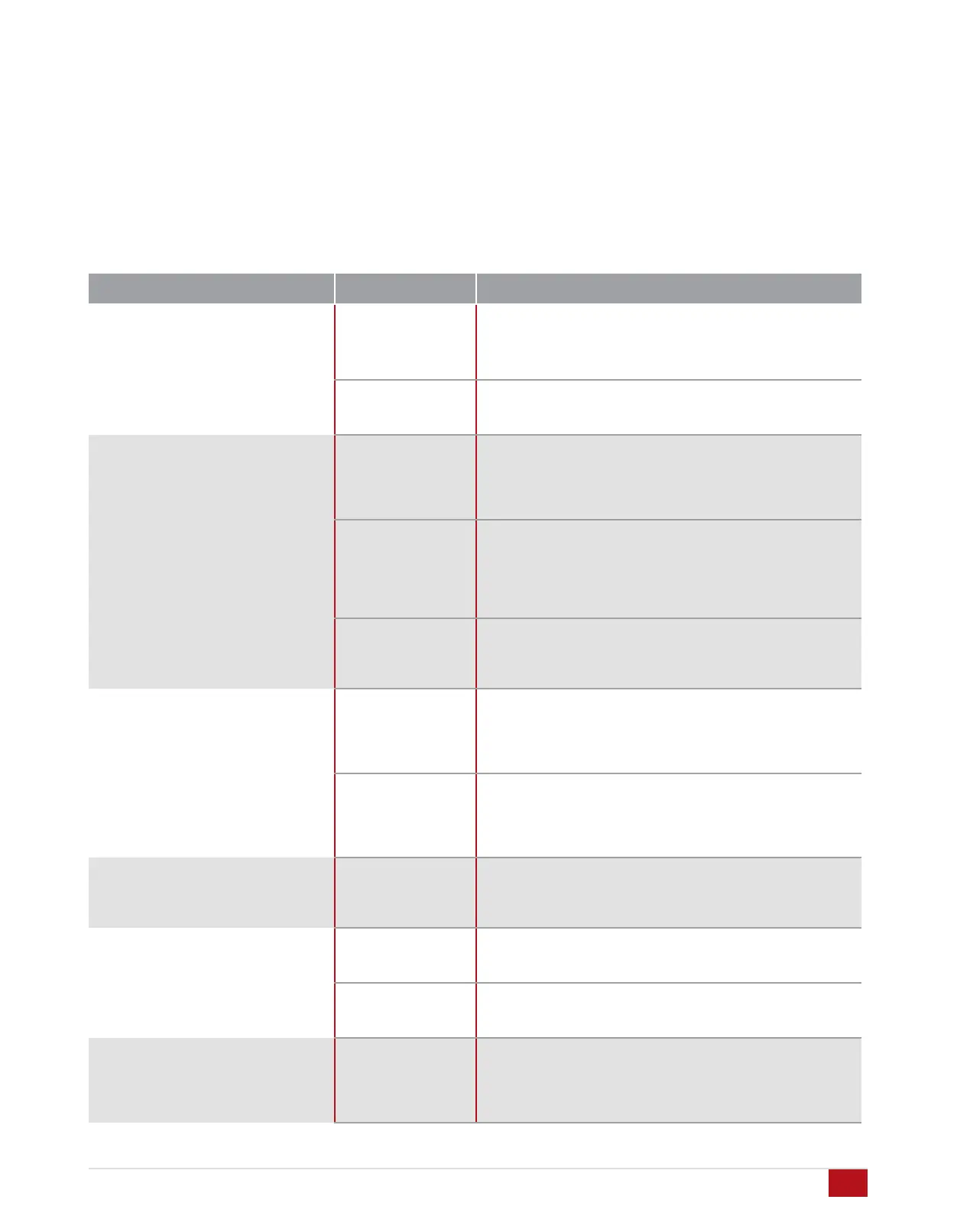
From time to time, problems may occur. The following table
is intended to help categorize and solve issues that may
arise. Of course, if problems persist, do not hesitate to call
your local dealer or Acurus Customer Service.
Troubleshooting Table
problem or symptom possible cause recommendations
MUSE does not power on – no front
panel display illumination
AC not connected
• Check that power cord is connected at the wall and at the
back of the unit
• Check that switched AC outlets are on
• Check that power conditioner is on (if applicable)
Blown main fuse
• Check fuse compartment in back of unit near AC inlet.
Replace fuse and retest. If problem persists, refer unit to
service personnel.
MUSE has power (“on” button
illuminated) but does not respond
via mobile device control
IP address not
entered correctly
on mobile device
• Verify correct IP address for MUSE by reviewing the MUSE
network settings menu. NOTE: It can take up to a few
minutes for some routers to assign an IP address
automatically. The initial address MUSE displays may be re-
assigned by the router after DHCP auto-assignment.
Mobile device not
connected to same
network as MUSE
• Check to ensure control device is connected to the local
network and not another neighboring network
• Check to ensure that all network routers and switches are
powered up and active
• Look at the connection table in the router to confirm that
both the MUSE and the mobile device are listed
MUSE
disconnected from
network
• Check MUSE rear-panel network activity light – if not
illuminated green, check network cable connections. If cable
is plugged in and switch or router shows activity indication,
replace network cable.
MUSE cuts out after playing for a
while
Inadequate
ventilation
• Check to ensure that sides, rear and top of unit have at least
2 inches of air space and that air can flow in and out of
space around MUSE installation.
HDMI cable
inadequate
• Check to ensure HDMI cables are of high quality and rated
for HDR (High Speed) if applicable. Use DPL-certified active
HDMI cables for runs longer than 3 meters.
MUSE has power (“on” button shows
on screen) but does not respond via
12V trigger
Trigger cable
connection issue
• Check to ensure control device is connected via
recommended trigger cable configuration
Picture but no sound
HDMI cable
inadequate
• Check to ensure HDMI cables are of high quality and rated
for HDR (High Speed) if applicable. Use DPL-certified active
HDMI cables for runs longer than 3 meters.
Connected to HDMI
output 1
• HDMI output 2 is the main output with support for HDCP2.2,
HDR 4K. HDMI output 1 is not generally used except for
legacy displays.
MUSE does not recognize the
network
Network IP range
incompatible
• MUSE automatically connects to networks with an IP range
that begins with 192.168… Networks out of this range may
not work with MUSE unless Static IP is selected. Reset the
IP of the router to 192.168.x.y if possible or select Static IP
in range.
Acurus MUSE Immersive Processor USER GUIDE
Revision 20190227
Document 1000905
44


 To Next Page