15
Acurus MUSE Immersive Processor USER GUIDE
Revision 20190227
Document 1000905
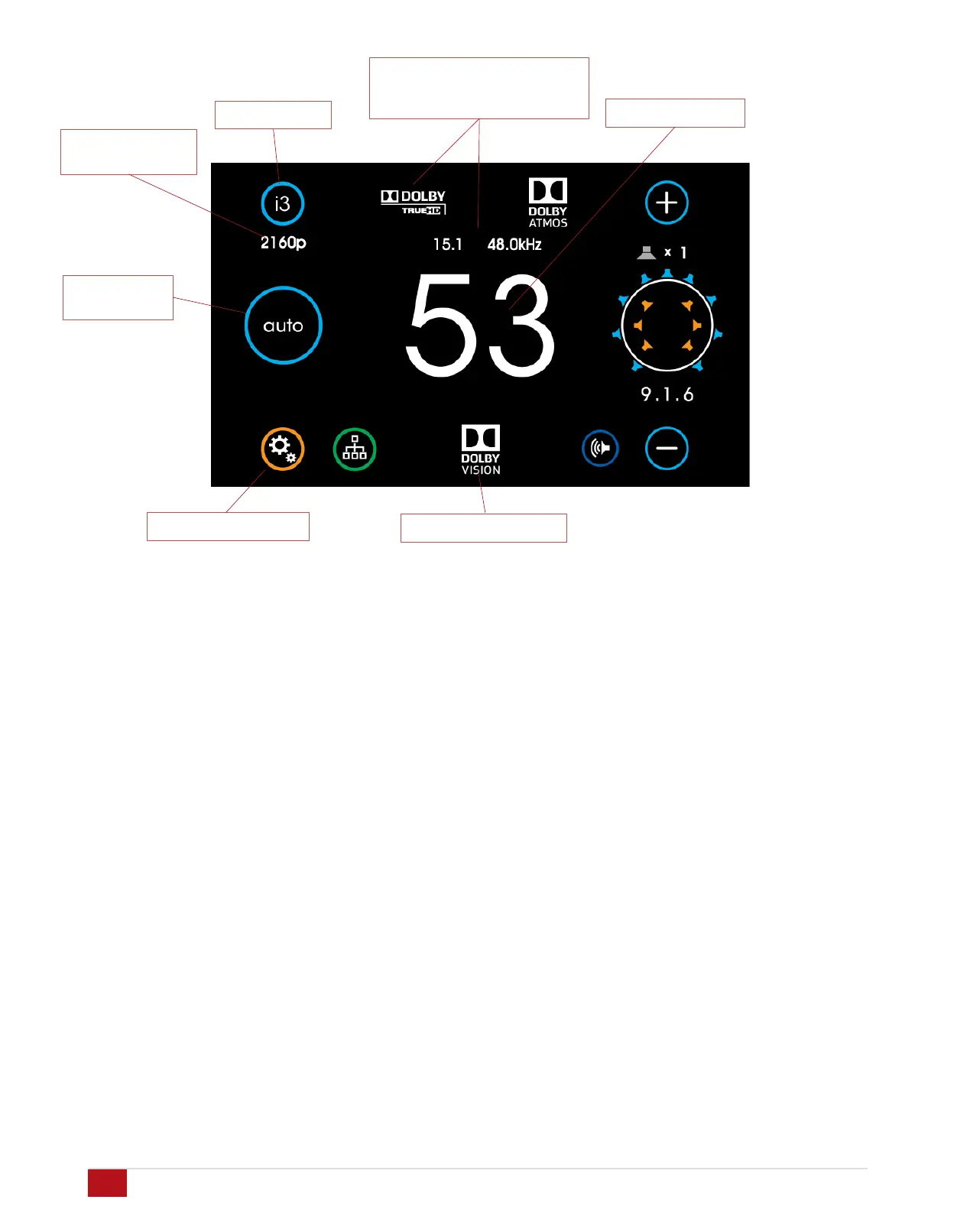
Input Selector
Volume Indicator
Incoming Signal
Format, Channel Count
and Sample Rate Indicators
Video Resolution
Indicator
Sound Mode
Selector
main user interface
Main
The main screen of the MUSE provides complete system
status and incoming stream information in one clear, concise
view..
Input Selector: Touch this button to select an input to the
MUSE. (see page 17)
Video Resolution Indicator: This shows the video resolution
incoming on the selected HDMI input if inputs i1-i7 are selected
and a video signal is present. Resolutions from 480i through
2160p are supported.
Sound Mode Selector: This shows the currently selected sound
processing mode. Touch to change the mode. (see page 18)
Settings Page Button: Touch the settings button at the lower
left of the front panel display to access and adjust MUSE
settings and preferences. Speaker layout and settings, Dolby,
DTS and other global system preferences are setup here. (see
page 21)
Incoming Signal Format Indicator: The MUSE main screen
shows input signal information above the volume number. The
color graphics make encoding and decoding technologies very
clear and easy-to-read.
Incoming Channel Count and Sample Rate: The MUSE shows
the incoming signal channel count (from 1.0 to 15.1) and
decoded sample rate (from 32kHz to 192kHz) on the main
page in the top middle (above the volume number).
Volume Indicator: A scale 1-99 volume indicator displays
present system volume. When muted, the volume indicator
switches from white to red in color.
HDR Format Indicator: : This shows the HDR video type
incoming on the selected HDMI input if inputs i1-i7 are selected
and an HDR video signal is present. Types including HDR10,
HLG and Dolby Vision are supported.
HDR Format Indicator
Settings Page Button


 To Next Page