Remote Control Programming Manual
28 Graphics: Example 11 — Creating a movie marquee
Graphics
In addition to pre-programmed or “canned” graphics (see “Sign
graphics” on page 43), you can create your own custom graphics using
DOTS files.
You can display a DOTS graphic that you create either by itself or
with text.
NOTE: After you create a DOTS graphic, to display it on your sign, the
DOTS graphic must be placed in a text file—even if you just
want to display the graphic all by itself.
Example 11 — Creating a movie marquee
Step When you do this... You see this...
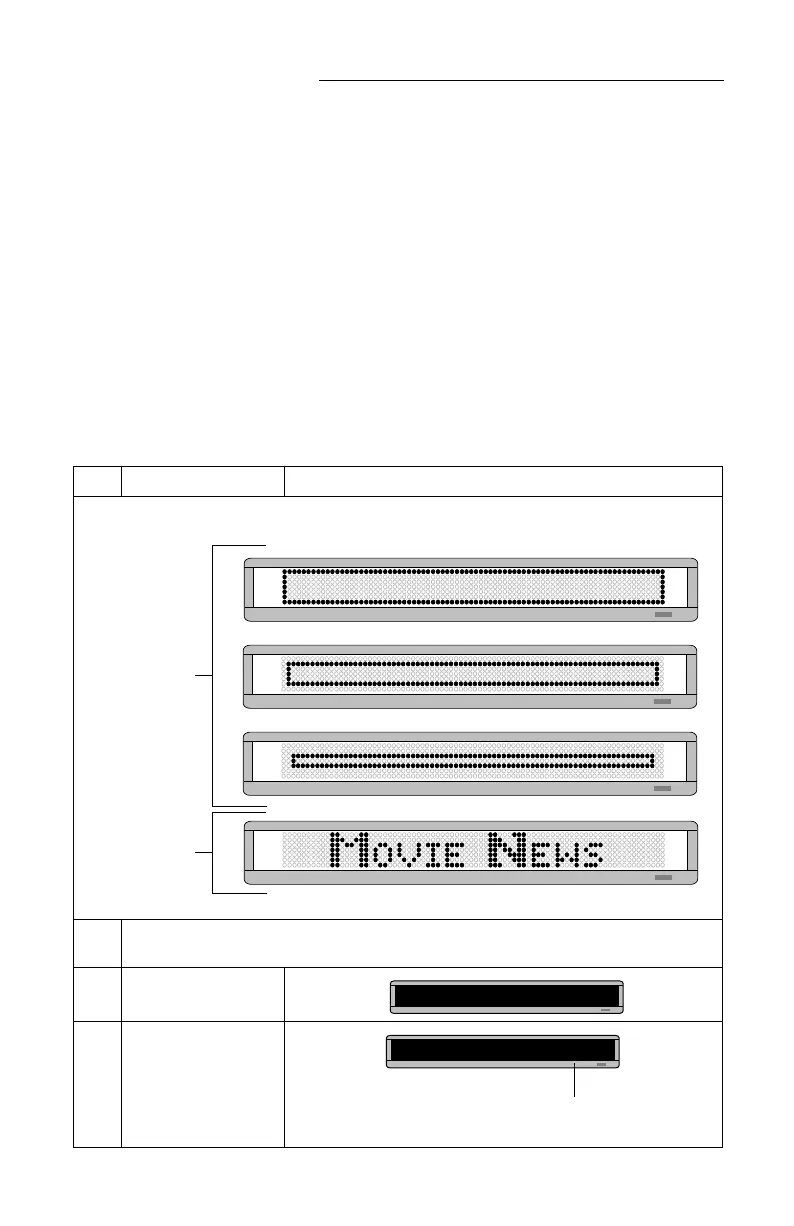
In this example, we’ll create three graphics (or DOTS files)
and combine them with text to make a flashing marquee:
1
Delete all the messages currently stored in the sign.
(See “Clearing a sign’s memory” on page 5 or “Example 5 — Deleting messages” on page 16.)
2 Press PROGRAM.
3 Press BACK.
First you’ll create
these three
graphics files
(called DOTS files
A, B, C).
Then this text will
be added after the
three graphic files.
PROG TEXT A
The name of your first DOTS graphics is
A
.
(The second one will be named
B
and the third one
C
.)
PROG DOTS A



 To Next Page