Remote Control Programming Manual
Graphics: Example 12 — Mixing text with graphics 33
Example 12 — Mixing text with graphics
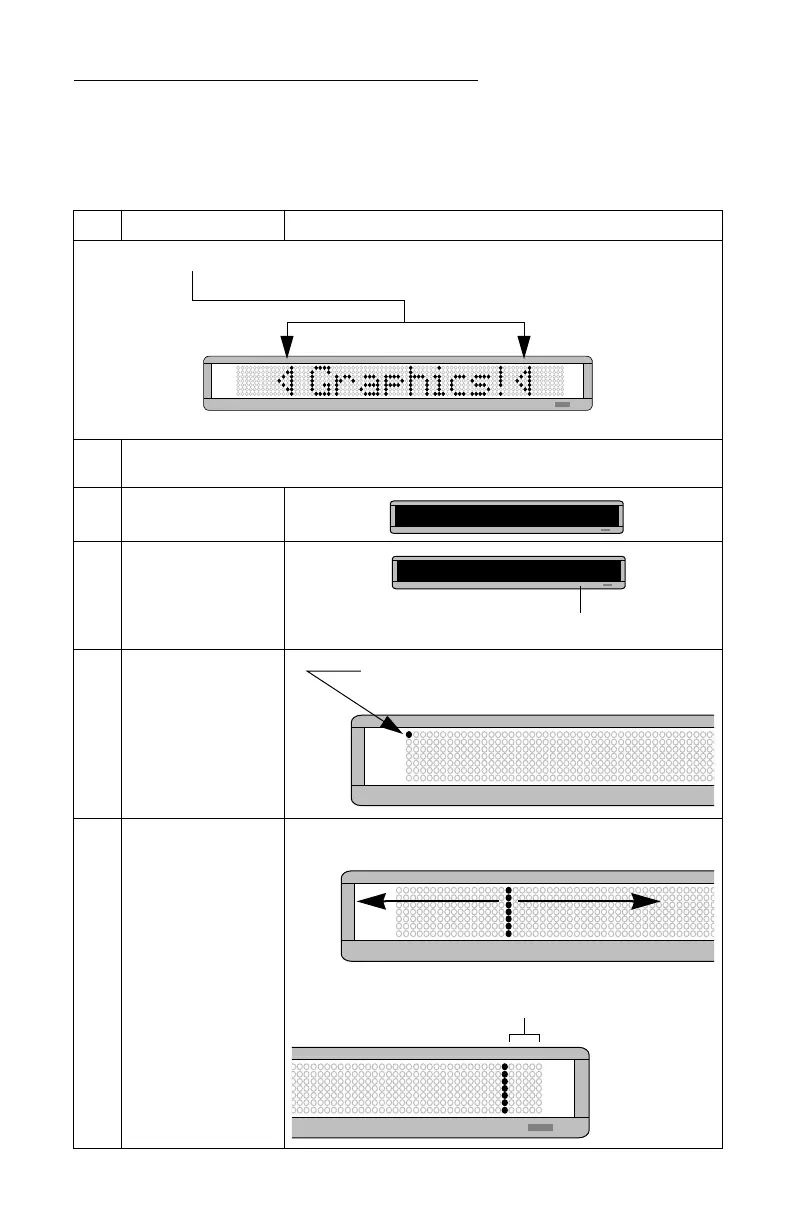
In this example, we’ll create a graphic and combine it with text:
Step When you do this... You see this...
1
Delete all the messages currently stored in the sign.
(See “Clearing a sign’s memory” on page 5 or “Example 5 — Deleting messages” on page 16.)
2 Press PROGRAM.
3 Press BACK.
4 Press ADV.
5
Press X to move a vertical
line across the sign. This
reduces the size of the
drawing area.
Keep pressing X until there
are 5 dots between the
vertical line and the end of
the sign.
NOTE:If you don’t reduce
the graphic area, the
graphic would take
up the entire area of
the sign.
These triangle graphics (which is just a single DOTS file) will be combined with the text
Graphics!
PROG TEXT A
The name of your DOTS graphics file will be
A
.
PROG DOTS A
The blinking DOTS cursor keeps
track of where you’re drawing.
X moves this line right
(reduces drawing area)
W moves this line left
(increases drawing area)
The line should end up 5 dots from the end. So our
drawing area will be 5 dots wide by 7 dots high.



 To Next Page