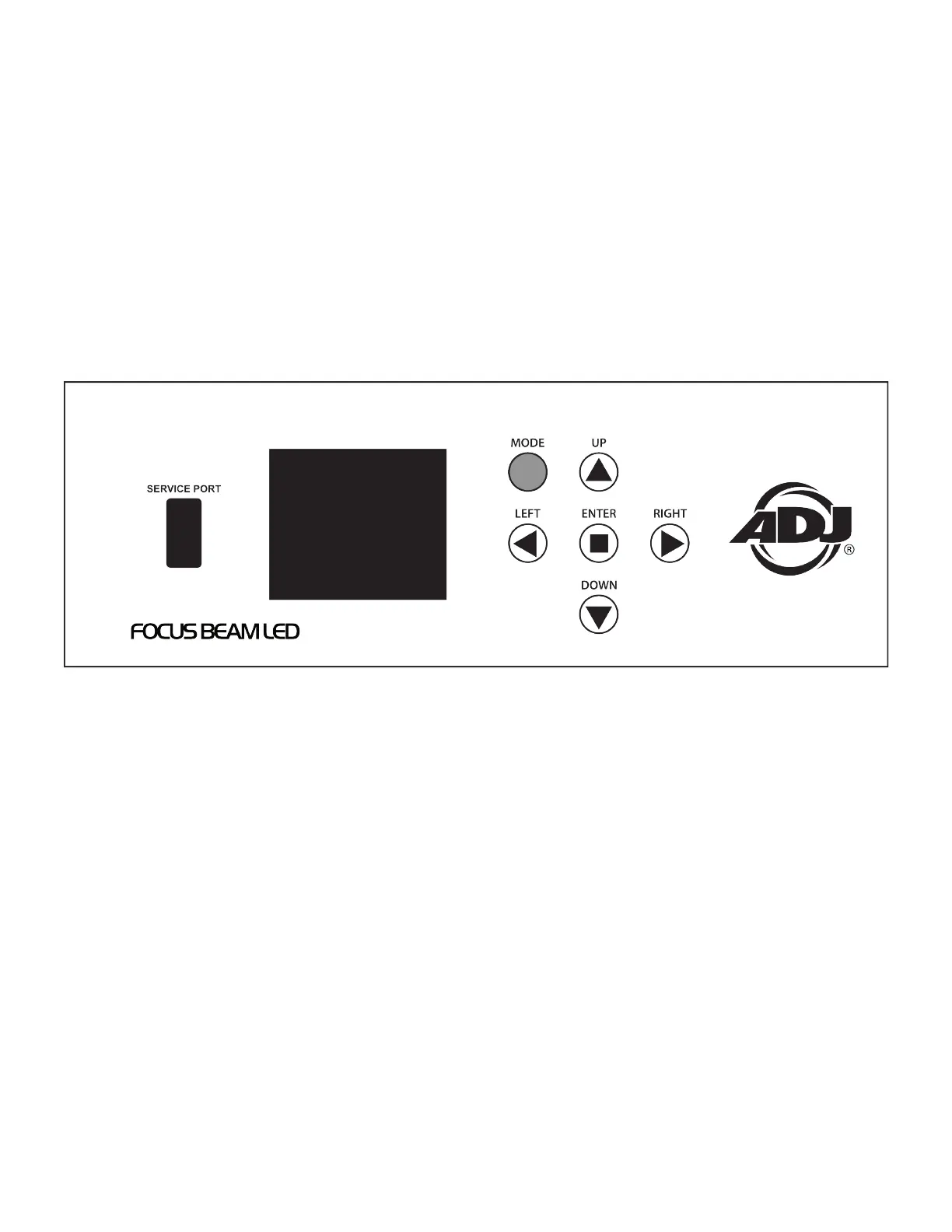
SYSTEM MENU
The xture includes an easy to navigate system menu control panel display where all necessary
settings and adjustments are made. (See image below) During normal operation, pressing the MODE
button once will access the xture’s main menu. Once in the main menu, you can navigate through
the different menus and the sub-menus with the UP and DOWN buttons. When you reach a eld that
requires adjusting, press the ENTER button to access that eld and use the UP, DOWN, LEFT or
RIGHT buttons (depending on the sub menu) to adjust the eld. Pressing the ENTER button once more
to conrm your setting. You may exit the main menu at any time without making any adjustments by
pressing the MODE button.
To access the system menu when the xture is not powered using the internal battery, press
and hold the MODE button to illuminate the LCD screen until the DMX address is displayed.
Then navigate to the desired system menu.
LCD CONTROL PANEL LOCKOUT
When the Key Lock function is activated, the control panel will automatically lock after the time set
under the SCREEN SAVER DELAY submenu.
When the Key Lock function is set to ON, the control panel will lock, and then the display will show
“Un-Lock” at the bottom of the display. Press and hold the MODE button for 3 seconds to unlock.
When the Key Lock function is set to ON1, the control panel will lock and the display will show “Unlock”
at the bottom of the display. To unlock the display follow these steps:
1. Press the UP button, and the display will show *.
2. Press the DOWN button, and the display will show **.
3. Press the UP button, and the display will show ***.
4. Press the DOWN button, and the display will show ****.
5. Press the ENTER button, to conrm.
If the button sequence was entered correctly, the display and control panel will unlock. If the button
sequence was entered incorrectly, the display will return to the DMX address display.
17



 To Next Page