130
USING ACROBAT 9 PRO EXTENDED
PDF Portfolios and combined PDFs
Last updated 9/30/2011
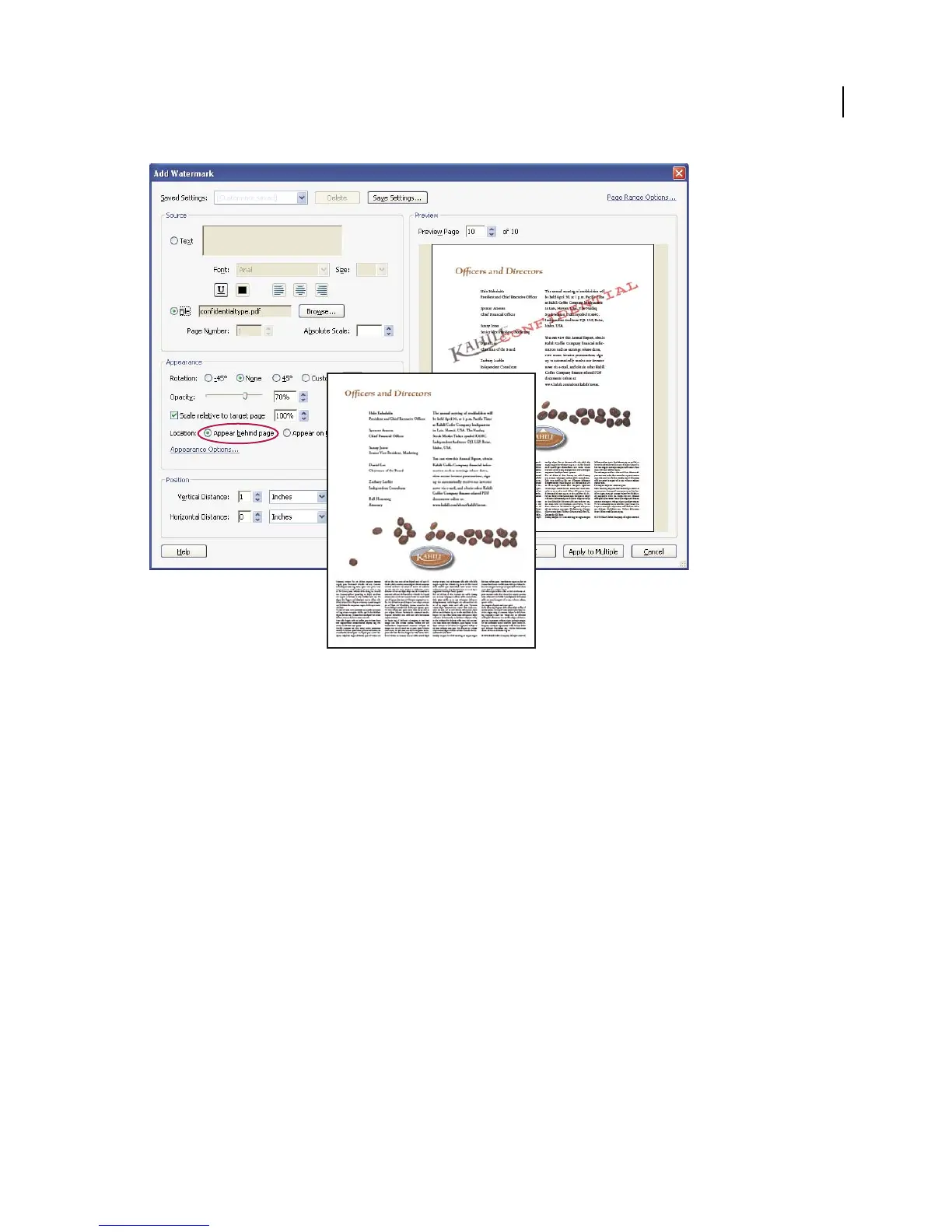
Before and after adding a watermark
Add or replace a watermark, with an open document
1 Choose Document > Watermark > Add.
2 (Optional) To apply the watermark selectively to individual pages, click Page Range Options. Then specify a page
range and choose a Subset option, as needed.
3 Specify the watermark:
• To reuse a watermark and watermark options that you saved in an earlier session, select it from the Saved Settings menu.
• To create a text watermark, select Text, and type the text in the box. Adjust the text formatting options as needed.
• To use an image as a watermark, select File. Then click Browse and select the image file. If the file has multiple pages
with images, specify the Page Number you want.
Note: Only PDF, JPEG, and BMP images can be used as watermarks.
4 To change the size of an image watermark, do one of the following:
• To resize the watermark in relation to the original image file size, enter a percentage in the Absolute Scale option
(in the Source area of the dialog box).
• To resize the watermark in relation to the PDF page dimensions, enter a percentage in the Scale Relative To Target
Page (in the Appearance area of the dialog box).
5 Adjust the appearance and position of the watermark, as needed.



 To Next Page