159
USING ACROBAT 9 PRO EXTENDED
Collaboration
Last updated 9/30/2011
• In Reader, choose View > Tracker.
2 In the Tracker, double-click the PDF.
3 Add new comments or edit existing comments. If you need to delete a comment, select it, and press Delete. (You
can delete only comments that you made.)
Deleted comments are removed from the online PDF the next time comments are synchronized. If you delete
comments that you sent in an earlier email message, they aren’t deleted in the initiator’s document.
4 Submit your new comments by doing one of the following:
• Click Publish Comments in the document message bar.
• Click Send Comments or Send And Receive Comments in the Comment & Markup toolbar.
Only new or edited comments are published or sent.
More Help topics
“Save the PDF with comments” on page 161
Tracking and managing PDF reviews
Tracker overview
Use the Tracker to manage document reviews and distributed forms, view the status of review and form servers, and
manage web broadcast subscriptions (known as RSS feeds). To open the Tracker from Acrobat, choose Comments >
Track Reviews. To open the Tracker from Reader, choose View > Tracker.
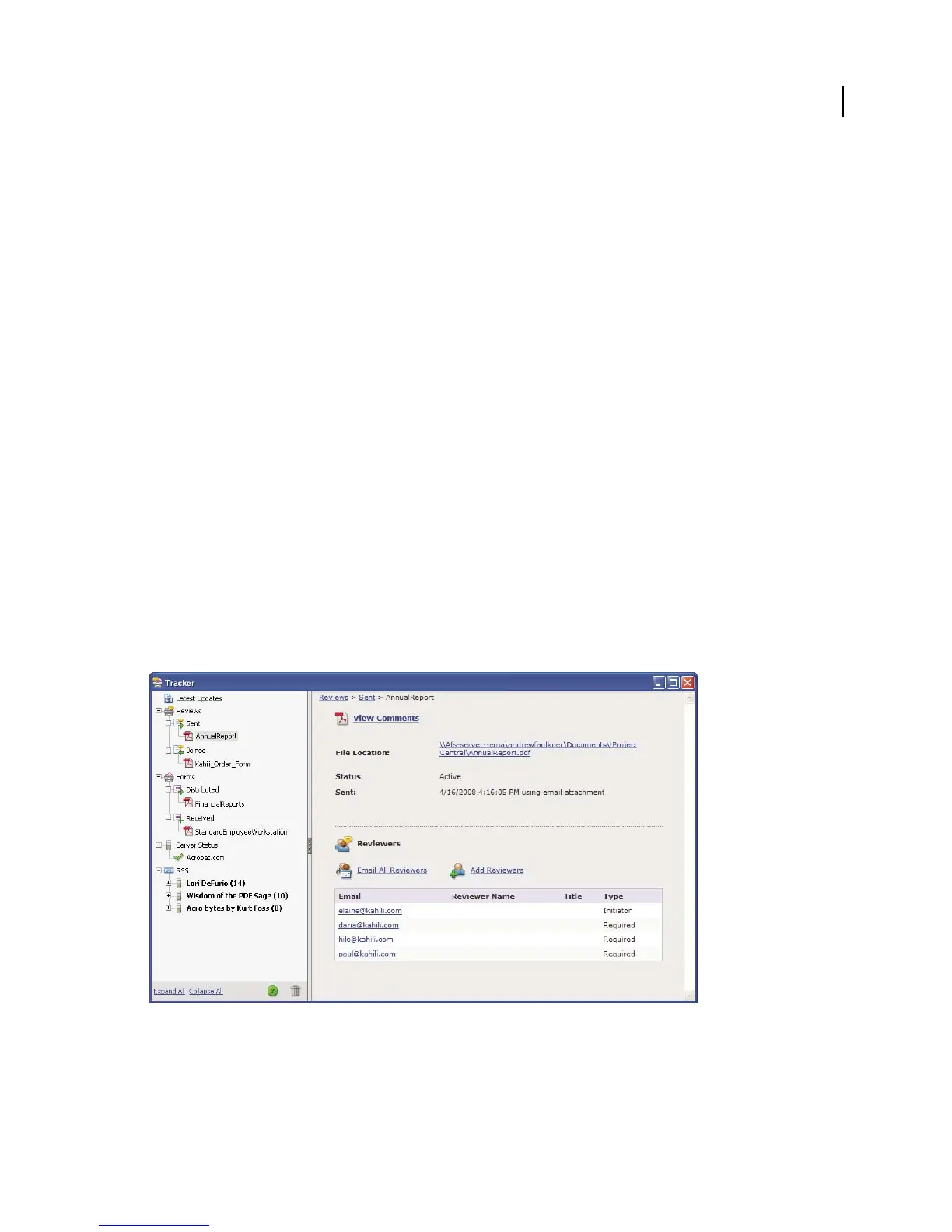
Use the Tracker to manage reviews, forms, and web broadcast subscriptions (RSS feeds). Left panel has links to review files, forms, server status
messages, and RSS feeds. Right panel shows details for item selected in left panel.



 To Next Page