9
USING ACROBAT 9 PRO EXTENDED
Getting started
Last updated 9/30/2011
You can also convert web pages to PDF directly using Internet Explorer. To convert, visit a website in the Internet
Explorer browser, and then click the Convert button in the toolbar.
Collaborate
Initiating a shared review
In a shared review, all participants can view and respond to comments. It’s a great way to let reviewers resolve
conflicting opinions, identify areas for research, and develop creative solutions during the review process. You can
host a shared review on a network folder, WebDAV folder, SharePoint workspace, or on Acrobat.com, a new secure
web-based service. All you need is Acrobat, a PDF, and a free Adobe ID to get started.
1 Prepare the PDF.
Save the PDF you want participants to review. If you want to call attention to particular questions or topics for
discussion, add comments to the PDF.
2 Send the PDF for a shared review.
Choose Comments > Send For Shared Review. Acrobat opens the Send For Shared Review wizard. You can share
any document that can be modified with comments. If a document has security settings that do not allow
comments, Acrobat notifies you.
3 Select a method for collecting comments.
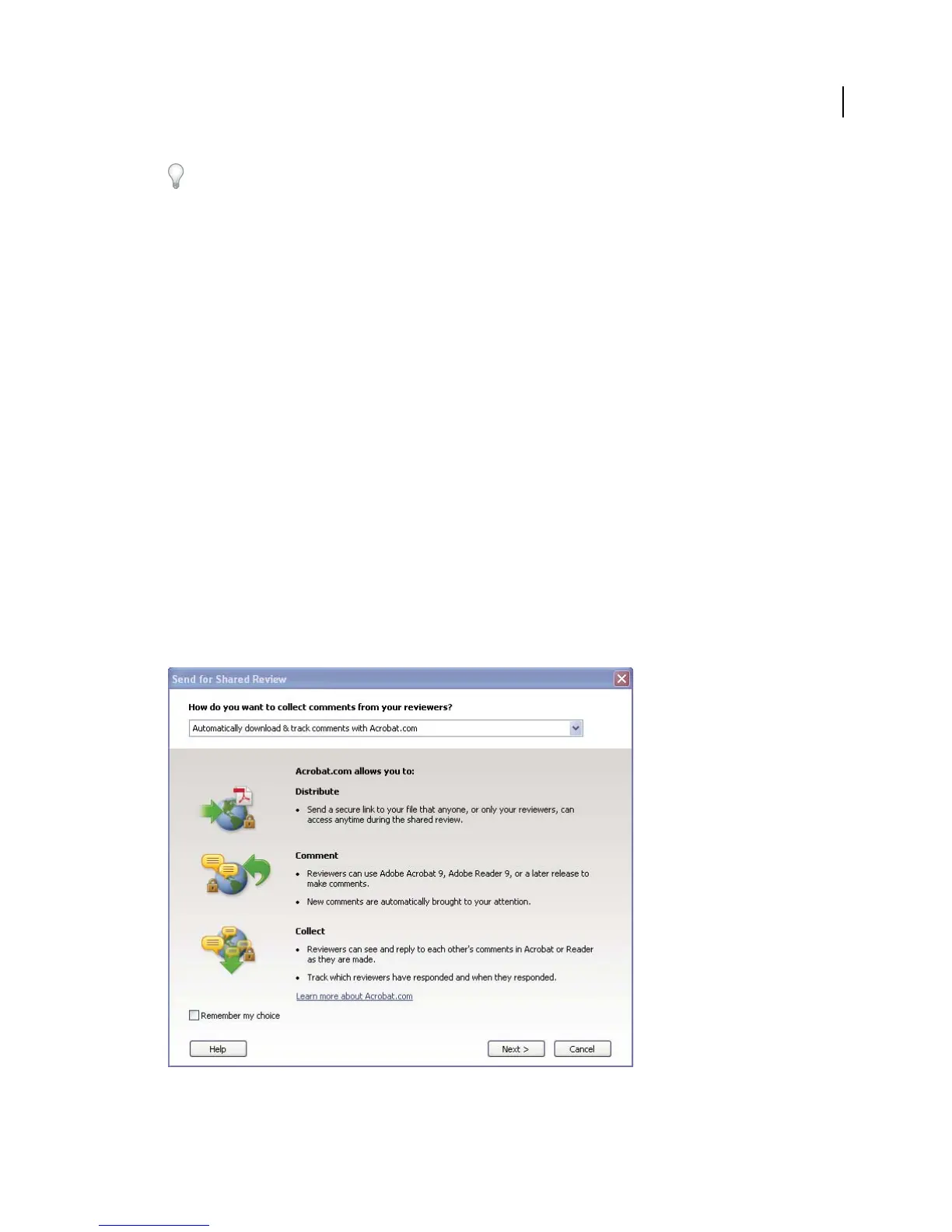
Choose how you want to post the PDF and collect comments from reviewers. Choose Automatically Download &
Track Comments With Acrobat.com if you want to use Acrobat.com to share the review. Choose Automatically
Collect Comments On My Own Internal Server to use a network server, a WebDAV server, or a SharePoint
workspace.
The Send For Shared Review wizard guides you through different ways to manage comments.



 To Next Page