21
USING ACROBAT 9 PRO EXTENDED
Getting started
Last updated 9/30/2011
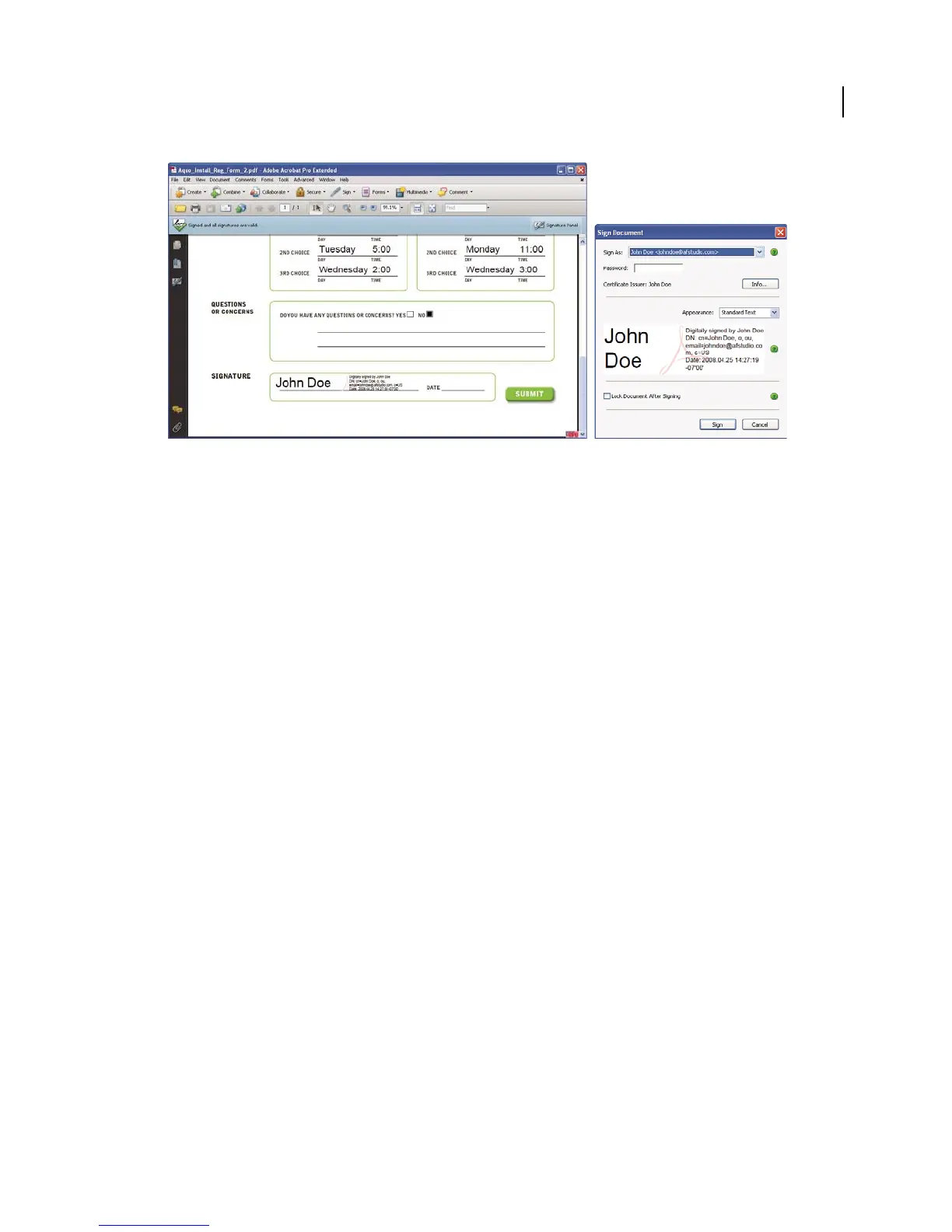
Choose a signature appearance when signing a document.
In the Sign Document dialog box, select an appearance, and then add any information it requires, such as the
location or the reason for signing. Enter a password if your digital ID requires it. Click Sign. Give the document a
new name so that you can change the original PDF without invalidating the signature, and click Save.
When you apply a digital signature, Acrobat embeds an encrypted message digest in the PDF. Acrobat also embeds
the details from your certificate and a version of the document at the time it was signed.
5 Distribute your certificate.
To verify your digital ID, others who view your document must have the public certificate from your digital ID. To
send your certificate, choose Advanced > Security Settings, and select Digital IDs on the left. Expand the list, select
the digital ID you want to share, and click Export. Follow the onscreen instructions to email your certificate as an
FDF file to someone or to save the certificate as a different file type.



 To Next Page