358
USING ACROBAT 9 PRO EXTENDED
Editing PDFs
Last updated 9/30/2011
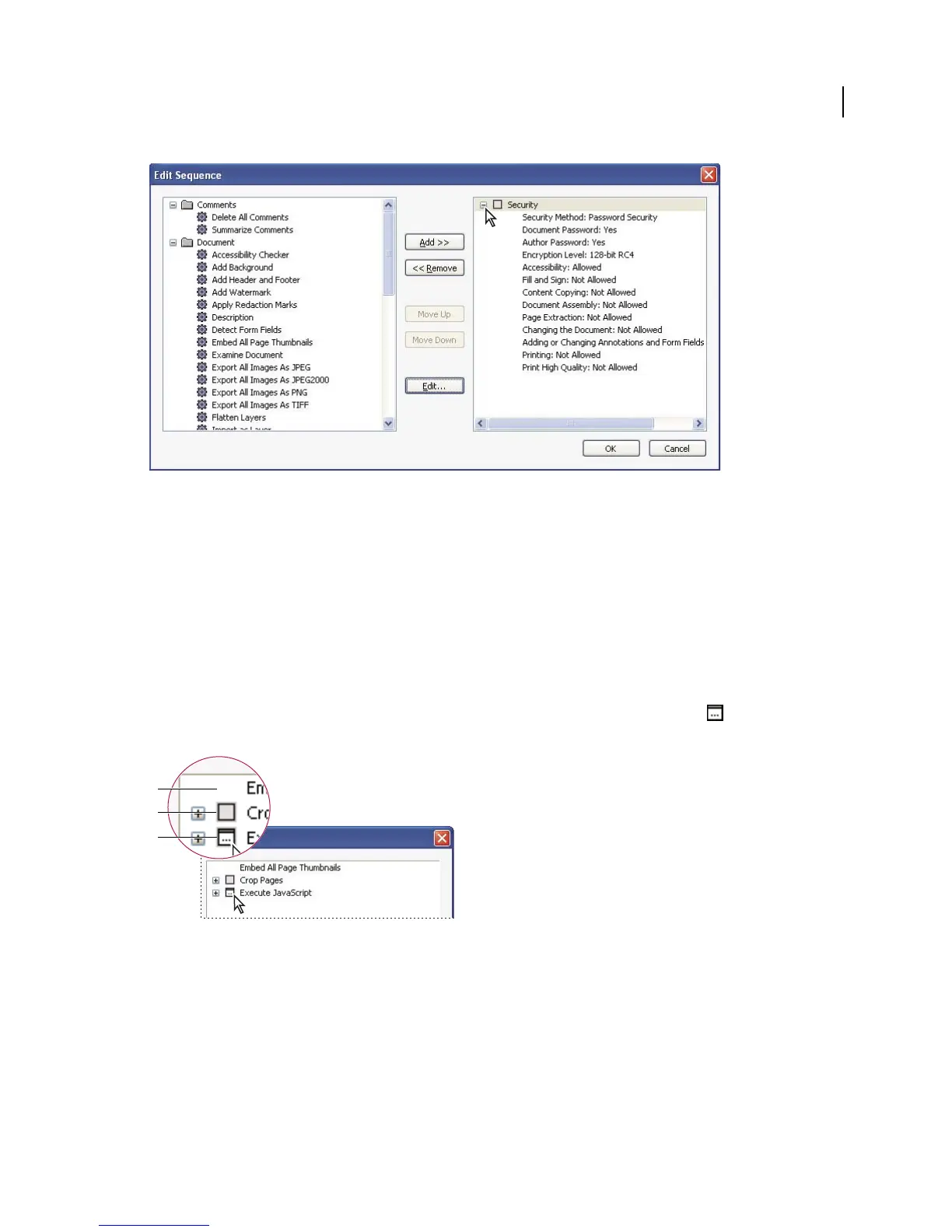
Expanding the command display in the Edit Sequence dialog box
Make a batch sequence interactive
If your work requires that different documents use slightly different options for the same commands, you can still use
batch processing to automate the work. By making a batch sequence interactive, you can set up your batch-processing
definitions to have pauses between specific commands so that you can modify command options before they execute.
Note: You can’t add interactivity to commands that don’t have interactive options.
1 Choose Advanced > Document Processing > Batch Processing, select the batch sequence you want to add
interactivity to, and click Edit Sequence.
2 In the Batch Edit Sequence dialog box, click Select Commands.
3 On the right side of the Edit Sequence dialog box, select the Toggle Interactive Mode option for the commands
that you want to provide input to during processing, and then click OK.
Toggle Interactive Mode
A. Interactive mode is not available. B. Interactive mode is available but not selected. C. Interactive mode is selected.
Create a new batch sequence
1 Choose Advanced > Document Processing > Batch Processing.
2 Click New Sequence.
3 Type a descriptive name for your sequence in the Name Sequence dialog box and click OK.
A
B
C



 To Next Page