493
USING ACROBAT 9 PRO EXTENDED
Preflight
Last updated 9/30/2011
Lock, unlock, and password-protect profiles
You can prevent unauthorized changes to preflight profiles by locking profiles and giving them passwords. This may
be useful if preflight profiles are shared among several users. You can lock or password-protect preflight profiles when
you first create them or any time you save the preflight profiles. By default, all predefined preflight profiles are locked.
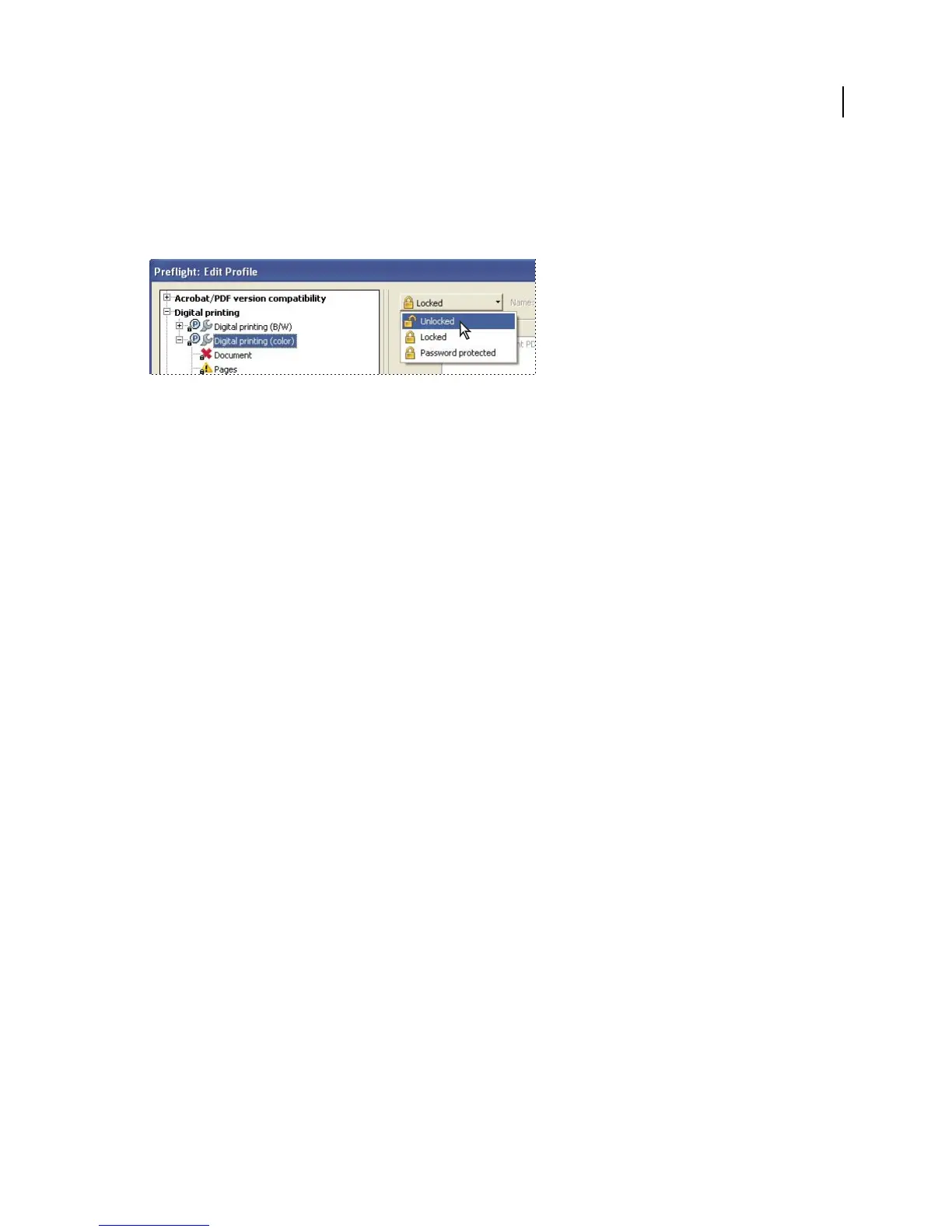
Unlocking a locked preflight profile
Lock a profile
1 In the Preflight Edit Profile dialog box, select a profile.
2 Choose Locked from the pop-up menu at the upper left of the dialog box.
The options become unavailable.
Password protect a profile
1 In the Preflight Edit Profile dialog box, select a profile.
2 Choose Password Protected from the pop-up menu at the upper left of the dialog box.
3 Type and reenter the password, and click OK. You can use uppercase and lowercase letters, numerals, or
punctuation marks.
The options become unavailable.
Unlock or unprotect a profile
1 In the Preflight Edit Profile dialog box, select a profile.
2 Choose Unlocked from the pop-up menu at the upper left of the dialog box.
3 If prompted, enter the correct password, and click OK.
Change profile settings
You can change the settings of a single profile.
More Help topics
“Preflight Edit Profile dialog box overview” on page 490
“Lock, unlock, and password-protect profiles” on page 493
“Add and remove profiles” on page 491
Change general profile settings
1 Open the Preflight Edit Profile dialog box.
2 Expand the profile group and select a profile.
3 If the profile is locked, choose Unlocked from the pop-up menu.



 To Next Page