45
USING ACROBAT 9 PRO EXTENDED
Workspace
Last updated 9/30/2011
Change the magnification with the Loupe tool
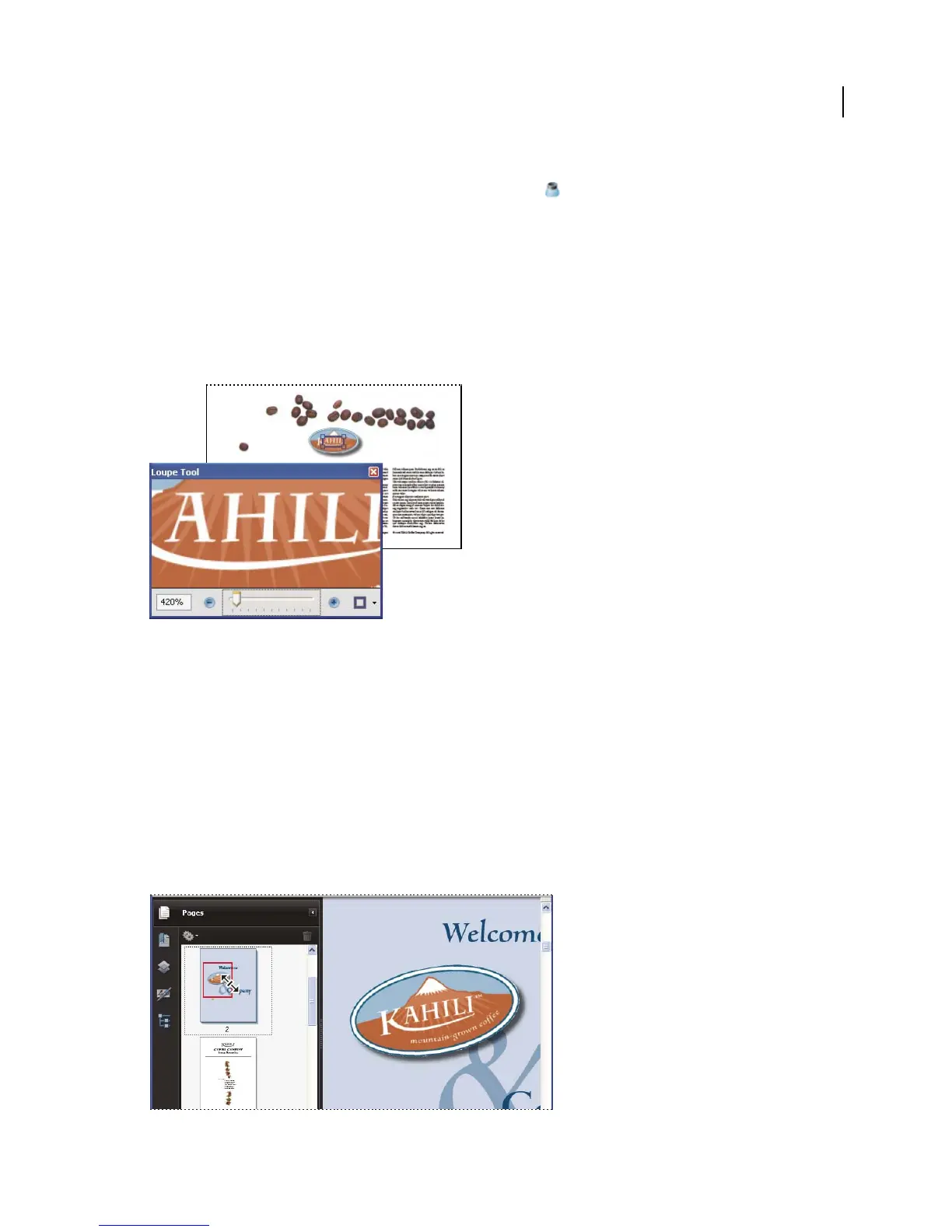
1 Choose Tools > Select & Zoom> Loupe, or select the Loupe tool on the Select & Zoom toolbar, if it is displayed.
2 Click the area of the document you want to view in closer detail. A rectangle appears in the document,
corresponding to the area shown in the Loupe Tool window. You can drag or resize the rectangle to change the
Loupe tool view.
3 To change the magnification of the Loupe tool, do any of the following:
• Drag the slider.
• Click the plus or minus buttons.
• Enter a value in the zoom text box.
Use the Loupe tool to view a magnified area of the document.
Note: You can change the color of the Loupe tool rectangle, click the Line Color pop-up menu in the lower-right corner of
the Loupe Tool window, and select a new color.
Change the magnification by using a page thumbnail
1 Click the Pages button on the left side of the window to view the page thumbnails.
2 Locate the thumbnail for the current page. Then position the pointer over the lower-right corner of the page-view
box until the pointer changes into a double-headed arrow.
3 Drag the corner of the box to reduce or expand the view of the page.
4 As needed, move the pointer over the zoom box frame within the thumbnail until it changes into a Hand icon. Then
drag the frame to see a different area of the page in the document pane.
A page-view box in a page thumbnail indicates the area of the page currently showing in the document pane.



 To Next Page