ADOBE READER 8
User Guide
124
Sheets From Specifies the first and last sheet to print. Acrobat determines which sheets must print to accommodate
the print job. For example, if you have a 16-page document, then sheets 1 through 4 print.
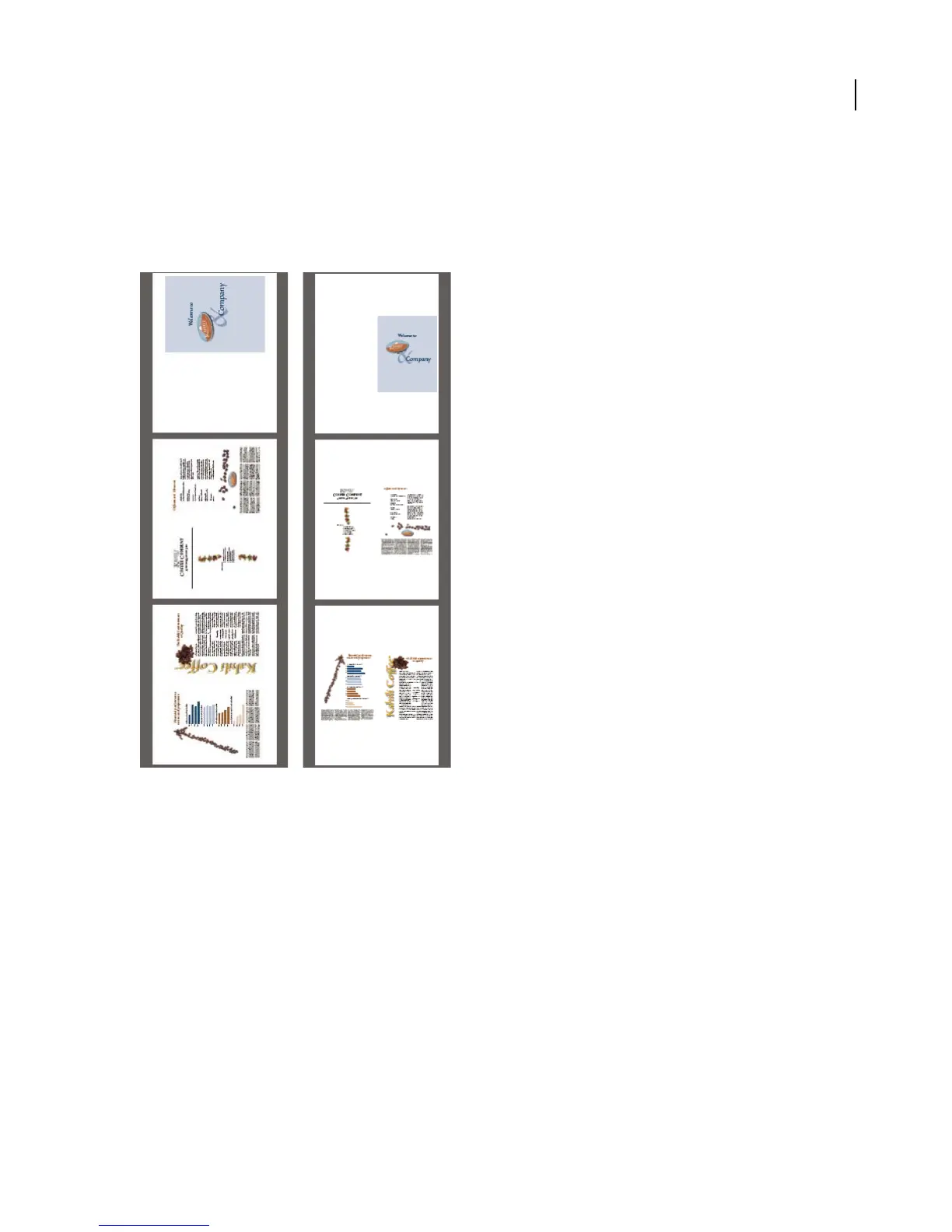
Binding Determines the orientation for the binding. Choose Left for text read left-to-right; choose Left (Tall) for
paper folded on the long side, where the printable area is long and narrow. Choose Right for text read right-to-left
or for Asian-style vertical reading; choose Right (Tall) for paper folded on the long side.
Compare Right binding with Right (Tall).
Print documents in a PDF package
A PDF package contains multiple documents wrapped in one PDF. You can print the documents individually or
together.
1 Open the PDF package. You can select the cover sheet and print it on a different printer or paper stock.
2 Choose File > Print, and then choose one of the following commands:
Print Current Document Prints the open PDF.
Print All Documents Prints all the PDFs in the package.
Print Selected Documents Prints some of the PDFs in the package. (This option is available only when multiple files
are selected in the list of component documents.)
3 Choose applicable printing options, and click OK.
Documents are printed in the order they appear in the package.



 To Next Page