ADOBE READER 8
User Guide
70
Approval workflows
About approval workflows
In Acrobat (Traditional Chinese, Simplified Chinese, Japanese, and Korean only), you can send PDFs as email attach-
ments for others to approve. When participants open an approval request in Reader (all languages), they can approve
the PDF by adding a digital identity stamp. Then, they can send the PDF to other approvers, or return the PDF to
the initiator and other appropriate participants. The initiator can track progress by choosing to be notified each time
the PDF is approved. The workflow ends when the last participant adds the final approval. If a PDF isn’t approved,
the approval workflow must be reinitiated.
Note: To initiate an approval workflow, you must use Acrobat 7.0 or later (except Acrobat Elements). If you use Acrobat
Professional to initiate the workflow, you can invite users of Adobe Reader 7.0 or later to participate by enabling
commenting in the PDF.
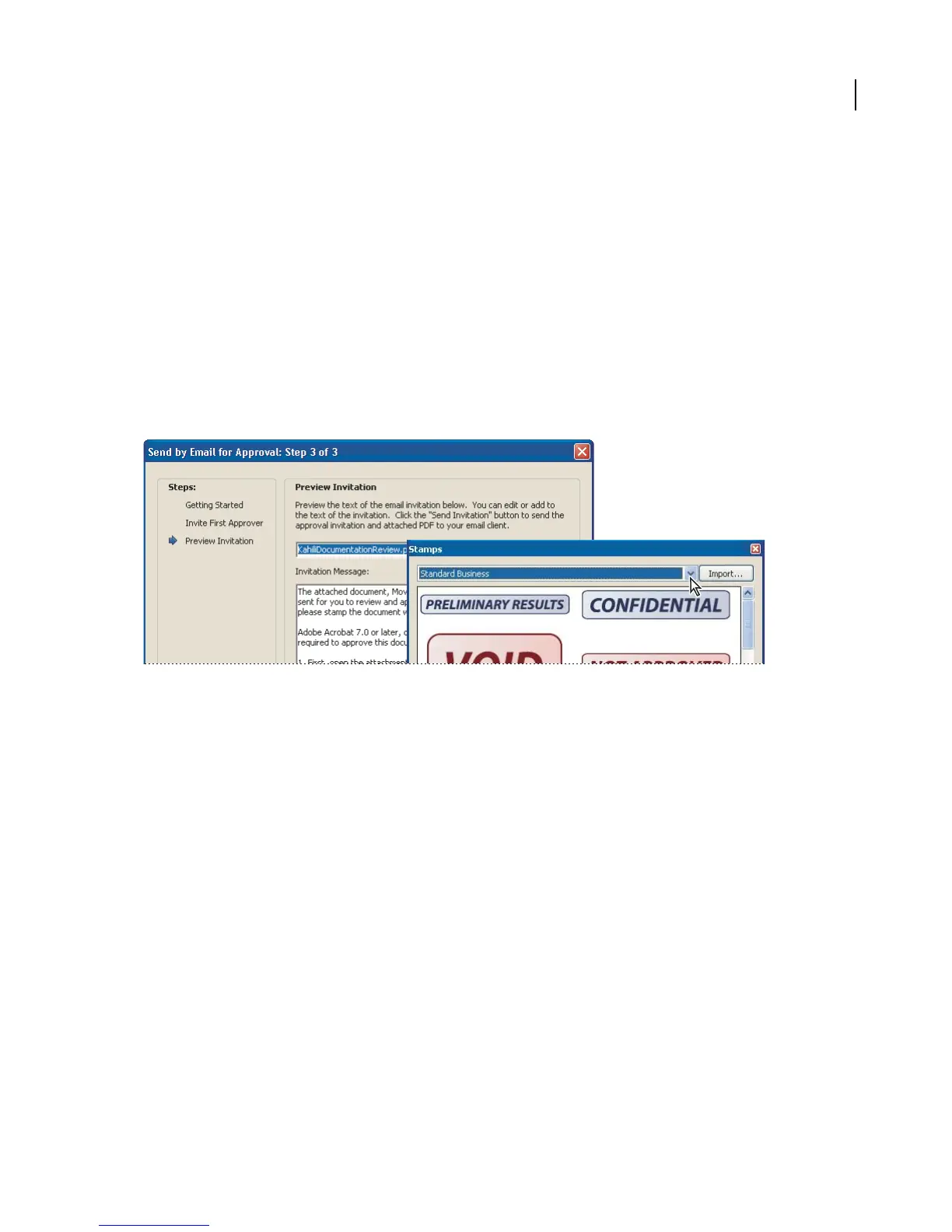
Wizard sets up approval workflows (left); Stamps palette provides digital identity stamps for approving documents (right).
Participate in an approval workflow
If you’re invited to participate in an approval workflow, you receive an email that provides step-by-step instructions
for approving the attached PDF. When you open the PDF, the Stamps palette and the How To window open, and the
document message bar appears at the top of the PDF. If your version of Reader is earlier than 7.0, you’re prompted
to download the latest version of Adobe Reader.
You can select any of the digital identity stamps in the Stamps palette to approve the document. A digital identity
stamp contains identity information that you provide, such as name, title, organization, and email address, and it can
be used in place of a signature. When you apply a stamp, it becomes part of the document’s page content. You can
delete your own stamp during the approval process; however, once the approval process is completed, your stamp is
locked. You can’t move or delete stamps from other participants.
You may also reject documents that don’t meet your standards.
In addition to adding digital stamps to a PDF, you can add other types of comments, including note comments, text
edits, custom stamps, and file attachments.
See also
“Create a custom stamp” on page 60
“Commenting and markup tools overview” on page 54



 To Next Page