ADOBE READER 8
User Guide
65
Note: The Paste Clipboard Image As Stamp tool isn’t available until you copy an image.
1 Copy an image by doing one of the following:
• In Reader, choose Tools > Select & Zoom > Snapshot Tool , and select an image from a PDF.
• In another application, select an image and choose Edit > Copy.
2 Open a PDF.
3 Choose Tools > Comment & Markup > Stamps > Paste Clipboard Image As Stamp Tool.
4 Click in the PDF where you want the image to appear.
5 Do any of the following:
• To move the image, drag it.
• To resize the image, select it and then drag one of its handles. Press the Shift key when resizing the image to
maintain the original proportions.
• To change the image properties, right-click/Control-click it and choose Properties.
• To delete the image, right-click/Control-click it and choose Delete.
See also
“Copy images” on page 44
Managing comments
View comments
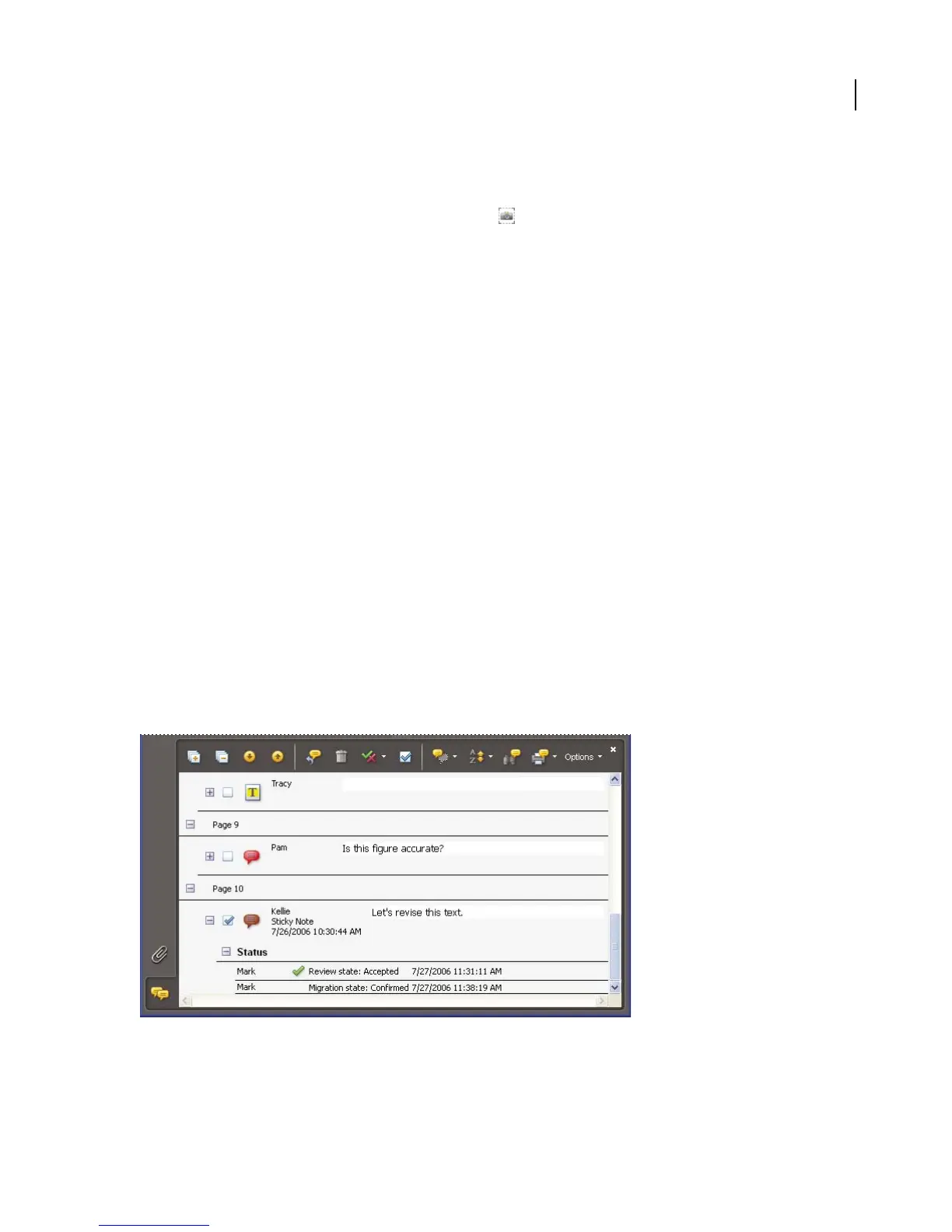
The Comments List displays all the comments in a PDF, and it provides a toolbar with common options, such as
sorting, filtering, deleting, and replying to comments.
The Comments button in the navigation pane opens the Comments List.



 To Next Page