ADOBE READER 8
User Guide
55
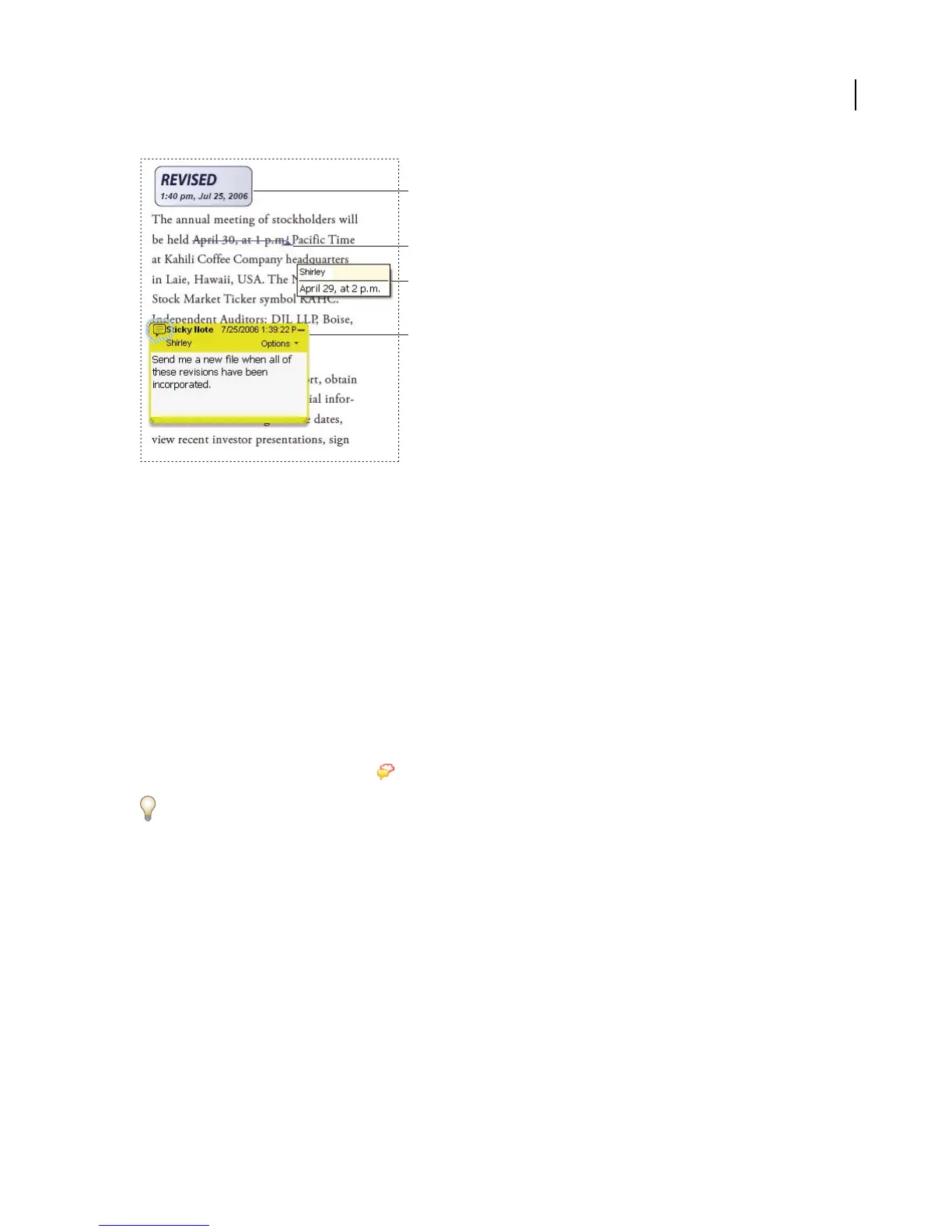
Types of comments in a PDF
A. Stamp B. Text edit C. Comment rollover (tooltip) D. Sticky note
See also
“Show and hide toolbar elements” on page 11
“Comment on 3D designs” on page 118
Show the Comment & Markup toolbar
The Comment & Markup toolbar doesn’t appear by default, except when you open a PDF in a managed review
workflow.
❖ Do one of the following:
• Choose View > Toolbars > Comment & Markup.
• Choose Tools > Comment & Markup > Show Comment & Markup Toolbar.
• Click the Review & Comment button in the Tasks toolbar, and choose Show Comment & Markup Toolbar.
To add or remove tools to this toolbar, right-click/Control-click the toolbar, and select the tool. Or, choose Tools >
Customize Toolbars.
Select a commenting or markup tool
❖ Do one of the following:
• Select a tool from the Comment & Markup toolbar.
• Choose Tools > Comment & Markup > [tool].
Note: After you make an initial comment, the tool changes back to the Select tool so that you can move, resize, or edit
your comment. (The Pencil, Highlight Text, and Line tools stay selected.)
Keep a commenting tool selected
You can add multiple comments without reselecting the tool.
1 Select the tool you want to use (but don’t use it yet).
2 Choose View > Toolbars > Properties Bar.
A
B
C
D



 To Next Page