7
Step 4
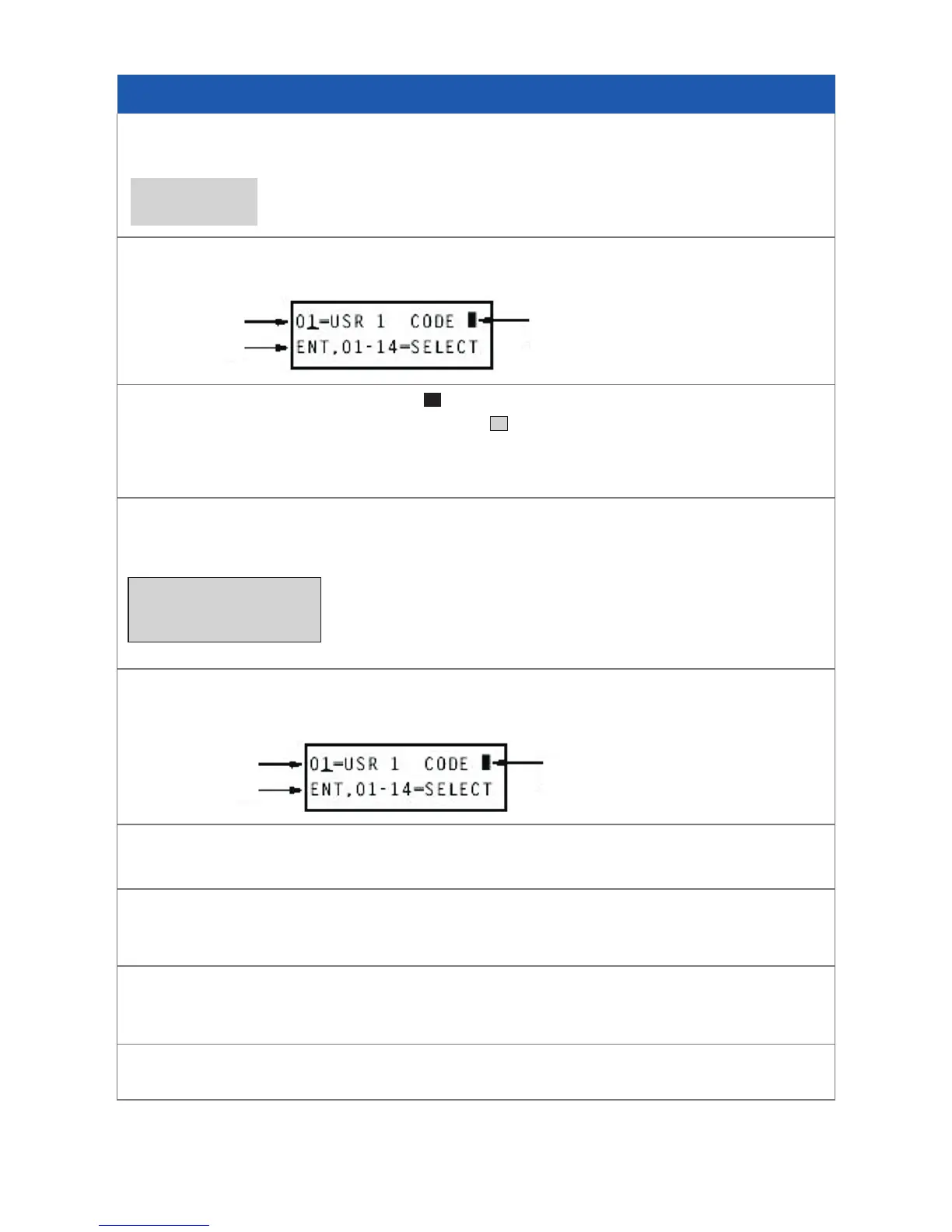
Enter your new 4 digit code and press (ent). The display will show:
N.B. This example assumes you were changing User Code No” 1 indicated in
the display as 01 and USR 1
Step 5
If you wish to change any other User Code you can do so by pressing the (A) key to
select the correct slot number as described in step 2.
Step 6
Onceyouhavecompletedmakingyourcodechangespressthe(esc) key until you
return back to the time and date.
N.B. If you wish to delete a code, when you get to step 4 press the (*) key 4
times and (ent)
UserNumber
OptionSelection
User Code
Assigned Indication
Galaxy 8/16+ Code change
Step 1
Enter your Master Code and press Ent, The display will show:
Step 2
Press number 4. The display will show:
N.B. The display will only show a if the user code 1 has already been
allocated a user code number, otherwise , which indicates the user code 1
has not yet been allocated. If you do not wish to change user code 1. then after
step 2 press the (A) key until the correct user slot no’’ is reached.
Step 3
Onceyouhavechosentheusercodeyouwanttochangepress(ent).The display
will show:
0=OMIT
ENT,1-59=MENU
UserNumber
OptionSelection
>**** (0 - 9999)
USR 1.
User Code
Assigned Indication


 To Next Page