Need help?
Do you have a question about the Aeotec MULTISENSOR 6 and is the answer not in the manual?
Explains how to power the MultiSensor 6 using battery or USB for setup.
Guides on pairing MultiSensor 6 with a Z-Wave gateway.
Instructions for connecting MultiSensor 6 to SmartThings.
Details on mounting MultiSensor 6 using the back-mount plate.
Steps to unpair/remove MultiSensor 6 from a Z-Wave network.
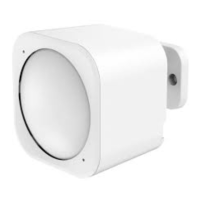
The Aeotec MultiSensor 6 is a versatile smart home device designed to detect various ambient values and movement, transmitting this data via Z-Wave Plus technology. It is powered by Aeotec's Gen5 technology, ensuring reliable performance within a Z-Wave network.
The MultiSensor 6 integrates multiple sensing capabilities to provide comprehensive environmental monitoring. Its primary functions include motion detection, light sensing, UV sensing, temperature measurement, and vibration detection. These sensors work in conjunction to provide a holistic view of the environment where the device is installed.
The motion sensor utilizes both light and heat readings to determine movement. This allows for intelligent detection, though sudden changes in light or temperature can influence its accuracy. The device is designed to send Basic Set Commands to associated devices in Association Group 1 when motion is detected, setting them to an "OPEN" state. By default, if no further motion is detected for 4 minutes, the MultiSensor 6 will send a Basic Set Command to set these devices to a "CLOSE" state. If motion is re-triggered within this 4-minute window, the timer resets.
Beyond motion, the MultiSensor 6 continuously monitors light levels, UV radiation, and ambient temperature. These readings can be used for various automation scenarios, such as adjusting lighting based on natural light availability or triggering climate control systems. The vibration sensor adds another layer of security or monitoring, capable of detecting physical disturbances to the device or the surface it's mounted on.
The device also features built-in battery level detection, automatically reporting its battery status to the connected controller or gateway. This allows users to monitor the power status and anticipate battery replacement.
The MultiSensor 6 offers flexible power options, allowing it to be powered either by batteries (two CR123A batteries) or via a Micro USB cable. For initial setup and installation, using the USB cable with a computer USB port or a smartphone charger is recommended, as it allows for configuration in any location before final placement. When using batteries, it's important to note that rechargeable CR123A batteries (3.7V) are not compatible. If powering with a single CR123A battery, it should be inserted into the holder marked '1'.
Adding the MultiSensor 6 to a Z-Wave network is a straightforward process. With the device powered on, the primary Z-Wave gateway needs to be put into pair mode. Pressing the Action Button on the MultiSensor 6 will initiate the pairing process. A rapidly blinking green LED followed by a solid green LED for 1 second indicates successful inclusion, while a solid red LED for 1 second signifies a failed inclusion. The device is compatible with various Z-Wave gateways, though the exact display and software integration may vary.
Choosing an optimal location for the MultiSensor 6 is crucial for its performance. For motion sensing, it's advised to avoid areas with artificial temperature changes, such as near air conditioners, humidifiers, heaters, or directly opposite windows or direct sunlight, as these can impact the accuracy of motion readings. If battery-powered, avoid locations where temperatures might drop below 0°C / 32°F, as this is below the batteries' working point.
The MultiSensor 6 can be physically installed in several ways. It can be simply placed on a flat surface like a shelf. For wall or ceiling mounting, the included Back-Mount Arm can be used, affixed either with double-sided tape or screws for greater stability. The Back-Mount Arm allows for angle adjustment by turning the Friction Lock clockwise or counter-clockwise, enabling users to optimize the sensor's measurement area. For optimal wireless signal strength, avoid mounting the MultiSensor 6 directly on or near large metallic objects, as metal can weaken Z-Wave signals.
For outdoor installations, the MultiSensor 6 can provide temperature, light, humidity, and ultraviolet readings. However, motion sensing capabilities should be disabled in outdoor settings to prevent false readings. When installed outdoors, it should be in a sheltered location, protected from direct rain, and ensuring the humidity venting is not exposed. Adjusting the motion sensor's sensitivity (Parameter 4, 1 byte, values 0-5) and timeout (Parameter 3, 2 byte, 10 seconds) through trial and error is recommended for optimal outdoor motion detection.
The MultiSensor 6 includes features for network health testing and factory resetting. To test the health of its direct connectivity to the gateway, press and hold the Action Button until the RGB LED turns purple, then release. The LED will blink purple while sending ping messages, then blink one of three colors: Red (Bad Health), Yellow (Moderate Health), or Green (Great Health), indicating the connection quality. This blink is quick, so careful observation is needed.
For configuring the MultiSensor 6, it needs to be in an awake state. This can be achieved by either temporarily connecting it to USB power or by manually waking it up. To wake it manually, press and hold the Action Button until the RGB LED turns yellow/orange, then release. The LED will rapidly blink yellow/orange, indicating it's awake. During this time, configurations or commands can be sent from the gateway. To conserve battery life, it's recommended to manually put the sensor back to sleep by tapping the Action Button, or it will automatically go to sleep after 10 minutes.
If a gateway fails or if the device needs to be removed from a network without the original gateway, a manual factory reset can be performed. This involves pressing and holding the Action Button. The RGB LED will cycle through Yellow, Purple, Red (blinking faster), and Green (where you can release to continue to a Rainbow Cycle). If successfully reset, the RGB LED will show a colorful gradient for 3 seconds. If unsuccessful, the green LED will remain solid for a few seconds.
Firmware updates are optional and can be performed using a Windows PC and a Z-Wave USB Adapter (such as Z-Stick, SmartStick+, UZB1). Aeotec provides firmware updates and advanced configuration engineering sheets for users who wish to integrate the MultiSensor 6 into new gateways or software, or for those needing detailed configuration references. Troubleshooting guides are also available for specific sensor issues, such as motion detection or problems with light, humidity, temperature, and UV sensors.
 General
| Temperature Range | -10°C to 50°C |
|---|---|
| Wireless Technology | Z-Wave Plus |
| Weight | 74g |
| Sensor Type | Motion, Temperature, Humidity, Light, UV |
| Power Source | Battery or USB |
| Battery Life | Up to 2 years |
| Z-Wave Frequency | 868.42 MHz (EU) |
| Operating Temperature | -10°C to 50°C |
| Wireless Range | Up to 100 meters outdoors |
| Certification | CE, RoHS |
| Motion Detection Range | 5 meters |


 To Next Page