2
Functional Keys
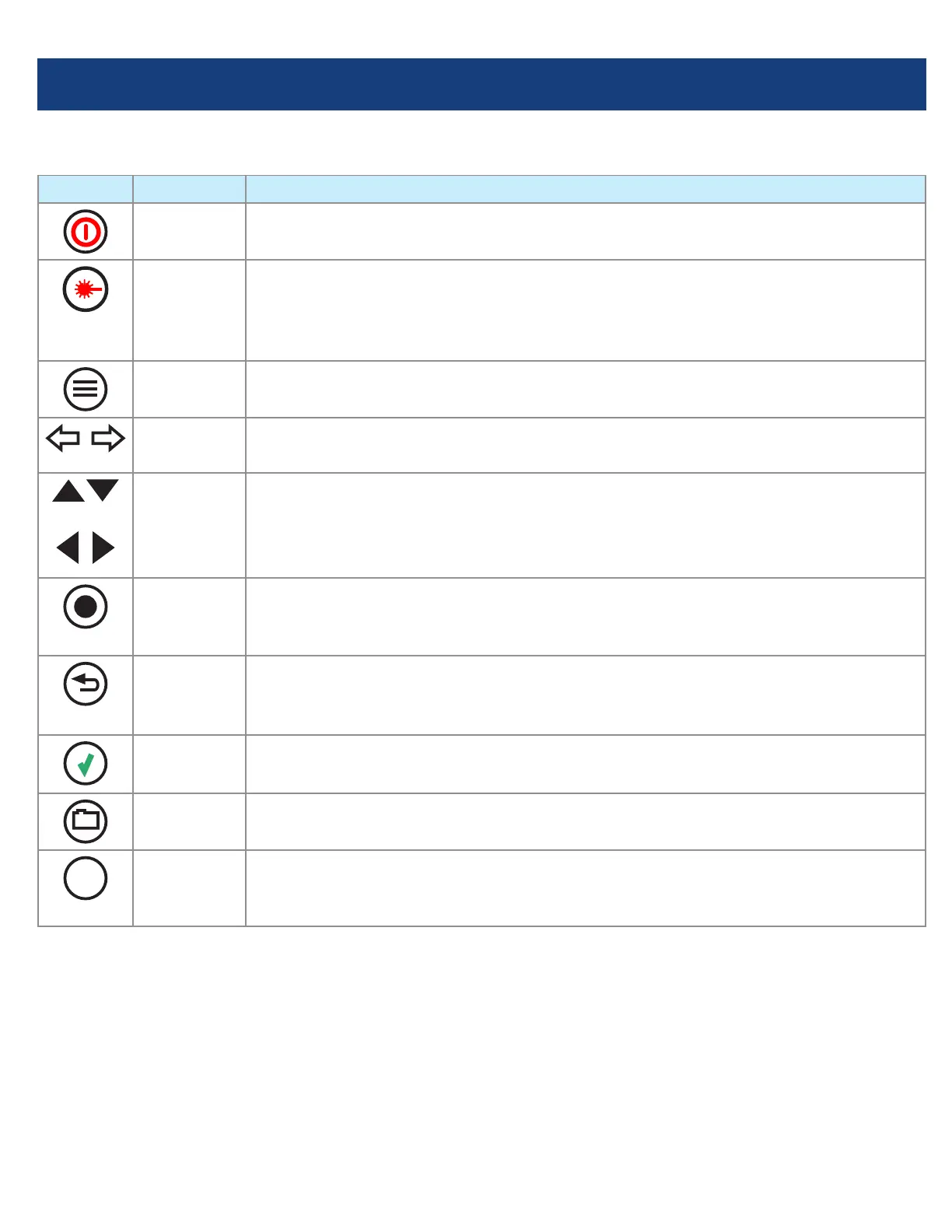
KEY NAME KEY FUNCTION
Power Press and hold (~1 second) to turn the FLX380 on or off.
VFL Visual Fault Locator (red laser):
ON - Press and hold (~1 second) LED will ash.
ON - Press and hold (~2 seconds) LED will be solid.
OFF - Press and hold (~1 second) LED should be OFF.
Menu Press to access the Main Menu.
Left & Right
Tab keys
Press to display the next/previous available Menu Tab or Test View Tab.
Arrow
(Navigation)
keys
The arrow keys provide several functions:
•Main Menu: these keys are used to navigate menus and change setup parameters.
•Trace Page: in the Zoom mode, these keys are used to adjust zoom. In the Move
mode, Left and Right keys are used to move cursors.
Select (A/B) This key provides several functions:
•Main Menu: press to display a submenu (if available).
•Trace Page: press to toggle the active cursor between A and B.
Back Press once to return to the previous page.
Press one or more times, depending on which menu or editor submenu is displayed,
to return to the Main Menu.
Test Press to start or stop a test.
Save Provides several functions: save the currently displayed test results; set current
folder; set current le name; review results.
F1
Soft keys
(under
display)
The label shown in the display above each soft key (F1, F2 or F3) indicates the
current function for that key.
Press to select the indicated function.
Functional Keys



 To Next Page