-
25
-
M F N-E- A2
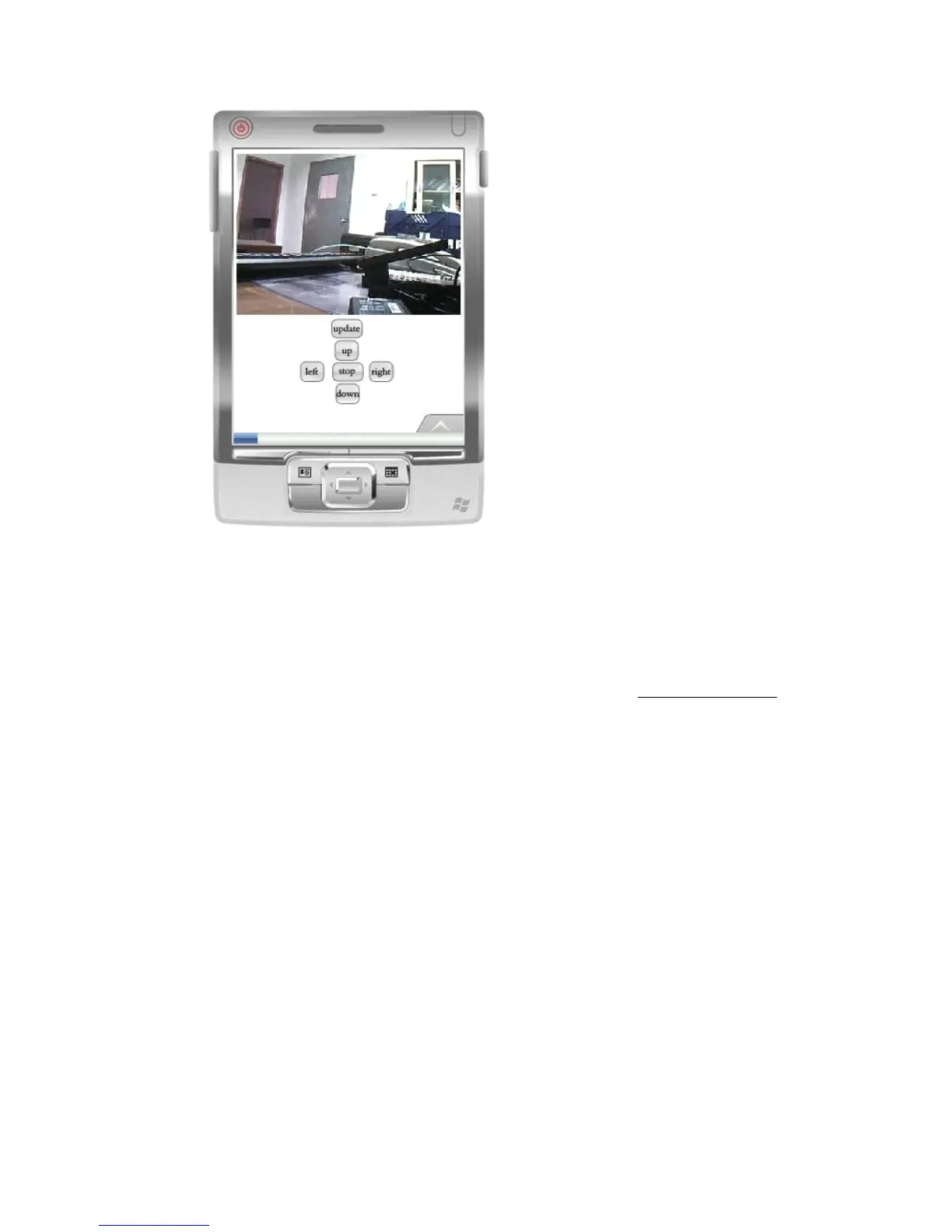
Instruction for the Key Function:
:
Update: it is used to refresh the page. I f the monitor piture is kept still, you may press this
key to update the page.
U p, down, left, and right: They are used to rotate the camera P/T. T he camera without P/T
does not have these keys.
S top: Stop to rotate the camera P/T
T he Download address of the mobile browser Opera mini: http://mini.opera.com .
Download the Opera mini browser according to the mobile model.
6
6
6
6 .
.
.
. Others
Others
Others
Others
6
6
6
6 .1.
.1.
.1.
.1. Port
Port
Port
Port Forwarding
Forwarding
Forwarding
Forwarding S
S
S
S ettings
ettings
ettings
ettings in
in
in
in router
router
router
router
When users visit the IP camera via outside web, port forwarding settings in
router is a needed. Different brands of routes called the port forwarding differently,
but basically their operation method are the same.
Let
’
s take the TP-LINK TD-8840 router
’
s port mapping setting for example.
Router
’
s inner web IP address is 192.168.1.1, IP camera
’
s inner web address is
192.168.1.50 , and port is 85.
1. First log in router
’
s web administration interface.
2. Click “ Advanced Setup ” on the left side



 To Next Page