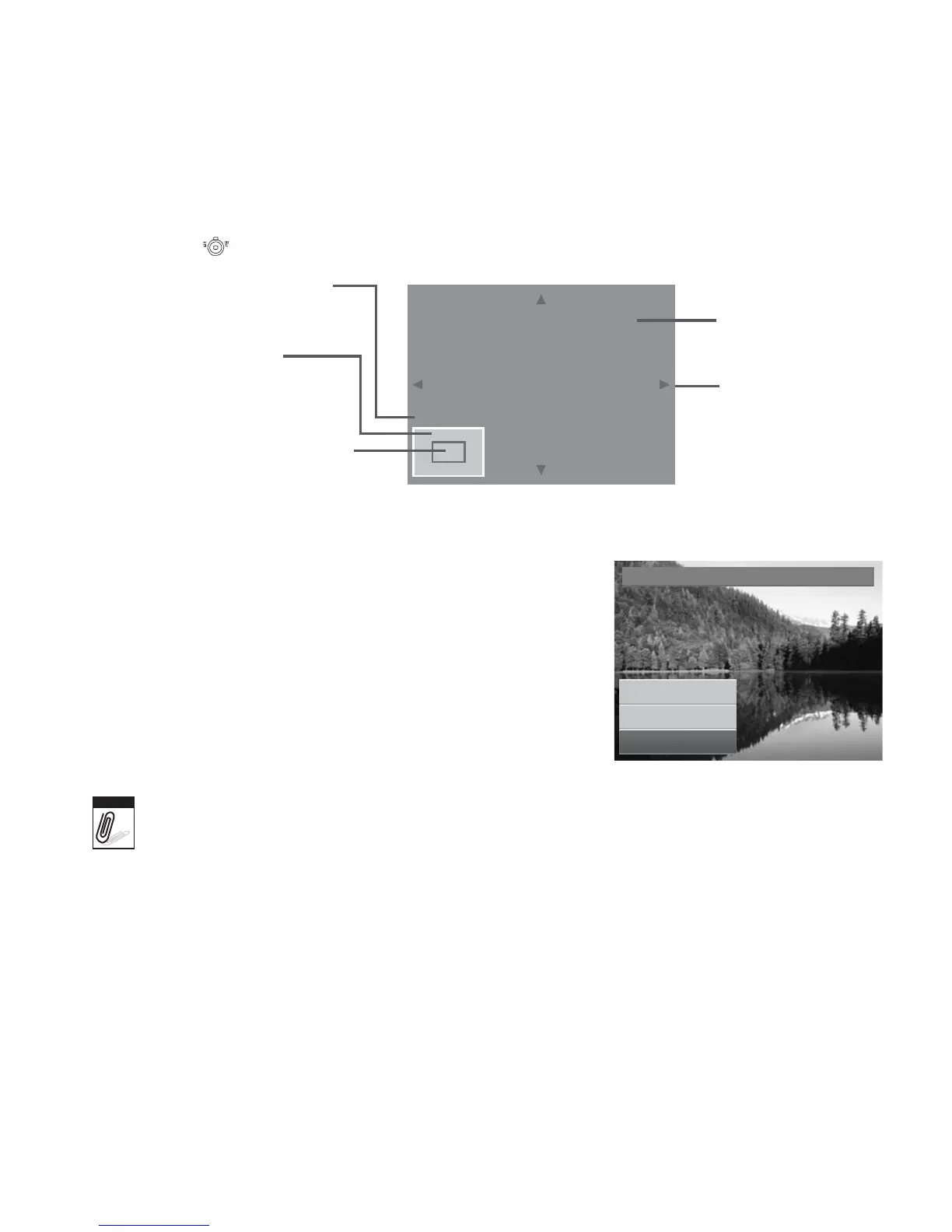
5. Use the control to change size.
Current image size.
Display area.
Enlarged image.
4-way indicator.
Shows the approximate location
of the displayed area.
SET:
5M
6. Use the navigation controls to move the image.
7. Press the SET button to apply changes. A menu
selection appears.
8. Select whether to:
• Overwrite. Save and replace the old file with
the new one.
• Save As. Save the new file as a new one.
• Cancel. Cancel resize.
9. Press the SET button to save/cancel changes.
Trim
Overwrite
Save
As
Cancel
Note
• Trim function, “3:2”, “16:9” and VGA are not available for photos with image size set to
VGA.
• All images will be trimmed in 4:3 ratio regardless of its original image ratio.




 To Next Page