EasyManua.ls Logo

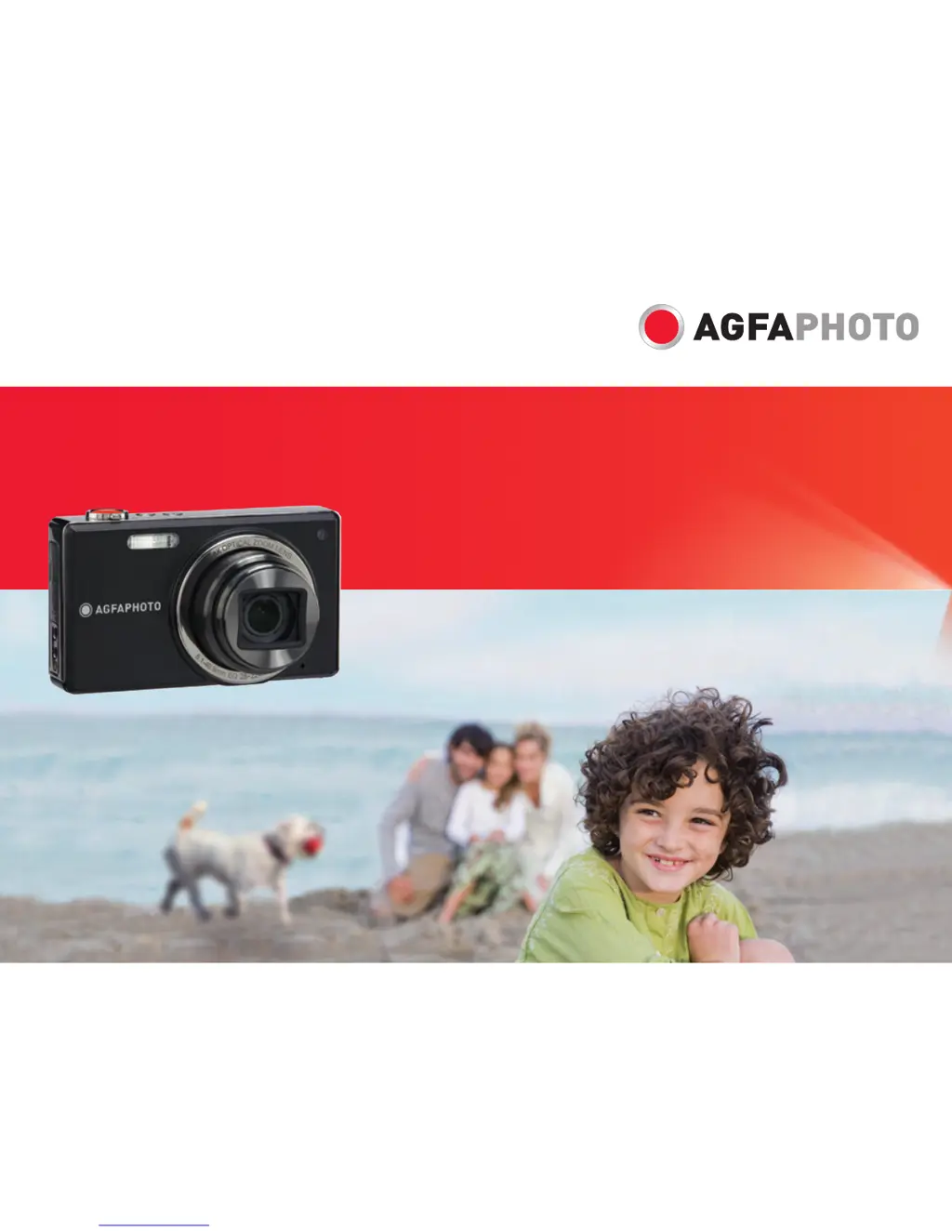
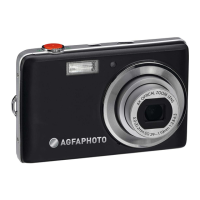
AgfaPhoto OPTIMA 3 - User Manual

AgfaPhoto OPTIMA 3
80 pages
Print Icon
To Next Page IconTo Next Page
Loading...
OPTIMA 3
User manual

Table of Contents

Other manuals for AgfaPhoto OPTIMA 3

Questions and Answers

  • B
    brandy18Aug 10, 2025
    What to do if AgfaPhoto OPTIMA 3 Digital Camera images and video files cannot be saved?
    • J
      Jessica MillerAug 10, 2025
      If your AgfaPhoto Digital Camera isn't saving images and video files, the memory card might be full, so replace it with a new one. Alternatively, try deleting unwanted images or unlocking the memory card.
  • P
    perkinspaulAug 16, 2025
    How to fix blurred pictures on AgfaPhoto OPTIMA 3 Digital Camera?
    • D
      Debra BrownAug 16, 2025
      If your pictures are blurred when using the AgfaPhoto Digital Camera, the lens may be dirty. Use a soft cloth to clean the lens. You can also use the OIS mode.
  • H
    hgillAug 22, 2025
    Why AgfaPhoto OPTIMA 3 does not turn on?
    • T
      Tiffany DanielAug 22, 2025
      Your AgfaPhoto Digital Camera might not be turning on because the battery has run out, so replace it with a fully charged battery. Also, the battery might not be inserted correctly, so ensure it is and replace with a fully charged battery.
  • E
    Elizabeth AndersonAug 28, 2025
    What to do if AgfaPhoto OPTIMA 3 turns off suddenly?
    • L
      Lucas WalkerAug 28, 2025
      If your AgfaPhoto Digital Camera turns off suddenly during operation, it is likely because the battery has run out. Replace it with a fully charged battery.
  • L
    leonardhallSep 2, 2025
    What to do if AgfaPhoto Digital Camera does not take picture when pressing the Shutter button?
    • T
      Tonya MaysSep 2, 2025
      If your AgfaPhoto Digital Camera doesn't take a picture when you press the shutter button, the memory card may be full. Try replacing it or deleting unwanted images to free up space. Another reason could be that the memory card is locked, so ensure it is unlocked.

Summary

Warning and Safety Precautions

General Safety Warnings

General warnings about exposure to elements and electrical hazards.

FCC Statement

Compliance statement for FCC rules in the USA.

CE Mark Compliance

Explanation of the CE mark for European market compliance.

Safety Precautions

Camera Environmental Safety

Precautions regarding environmental conditions for camera operation and storage.

Battery Safety Guidelines

Instructions for safe handling and use of camera batteries.

Memory Card Usage

Guidelines for formatting and using memory cards with the camera.

Before You Start

General Product Safety

Essential safety guidelines before operating the camera, covering handling and environmental exposure.

Using the Modes

Using the Menus

Appendices

Error Messages and Solutions

Common error messages and troubleshooting steps for camera issues.

Getting Ready

Unpacking and Package Contents

Details of items included in the camera package upon purchase.

Camera Views

Charging the Battery

Battery Charging Procedure

Step-by-step instructions for charging the camera's battery.

Inserting Battery and Memory Card

Opening Battery Compartment

Instruction on how to access the camera's battery and memory card compartment.

Inserting the Battery

Guide on correctly inserting the battery into the camera.

Inserting the Memory Card

Instructions for inserting an SD/SDHC memory card into the camera.

Closing Battery Compartment

Instruction on how to close the camera's battery compartment after inserting components.

Turning On and Off

Powering the Camera On and Off

Procedure for switching the camera on and off using the power button.

Using the Mode Button

Setting Date;Time and Language

Setting the Date and Time

Step-by-step guide to configure the camera's date and time settings.

Setting the Language

Procedure for selecting and setting the camera's user interface language.

About the LCD Screen

LCD Screen Handling and Safety

Precautions for handling the LCD screen, including water exposure and liquid crystal safety.

Basic Operation

Shooting in Auto Mode

Guide to using the automatic mode for simple and optimal photo taking.

Using the Zoom Function

Explanation of how to use both optical and digital zoom for framing subjects.

Basic Functions Menu

Advanced Functions Menu

Image Quality and Size Settings

Color Settings

LCD Screen Display Details

Video Shooting Mode Display

Playback Mode Display

Auto Scene Mode (ASCN)

ASCN Mode Overview

Explanation of the automatic scene detection mode and its benefits for simplified shooting.

Panorama Mode

Creating Panoramic Pictures

Instructions on how to use the panorama mode to capture and stitch multiple images.

Manual Scene Mode (SCN)

Selecting Scene Types

Guide to selecting from 12 preset scene types for optimal shooting.

Face Detection

Enabling and Using Face Detection

Instructions on how to activate and use the face detection feature for enhanced portraits.

Smile Detection

Capturing Smiling Faces

Guide on using the smile detection feature to automatically capture photos when a smile is detected.

Blink Detection

Detecting and Warning for Blinks

Explanation of the blink detection feature and how it warns about closed eyes in photos.

Playback

Viewing Photos and Videos

Instructions on how to navigate and view recorded photos and video clips.

Thumbnail View

Using Zoom Playback

Using the Delete Button

Deleting Pictures or Videos

Procedure for deleting photos and videos from the camera in playback mode.

Still Picture Menu Navigation

AF Mode (Auto-Focus mode)

Exposure Metering

Continuous Shot

Digital Zoom

OIS Stabilization

Movie Menu

Configuring Movie Settings

Guide to accessing and adjusting settings within the movie recording menu.

Playback Menu

File Protection and Deletion

Options to protect files from accidental deletion and to permanently remove selected files.

Trim

Resize

Red-eye Reduction

Setup Menu

General Setup Options

Accessing and adjusting general camera settings like beep, brightness, power saver, date/time, and language.

File and Software Management

Reset Settings

Transmission

Connecting to a PC

Setting USB Mode

How to configure the camera's USB connection mode for PC or Printer.

Transferring Files to PC

Steps for transferring photos and videos from the camera to a computer using a USB cable.

Customer Care

Service and Repair Contact

Contact details for customer service and repair hotlines in EU, UK, and Germany.

AgfaPhoto OPTIMA 3 Specifications

General IconGeneral
BrandAgfaPhoto
ModelOPTIMA 3
CategoryDigital Camera
LanguageEnglish

Related product manuals