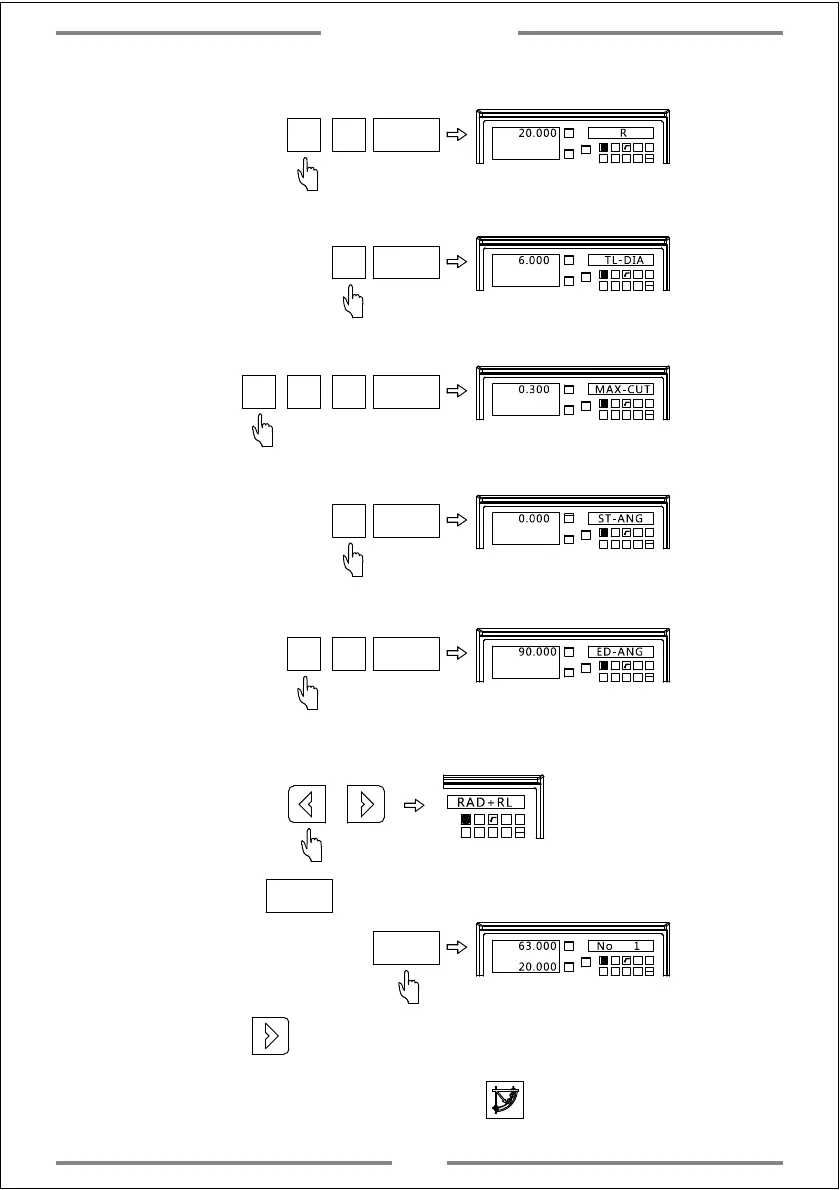
Step 5: Input the arc radius
0
ENT
X0
Y0
X
1 32
-
+
CLS Arc
sin
TOOL
20.000
R
2
Step 6: Input the tool diameter
6
ENT
X0
Y0
X
1 32
-
+
CLS Arc
sin
TOOL
6.000
TL-DIA
Step 7: Input the maximum cutting amount
3
ENT
X0
Y0
X
1
32
-
+
CLS Arc
sin
TOOL
0.300 MAX-CUT
·
0
Step 8: Input the starting angle
0
ENT
X0
Y0
X
1 32
-
+
CLS Arc
sin
TOOL
0.000 ST-ANG
Step 9: Input the end angle
0
ENT
X0
Y0
X
1 32
-
+
CLS Arc
sin
TOOL
90.000 ED-ANG
9
Step 10: Select the arc plane convex
1 32
-
+
CLS
Arc
sin
TOOL
RAD+RL
Note:RAD-RL indicates concave
Step 11: Press to enter the machining,and the first point will be
displayed.
ENT
X0
Y0
X
1 32
-
+
CLS Arc
sin
TOOL
63.000
No 1
20.000
Step 12: Press to display the following machining point.Move the table
until the value of axis become zero,at this time,the zero point indicates the
exact position for the machining point.Press to exit the smooth R function.
ENT
Special Function
29



 To Next Page