8 | AC Series - Quick Start Guide
Inputs and Outputs
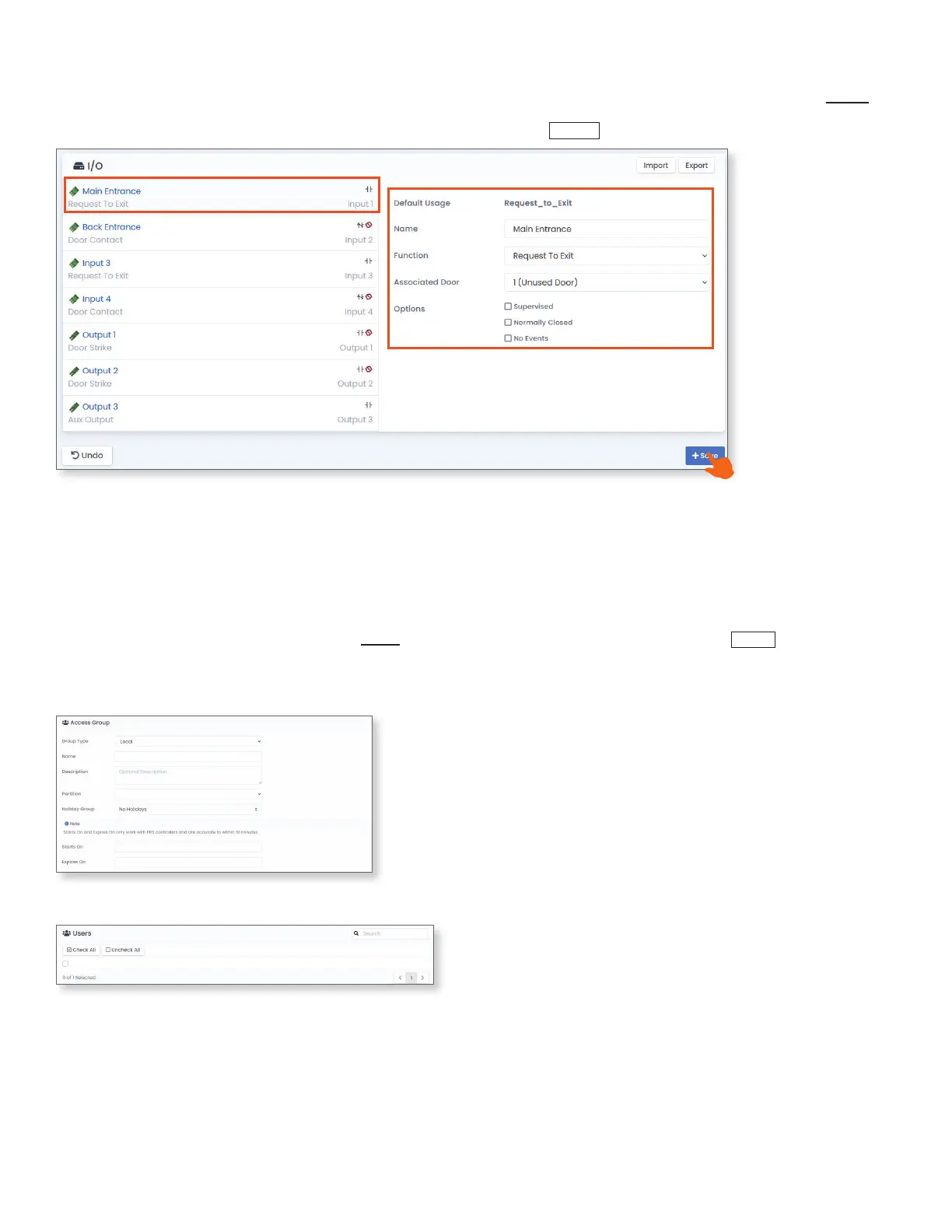
Once the door is congured, the door's inputs and outputs must be programmed. To congure these, navigate to Hardware, Panels.
Click on the cogwheel icon for the panel with the inputs and outputs to be programmed. Navigate to I/O. Select the I/O Expander
board to be edited on the left, and make the desired changes on the right. Click
+Save
.
Creating Access Privilege Groups
Access Privilege Groups are a way to delegate access for an entire group. Users can be added to Access Privilege Groups for easy
management. For example, an access group can be created for dierent departments in a company based on the access or restrictions
required for those specic employees. Under the Users section, select Access Privilege Groups, then click
+Add
.
Give the Access Group a Name, Enter a detailed Description of the group, and assign the group to a Partition. If needed, apply a
Holiday Group schedule. A Start and End date can be set for the group (optional). Once the group expires, the group will no longer
grant access.
A description of specic input and output functions can be found on the last two pages of this document.
Note: If door contact is selected as an input and no connection is made, the door will always read open and will not perform an unlock
function. This is because by default, the door is set to automatically lock when the door is open.
Select any existing users to be added to the group. Users can also be added when they are added to the system.
John Smith
Access Group Partition
Access Group Name





 To Next Page