EasyManua.ls Logo

Aiwa NSX-SZ310 - CD Operations; Basic Playback; Track Navigation and Search; Random and Repeat Playback

Aiwa NSX-SZ310
12 pages
Print Icon
To Next Page IconTo Next Page
To Previous Page IconTo Previous Page
Loading...
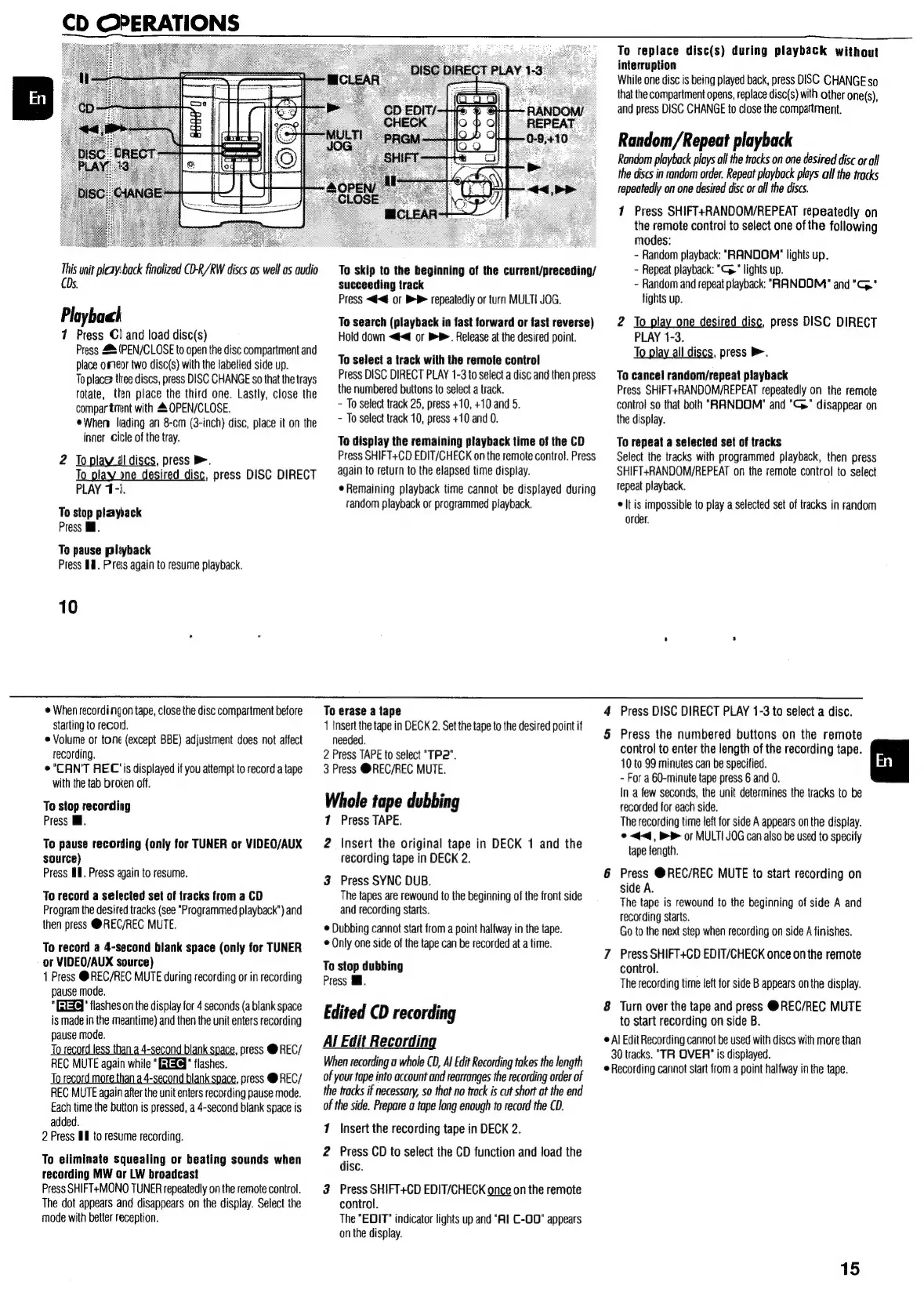
CD
OPERATIONS
This
unit
playback
finalized
CD-R/RW
discs
as
well
as
audio
CDs.
Playbaah
1
Press
G)
and
load
disc(s)
Press
4%
(PEN/CLOSE
to
open
the
disc
compartment
and
place
omeor
two
disc(s)
with
the
labelled
side
up.
Toplace
t
compartment
with
4
OPEN/CLOSE.
When
liading
an
8-cm
(3-inch)
disc,
place
it
on
the
inner
Cicle
of
the
tray.
2
Tool
I
discs,
press
>.
To
pl
n
ired
disc,
press
DISC
DIRECT
PLAY
1-3.
To
stop
playback
Press
Mi.
To
pause
pliyback
Press
#8.
Pras
again
to
resume
playback.
10
©
When
recordingon
tape,
close
the
disc
compartment
before
starting
to
record.
©
Volume
or
tone
(except
BBE)
adjustment
does
not
affect
recording.
©"CAN'T
REC
‘is
displayed
if
you
attempt
to
record
a
tape
with
the
tab
broken
off.
To
stop
recording
Press
il.
To
pause
recording
(only
for
TUNER
or
VIDEO/AUX
source)
Press
Ill.
Press
again
to
resume.
To
record
a
selected
set
of
tracks
from
a
CD
Program
the
desired
tracks
(see
"Programmed
playback")
and
then
press
@REC/REC
MUTE.
To
record
a
4-second
blank
space
(only
for
TUNER
or
VIDEO/AUX
source)
1
Press
@REC/REC
MUTE
during
recording
or
in
recording
pause
mode.
"
[GTXq"
flashes
on
the
display
for
4
seconds
(a
blank
space
is
made
in
the
meantime)
and
then
the
unit
enters
recording
pause
mode.
Tor
4-second
blank
,
press
@REC/
REC
MUTE
again
while
"
Yel"
flashes.
Torecord
more
than
a
4-second
blank
space,
press
@
REC/
REC
MUTE
again
after
the
unit
enters
recording
pause
mode.
Each
time
the
button
is
pressed,
a
4-second
blank
space
is
added.
2
Press
Wl
to
resume
recording.
To
eliminate
squealing
or
beating
sounds
when
recording
MW
or
LW
broadcast
Press
SHIFT+MONO
TUNER
repeatedly
on
the
remote
control.
The
dot
appears
and
disappears
on
the
display.
Select
the
mode
with
better
reception.
ee
discs,
press
DISC
CHANGE
so
that
the
trays
rotate,
tten
place
the
third
one.
Lastly,
close
the
To
skip
to
the
beginning
of
the
current/preceding/
succeeding
track
Press
<<
or
BP
repeatedly
or
turn
MULTI
JOG.
To
search
(playback
in
fast
forward
or
fast
reverse)
Hold
down
<@<@
or
BB.
Release
at
the
desired
point.
To
select
a
track
with
the
remote
control
Press
DISC
DIRECT
PLAY
1-3
to
select
a
disc
and
then
press
the
numbered
buttons
to
select
a
track.
-
To
select
track
25,
press
+10,
+10
and
5.
-
To
select
track
10,
press
+10
and
0.
To
display
the
remaining
playback
time
of
the
CD
Press
SHIFT+CD
EDIT/CHECK
on
the
remote
control.
Press
again
to
return
to
the
elapsed
time
display.
¢
Remaining
playback
time
cannot
be
displayed
during
random
playback
or
programmed
playback.
To
erase
a
tape
1
Insert
the
tape
in
DECK
2.
Set
the
tape
to
the
desired
point
if
needed.
2
Press
TAPE
to
select
"TP2".
3
Press
@REC/REC
MUTE.
Whole
tape
dubbing
1
Press
TAPE.
2
Insert
the
original
tape
in
DECK
1
and
the
recording
tape
in
DECK
2.
3
Press
SYNC
DUB.
The
tapes
are
rewound
to
the
beginning
of
the
front
side
and
recording
starts.
Dubbing
cannot
start
from
a
point
halfway
in
the
tape.
¢
Only
one
side
of
the
tape
can
be
recorded
at
a
time.
To
stop
dubbing
Press
.
Edited
CD
recording
Al
Edit
Recording
When
recording
a
whole
CD,
Al
Edit
Recording
tokes
the
length
of
your
tape
into
account
and
rearranges
the
recording
order
of
the
tracks
if
necessary,
so
that
no
track
is
cut
short
at
the
end
of
the
side.
Prepare
a
tape
long
enough
to
record
the
CD.
17
Insert
the
recording
tape
in
DECK
2.
2
Press
CD
to
select
the
CD
function
and
load
the
disc.
3
Press
SHIFT+CD
EDIT/CHECK
once
on
the
remote
control.
The
"EDIT"
indicator
lights
up
and
“Al
C-OD"
appears
on
the
display.
4
5
8
To
replace
disc(s)
during
playback
without
interruption
While
one
disc
is
being
played
back,
press
DISC
CHANGE
so
that
the
compartment
opens,
replace
disc(s)
with
other
one(s),
and
press
DISC
CHANGE
to
close
the
compartment.
Random/Repeat
playback
Random
playback
plays
all
the
tracks
on
one
desired
disc
or
all
the
discs
in
random
order.
Repeat
playback
ploys
all
the
tracks
repeatedly
on
one
desired
disc
or
all
the
discs.
7
Press
SHIFT+RANDOM/REPEAT
repeatedly
on
the
remote
control
to
select
one
of
the
following
modes:
-
Random
playback:
"RANDOM"
lights
up.
~
Repeat
playback:
"C”
lights
up.
-
Random
and
repeat
playback:
"RANDOM"
and
"G."
lights
up.
2
To
play
one
desired
disc,
press
DISC
DIRECT
PLAY
1-3.
To
play
all
discs,
press
B.
To
cancel
random/repeat
playback
Press
SHIFT+RANDOM/REPEAT
repeatedly
on
the
remote
contro}
so
that
both
"RANDOM"
and
"Cy"
disappear
on
the
display.
To
repeat
a
selected
set
of
tracks
Select
the
tracks
with
programmed
playback,
then
press
SHIFT+RANDOM/REPEAT
on
the
remote
control
to
select
repeat
playback.
©
lt
is
impossible
to
play
a
selected
set
of
tracks
in
random
order.
Press
DISC
DIRECT
PLAY
1-3
to
select
a
disc.
Press
the
numbered
buttons
on
the
remote
control
to
enter
the
length
of
the
recording
tape.
10
to
99
minutes
can
be
specified.
-
For
a
60-minute
tape
press
6
and
0.
In
a
few
seconds,
the
unit
determines
the
tracks
to
be
recorded
for
each
side.
The
recording
time
left
for
side
A
appears
on
the
display.
©
<q,
>
0
MULTI
JOG
can
also
be
used
to
specify
tape
length.
Press
@REC/REC
MUTE
to
start
recording
on
side
A.
The
tape
is
rewound
to
the
beginning
of
side
A
and
recording
starts.
Go
to
the
next
step
when
recording
on
side
A
finishes.
Press
SHIFT+CD
EDIT/GHECK
once
onthe
remote
control.
The
recording
time
left
for
side
B
appears
on
the
display.
Turn
over
the
tape
and
press
@REC/REC
MUTE
to
start
recording
on
side
B.
Al
Edit
Recording
cannot
be
used
with
discs
with
more
than
30
tracks.
"TR
OVER"
is
displayed.
Recording
cannot
start
from
a
point
halfway
in
the
tape.
15

Other manuals for Aiwa NSX-SZ310

Related product manuals