Hi5-Plus Mini-Converter v1.7r1 10 www.aja.com
Mac Startup
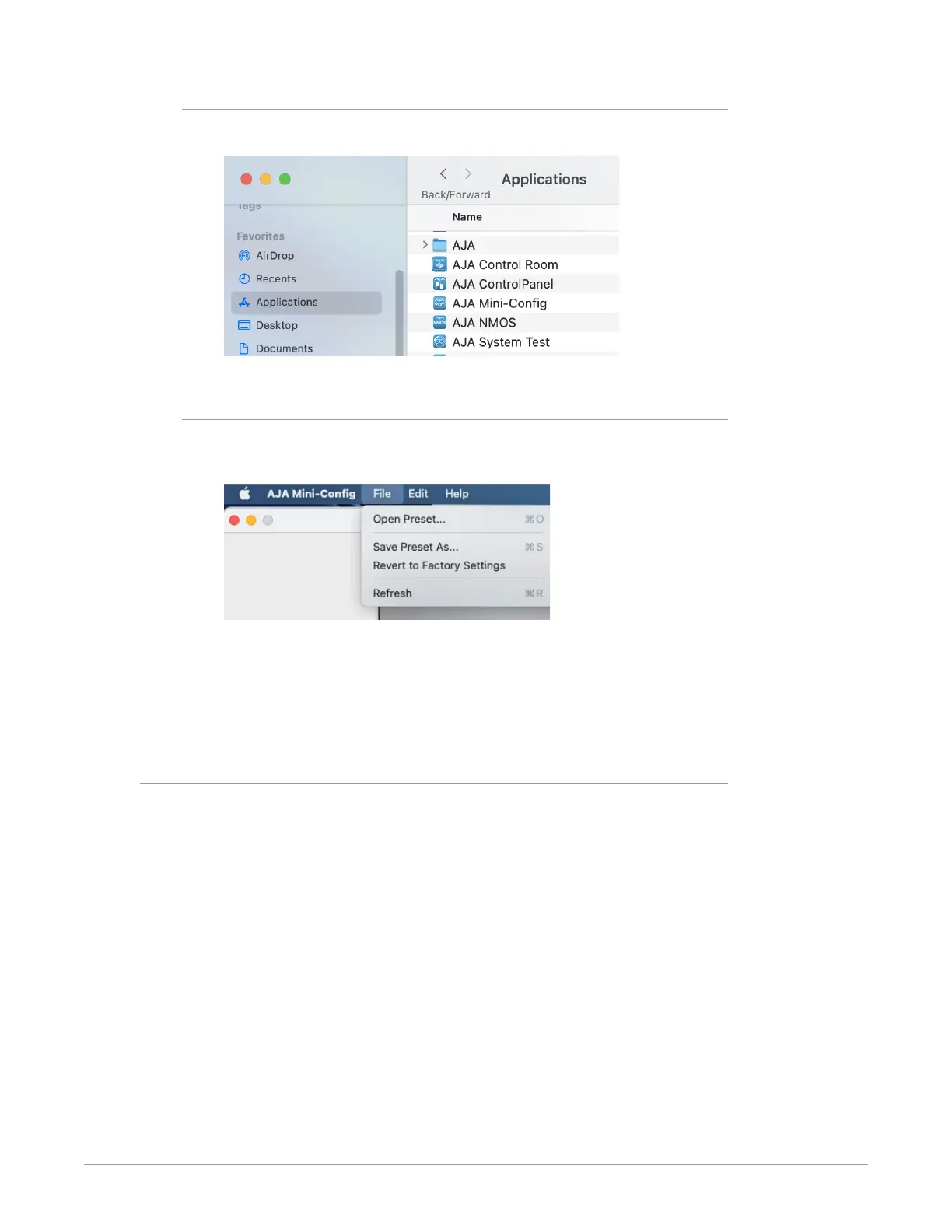
To run Mini-Config on a Mac, open the Applications folder and locate the AJA
Mini-Config application. Double-click the application to launch it.
Saving Setups
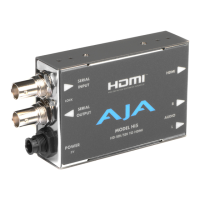
A File drop down menu on the Mini-Config application bar (similar for Mac and
PC) allows you to save the current state of the Mini-Converter to a preset file for
later recall.
Using this feature you can set up the converter for different applications, storing
each configuration (Save Preset As...) with a unique name for easy recall (Open
Preset...).
A Revert to Factory Settings menu item similarly allows you to change the
settings back to AJA’s factory defaults.
Operating Mini-Config
The Mini-Config application provides a graphic interface for viewing settings
and updating software. It consists of an information area at the top that shows
the available Mini-Converters attached to the computer via USB, with a graphical
rendering of the selected Mini-Converter showing all the connectors and their
current state.
Colored text next to the connectors indicates the signal type and what the Mini-
Converter is doing:
• Blue text indicates the values automatically selected
• Black text indicates values that you have manually selected
• Red text indicates the Mini-Converter is not detecting a signal, or cannot
operate with the current user settings.
NOTE: Even if no output device is detected, the SDI connector text still shows the signal it
is outputting.
NOTE: Configuration settings in red will change based on the attached output device as
well as input signals. For improved accuracy and reliability, you should configure
the Mini-Converter only when the target output device is attached and input
signals are supplied at the inputs.


 To Next Page