48 EDIT SAMPLE - RECORDING AND EDITING
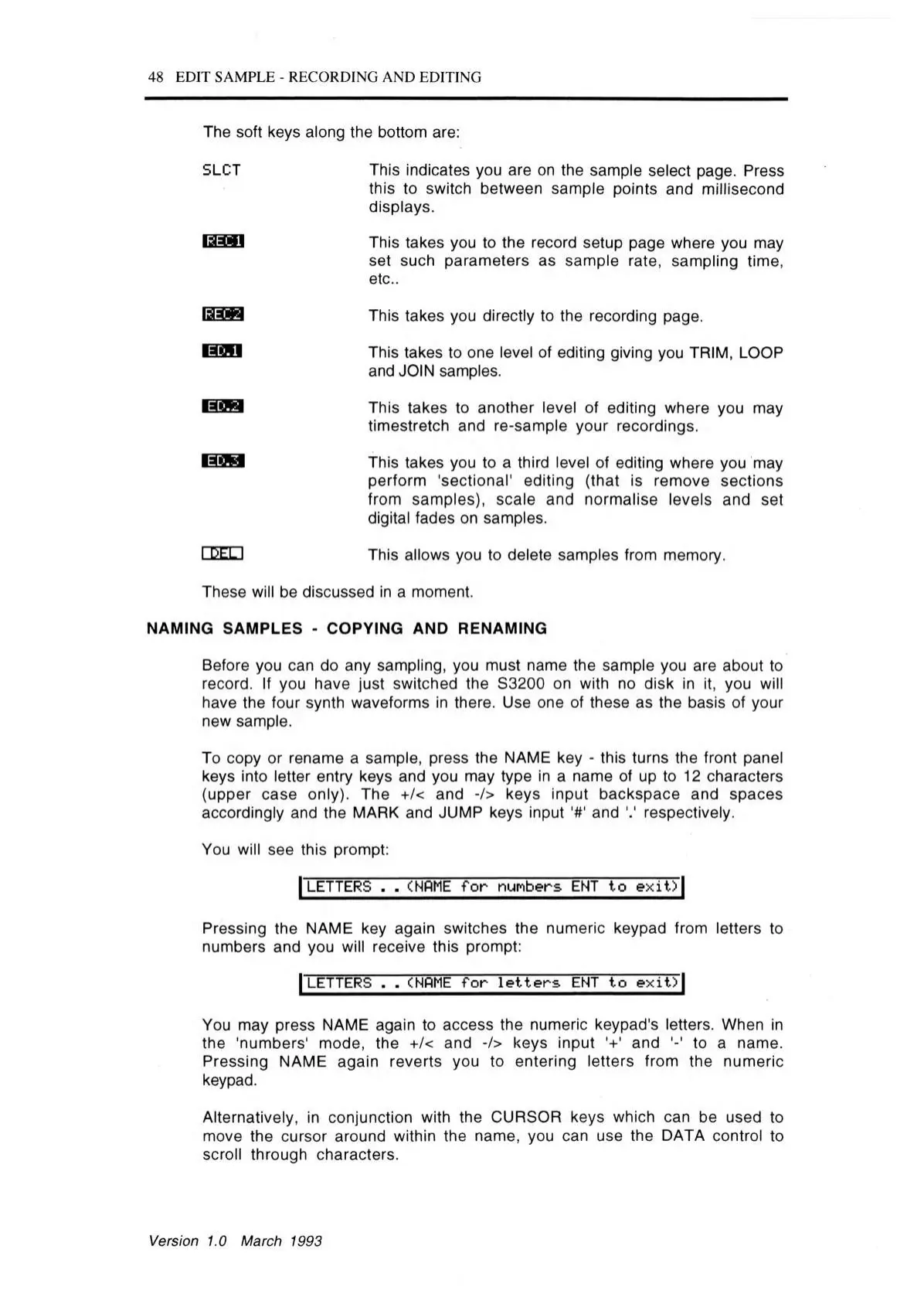
The soft keys along the bottom are:
SLOT This indicates you are on the sample select page. Press
this to switch between sample points and millisecond
displays.
This takes you to the record setup page where you may
set such parameters as sample rate, sampling time,
etc..
m m This takes you directly to the recording page.
This takes to one level of editing giving you TRIM, LOOP
and JOIN samples.
n a g This takes to another level of editing where you may
timestretch and re-sample your recordings.
m s This takes you to a third level of editing where you may
perform 'sectional' editing (that is remove sections
from samples), scale and normalise levels and set
digital fades on samples.
This allows you to delete samples from memory.
These will be discussed in a moment.
NAMING SAMPLES - COPYING AND RENAMING
Before you can do any sampling, you must name the sample you are about to
record. If you have just switched the S3200 on with no disk in it, you will
have the four synth waveforms in there. Use one of these as the basis of your
new sample.
To copy or rename a sample, press the NAME key - this turns the front panel
keys into letter entry keys and you may type in a name of up to 12 characters
(upper case only). The +/< and -/> keys input backspace and spaces
accordingly and the MARK and JUMP keys input '#' and '.' respectively.
You will see this prompt:
| LETTERS . . (NOME fo r nunbers ENT to e x it7 |
Pressing the NAME key again switches the numeric keypad from letters to
numbers and you will receive this prompt:
| LETTERS . . (NOME fo r le tte rs ENT to exit)~|
You may press NAME again to access the numeric keypad's letters. When in
the 'numbers' mode, the +/< and -/> keys input '+' and '-' to a name.
Pressing NAME again reverts you to entering letters from the numeric
keypad.
Alternatively, in conjunction with the CURSOR keys which can be used to
move the cursor around within the name, you can use the DATA control to
scroll through characters.
Version 1.0 March 1993



 To Next Page