EDIT SAMPLE - RECORDING AND EDITING 71
and you should input a unique name. During the re-sampling process (which
is very quick but does depend on the length of the sample) you will receive
the message:
[_+*>Mc_BUSY_^_PLEflSE_JJflIT_++^
When the process is complete, you can play the new sample by pressing the
ELH3 key.
You can use the re-sampling facility to save on memory. In the studio where
you have time to load in new sounds this may not be so crucial but on-stage,
you ideally need to cram as much into the S3200 as possible. Even with 32
Megabytes of RAM installed, there will be occasions where you need to squeeze
that little bit more out of the samplers internal memory. In this respect, the
re-sampling functions are ideal - in fact, given that listening conditions at a
gig are nowhere near as critical as in the studio, you could afford to make
special 'gig disks' where the bandwidth is more limited than it could be to
save even more space in your memory.
EDIT 3 - SECTIONAL EDITING, NORMALISATION, DIGITAL FADES
ED.3 introduces new functions not previously found on the S1000/S1100.
Existing owners of these samplers are forgiven if you have not read the
previous section because the functions are virtually identical to the S1000
and SHOO. This next section will be of benefit to new and old users alike.
These new editing features include sectional editing, level rescaling and
normalisation and digital fades.
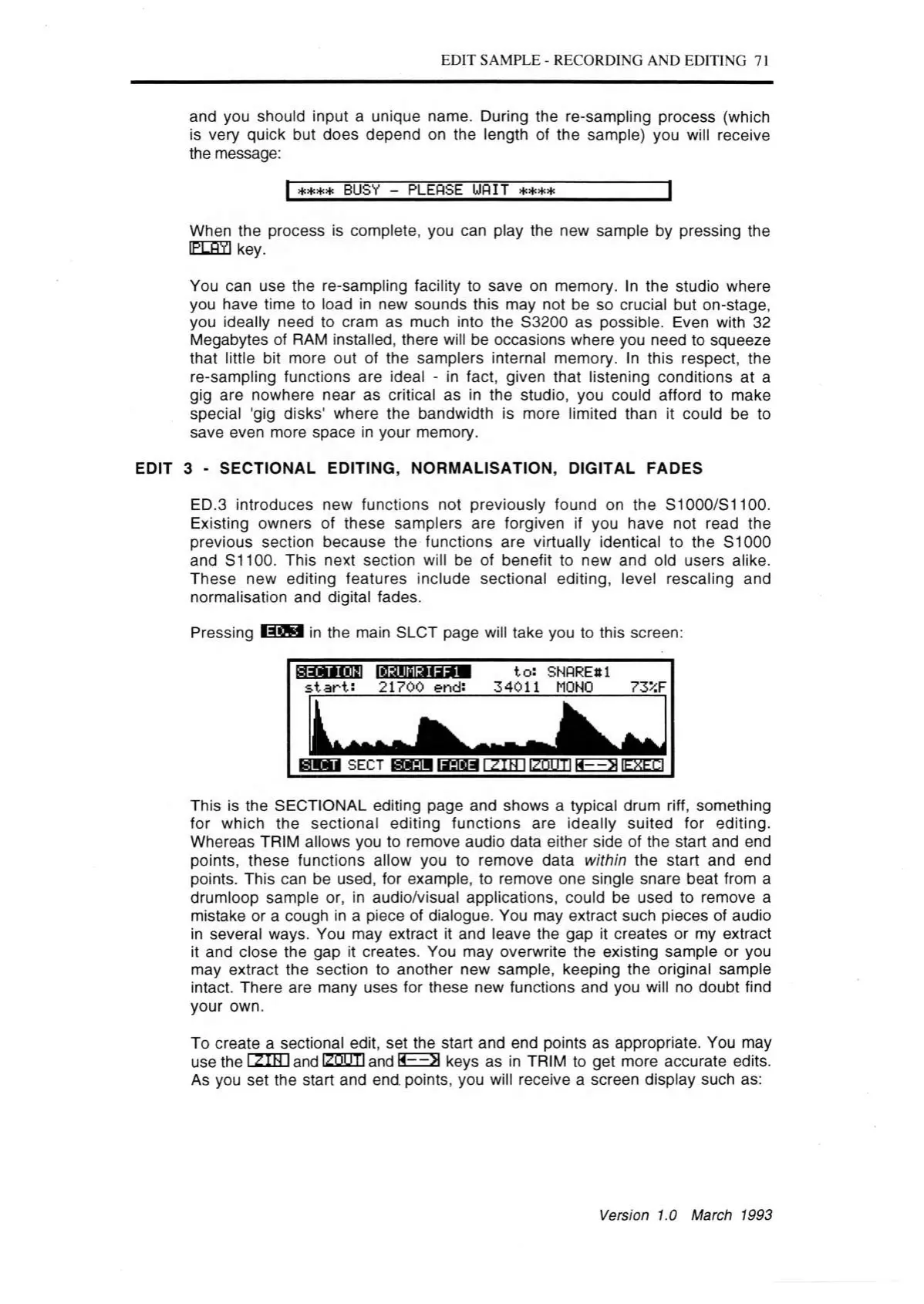
Pressing in the main SLCT page will take you to this screen:
ECTI OHM DRUMRIFE1
s ta rt: 21700 end:
to: SNORE# 1
34011 MONO 73*F
B H i sect taww it t n i irntm h--> i iexeci
This is the SECTIONAL editing page and shows a typical drum riff, something
for which the sectional editing functions are ideally suited for editing.
Whereas TRIM allows you to remove audio data either side of the start and end
points, these functions allow you to remove data within the start and end
points. This can be used, for example, to remove one single snare beat from a
drumloop sample or, in audio/visual applications, could be used to remove a
mistake or a cough in a piece of dialogue. You may extract such pieces of audio
in several ways. You may extract it and leave the gap it creates or my extract
it and close the gap it creates. You may overwrite the existing sample or you
may extract the section to another new sample, keeping the original sample
intact. There are many uses for these new functions and you will no doubt find
your own.
To create a sectional edit, set the start and end points as appropriate. You may
use the rz im and ESH I and SEES keys as in TRIM to get more accurate edits.
As you set the start and end. points, you will receive a screen display such as:
Version 1.0 March 1993



 To Next Page